If you manage websites for your clients, you can get email notifications for vulnerabilities or HTTP errors on both your websites and your clients’ from your account.
The following will give you a step by step guide you how to enable the website monitoring feature:
Step 1 – Login to hPanel. Once logged in to your Hostinger account, you will find quick access sections on the left sidebar. Click on the Monitoring tab, under the Websites dropdown.
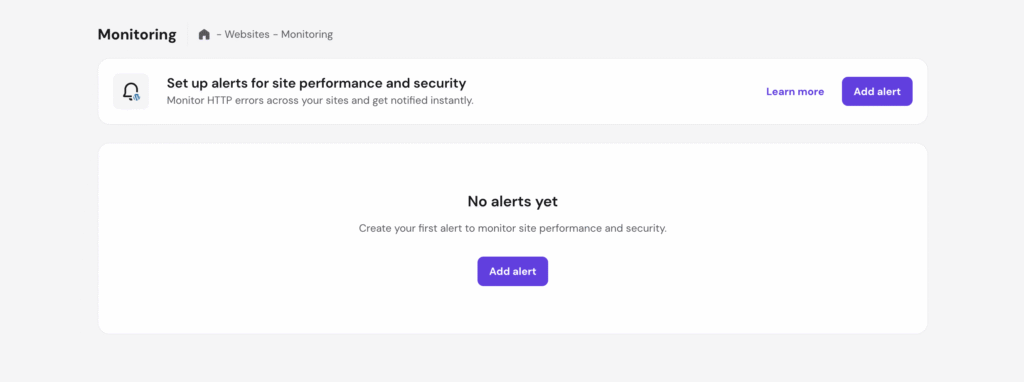
Step 2 – Click the button “Add alert“:
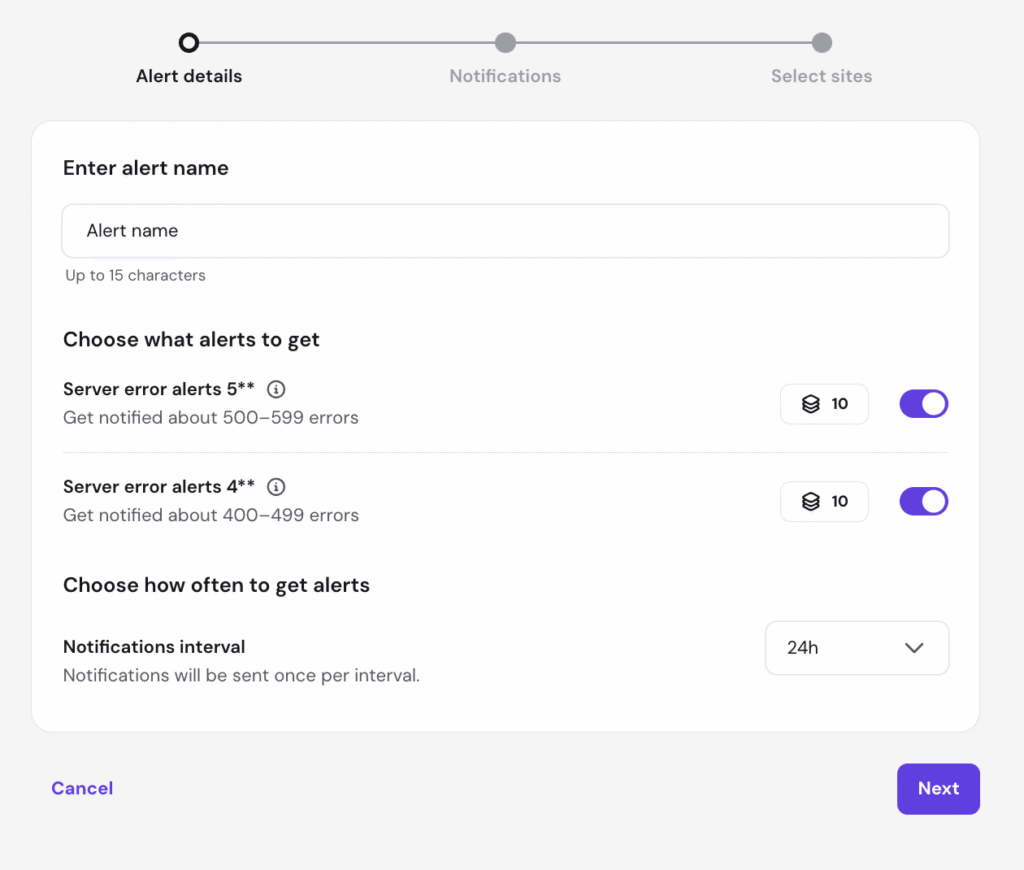
- Select what errors do you wish to track – 5xx, 4xx.
- Select threshold – choose how many errors must happen before you get an alert.
- Select notifications interval – choose how often you want to receive alerts.
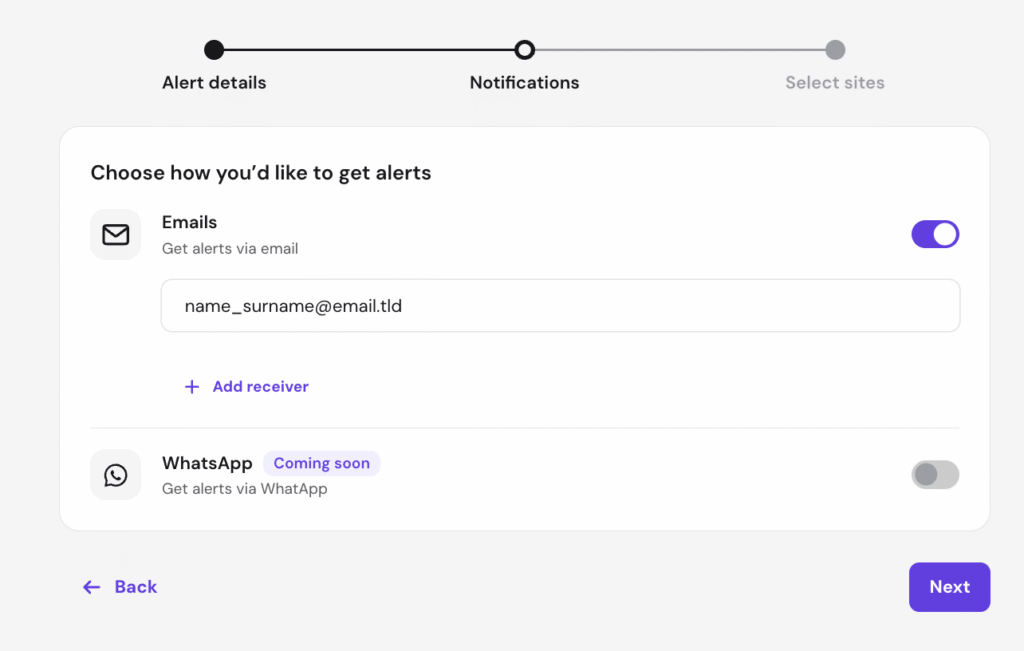
Step 4 – Select who will receive the alerts (you can add multiple receivers):
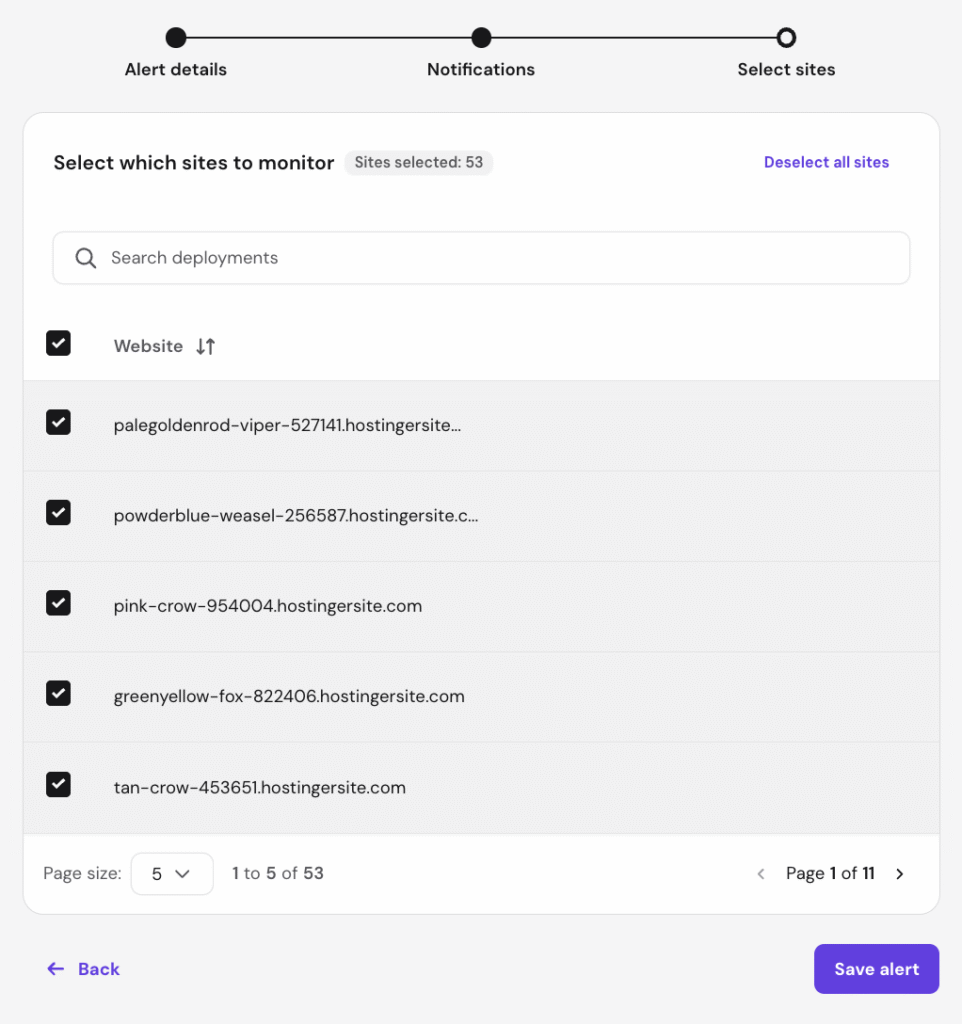
Step 5 – Select which websites you wish to include to the alert:
And save the alert! Once saved, you will see the result in Monitoring section:

You can enable/disable the alert, edit it or delete it.
Error Notification Details
Upon activation, email notifications will be sent to your account’s registered email address for the websites you manage (whether owned by you or your clients) in the following scenarios:
-
For HTTP 500, 503, and 404 errors on any CMS except for websites created using Hostinger Website Builder
This way you can anticipate and troubleshoot your client’s websites efficiently, ensuring continued service and enhanced security.