OpenCart is a popular open-source e-commerce platform that allows you to manage your online store with flexibility and ease. The Ubuntu 24.04 with OpenCart VPS template on Hostinger provides a pre-installed OpenCart setup integrated with the CloudPanel control panel. This guide will assist you in accessing and managing your OpenCart installation.
If you don’t have a VPS yet, check the available options here: OpenCart VPS Hosting 🚀
Accessing CloudPanel
Open your web browser and navigate to
https://[your-vps-ip]:8443. Replacing [your-vps-ip] with the actual IP address of your VPS.
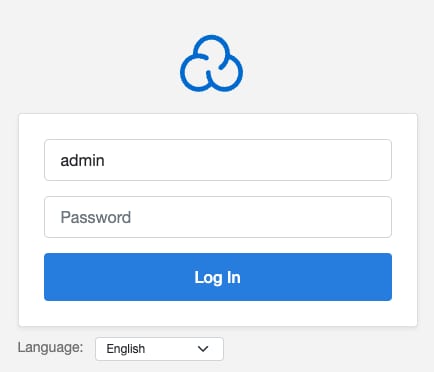
Now use the credentials you provided during template installation to log in to the CloudPanel interface:
Accessing Your OpenCart
Use your hostname to view your OpenCart shop. Add /admin to your hostname URL:
http://[your-vps-hostname]/admin
To reach the OpenCart login window:
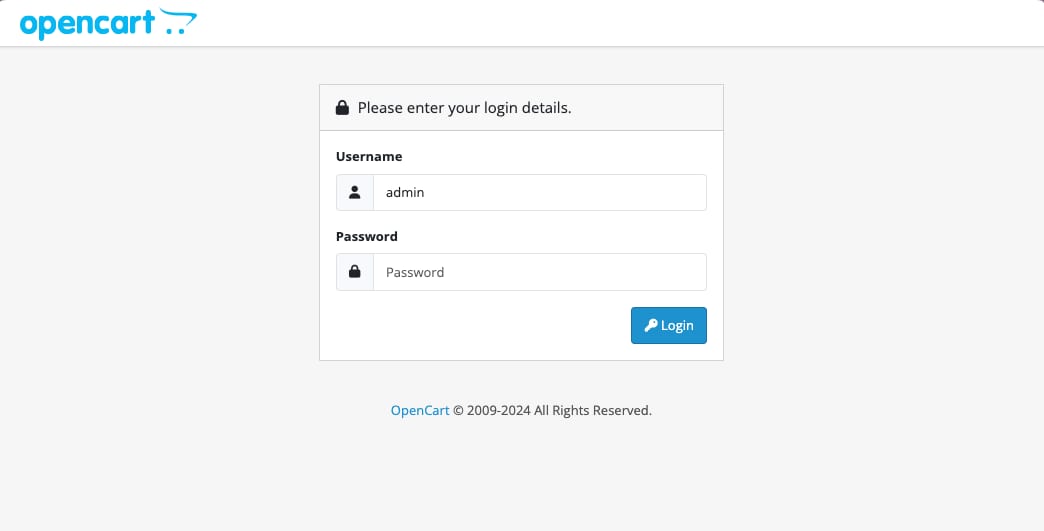
Use the following login credentials:
-
Username: admin
-
Password: the initial password you established during the template installation
Configuring Your OpenCart Store
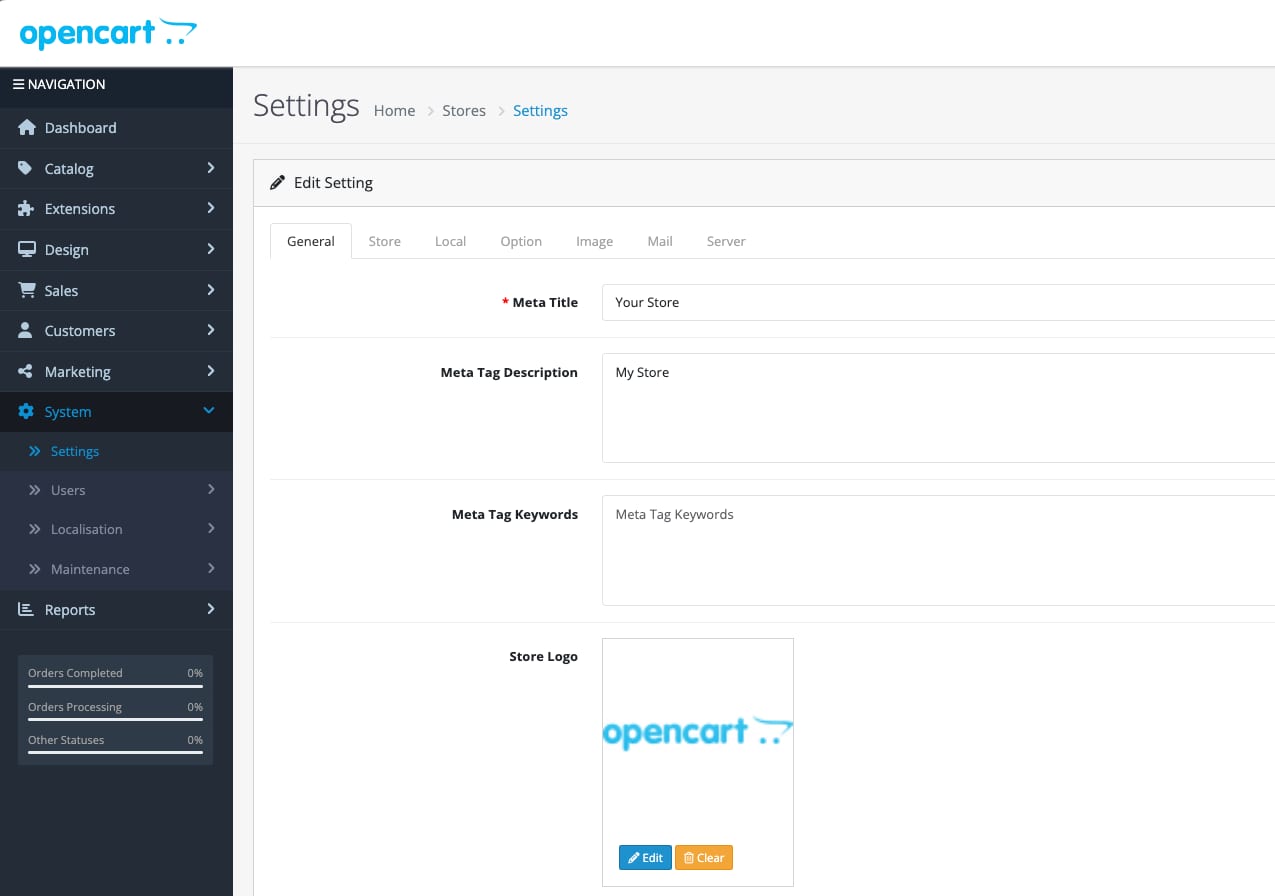
In the OpenCart admin dashboard, go to System → Settings to configure your store’s basic settings, such as store name, owner, address, email, and phone number.
Configure payment gateways and shipping methods under Extensions → Payments and Extensions → Shipping.
Customizing Your Store
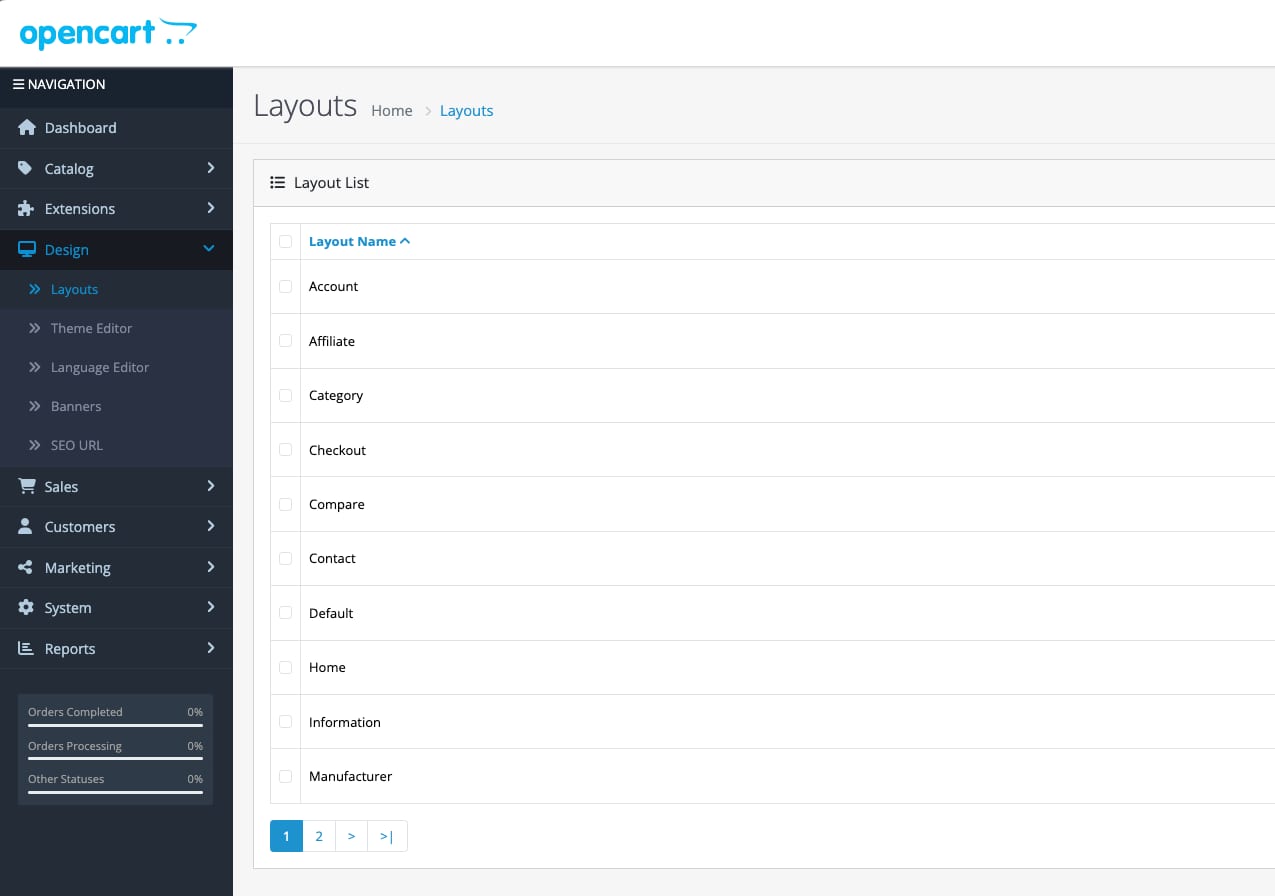
Change the appearance of your store by installing a new theme or modifying the existing layout. This can be done under Design option on the sidebar.
Navigate to Catalog → Products to start adding your products. Include descriptions, prices, photos, and other relevant details.
Extending Functionality
OpenCart has a marketplace where you can download additional extensions and modules that enhance your store’s functionality. Access this through Extensions → Marketplace.
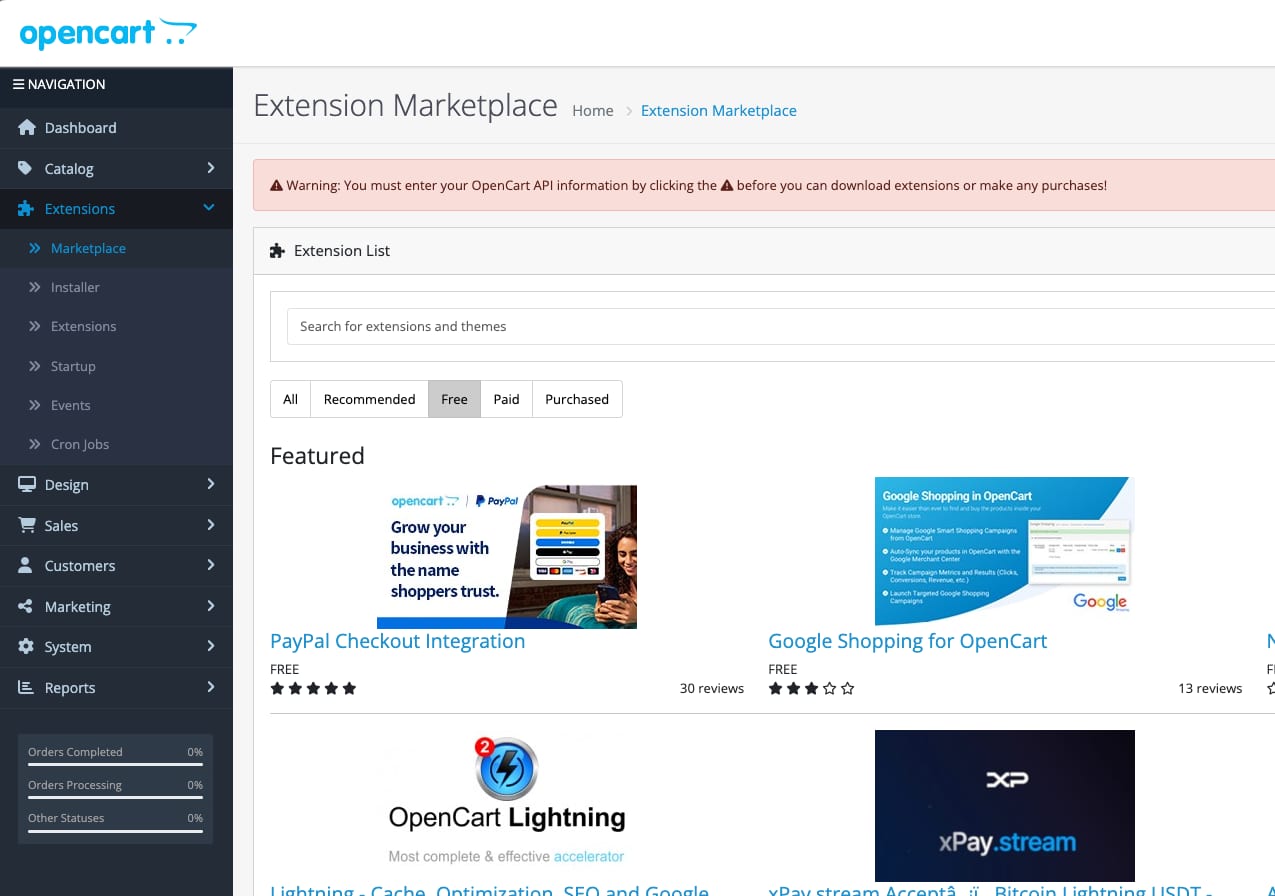
Enabling SEO URLs for OpenCart
To use SEO URLs in OpenCart, follow these steps:
-
Click on the toggle next to Use SEO URLs in OpenCart administration settings to enable it:

-
Login to your VPS CloudPanel and select a site to manage, go to the Vhost menu tab and add the following configurations
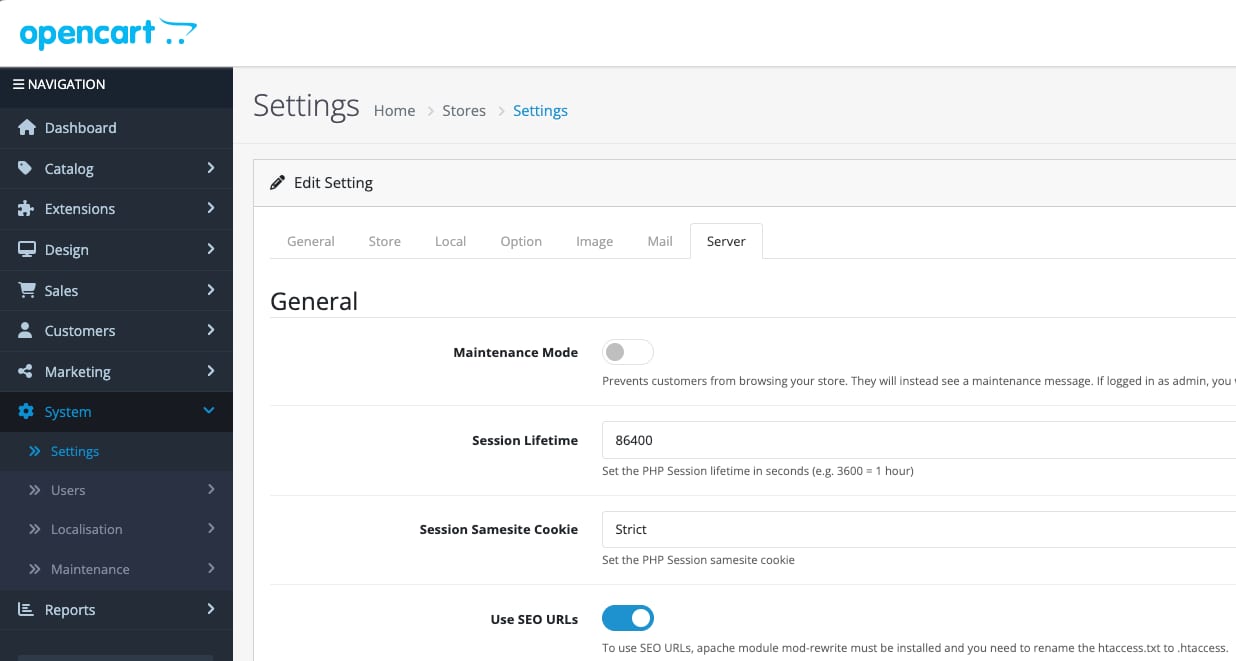
After #{{settings}}, add:
location = /sitemap.xml {
    rewrite ^(.*)$ /index.php?route=feed/google_sitemap break;
  }

  location = /googlebase.xml {
    rewrite ^(.*)$ /index.php?route=feed/google_base break;
  }
After proxy_temp_file_write_size 256k; add:
try_files $uri $uri/ @opencart;
Before location ~* add:
  location @opencart {
    rewrite ^/(.+)$ /index.php?_route_=$1 last;
  }
And save the new configuration.
If you want OpenCart to run on your domain, point your domain to the VPS IP address, change the server hostname, and reinstall the server.
Additional Resources
-
For detailed guidance on using OpenCart, refer to the official documentation