In the Websites section of your Hostinger account, find your site created with Hostinger Website Builder and click on Edit website. From there, you can reach all the AI tools ✨
Generating Pages
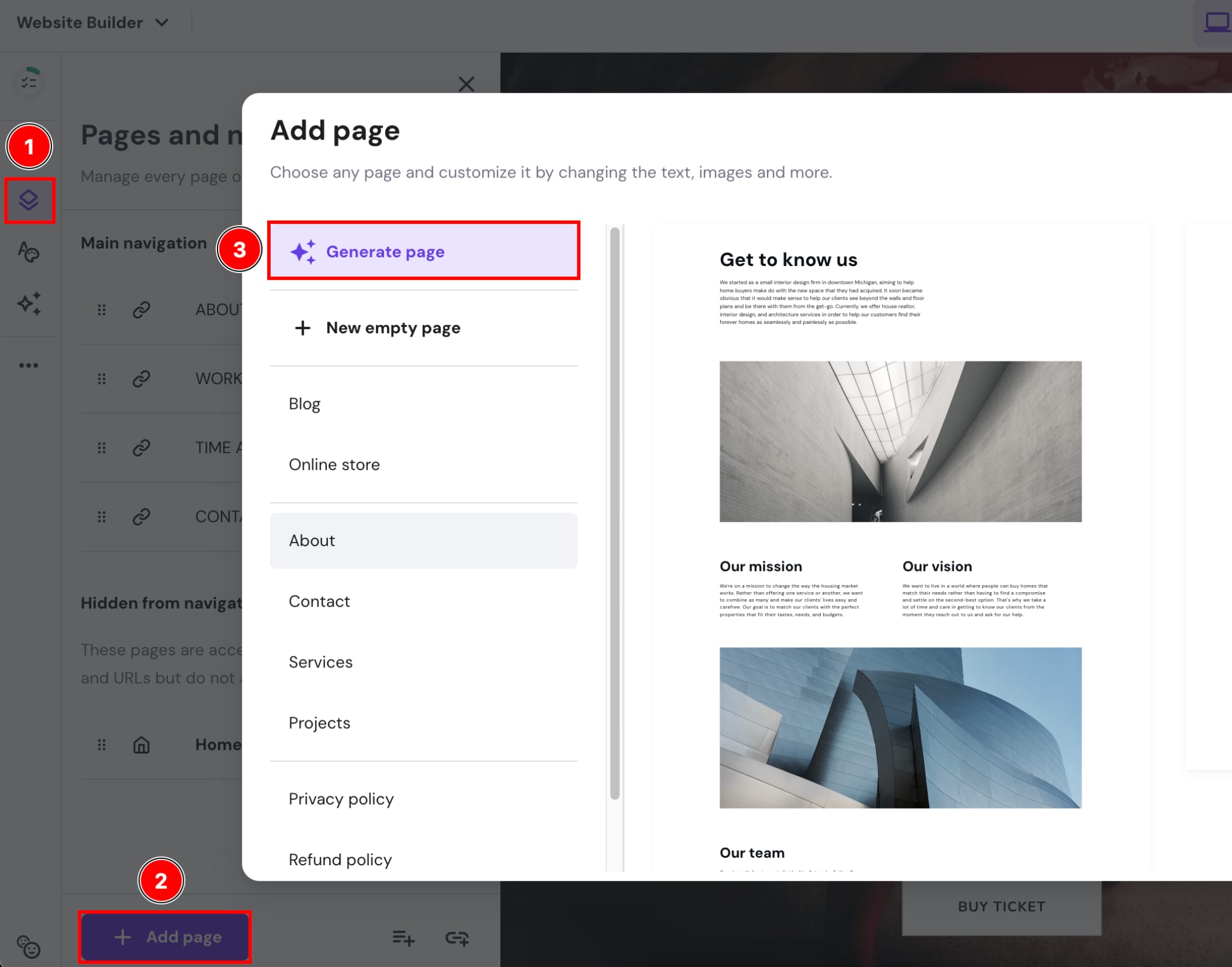
To generate a website page, expand the Pages and navigation panel on the left. Then, click on Add page, and select Generate page:
Insert your page description and click on Create page:
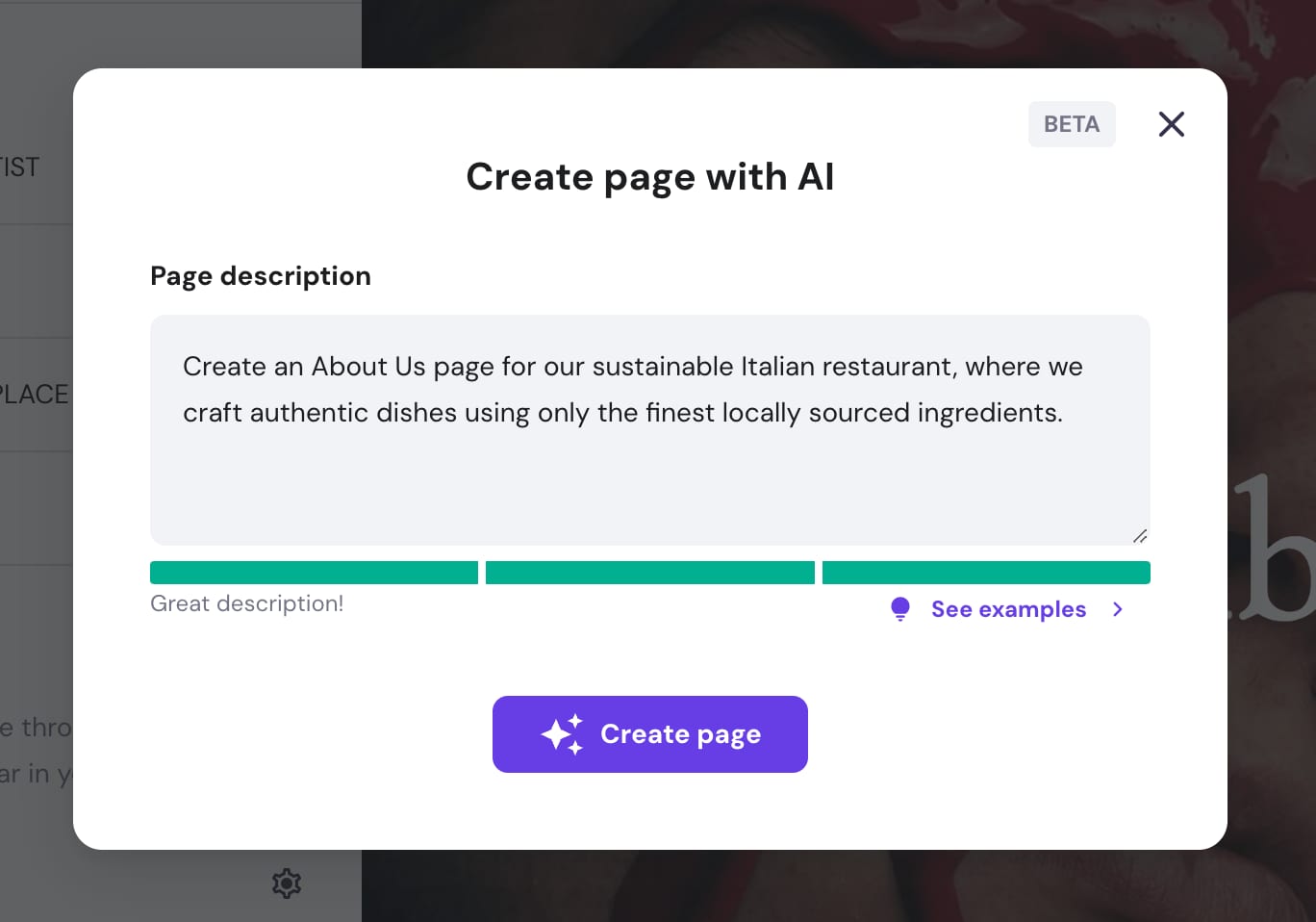
The generated page will be soon added to your site; you can customize it however you like. To push the changes online, update your website.
Generating Sections
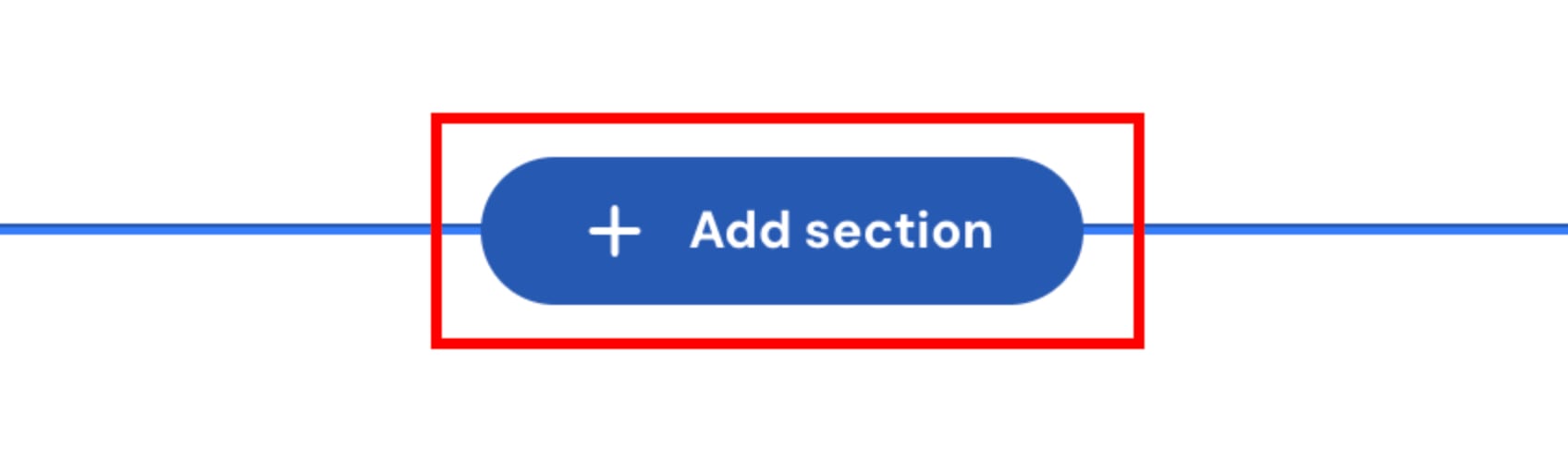
To generate a website section, click on the Add section button; you’ll see it between two adjoining sections:
Then, click on Generate section:
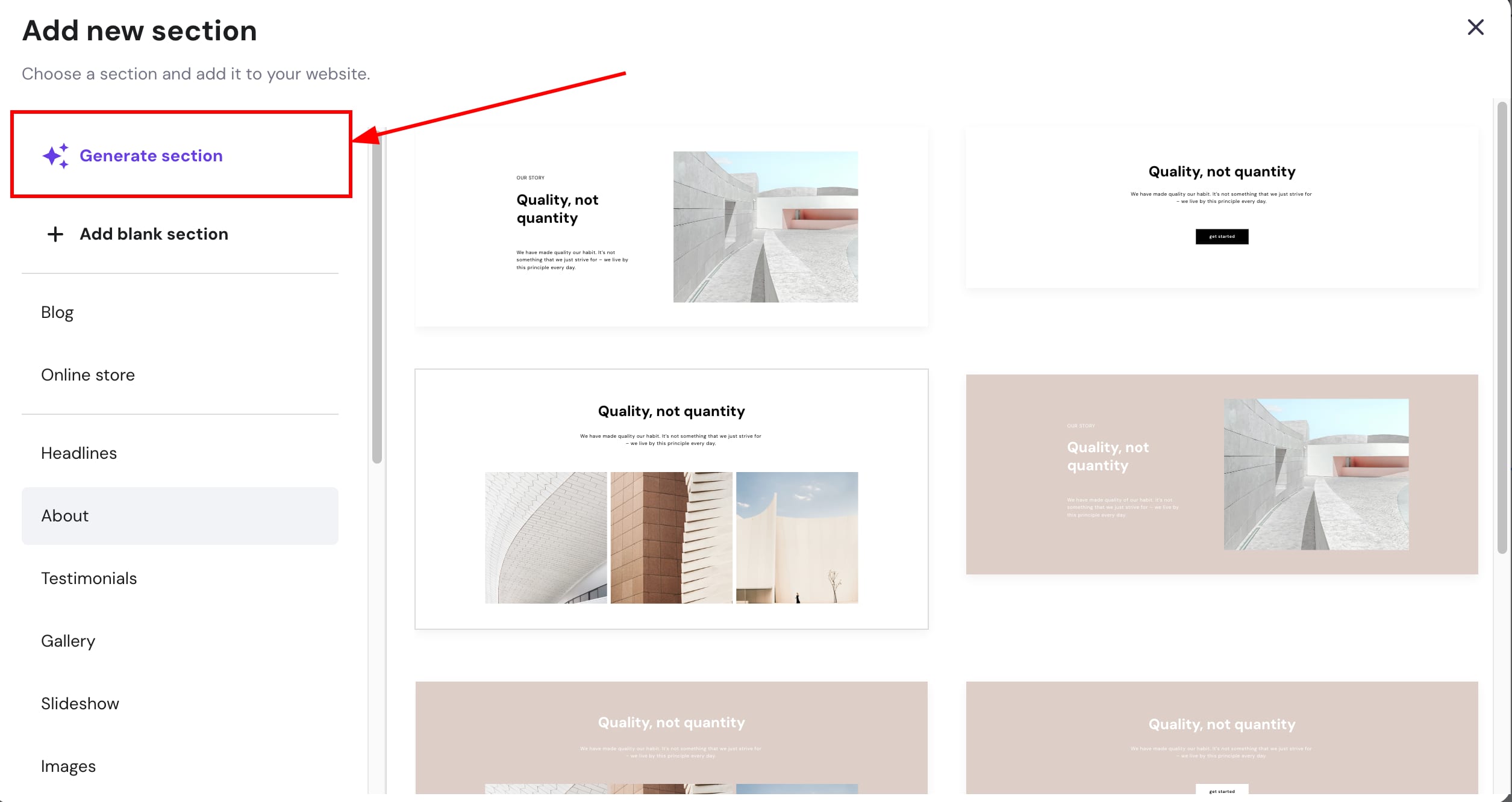
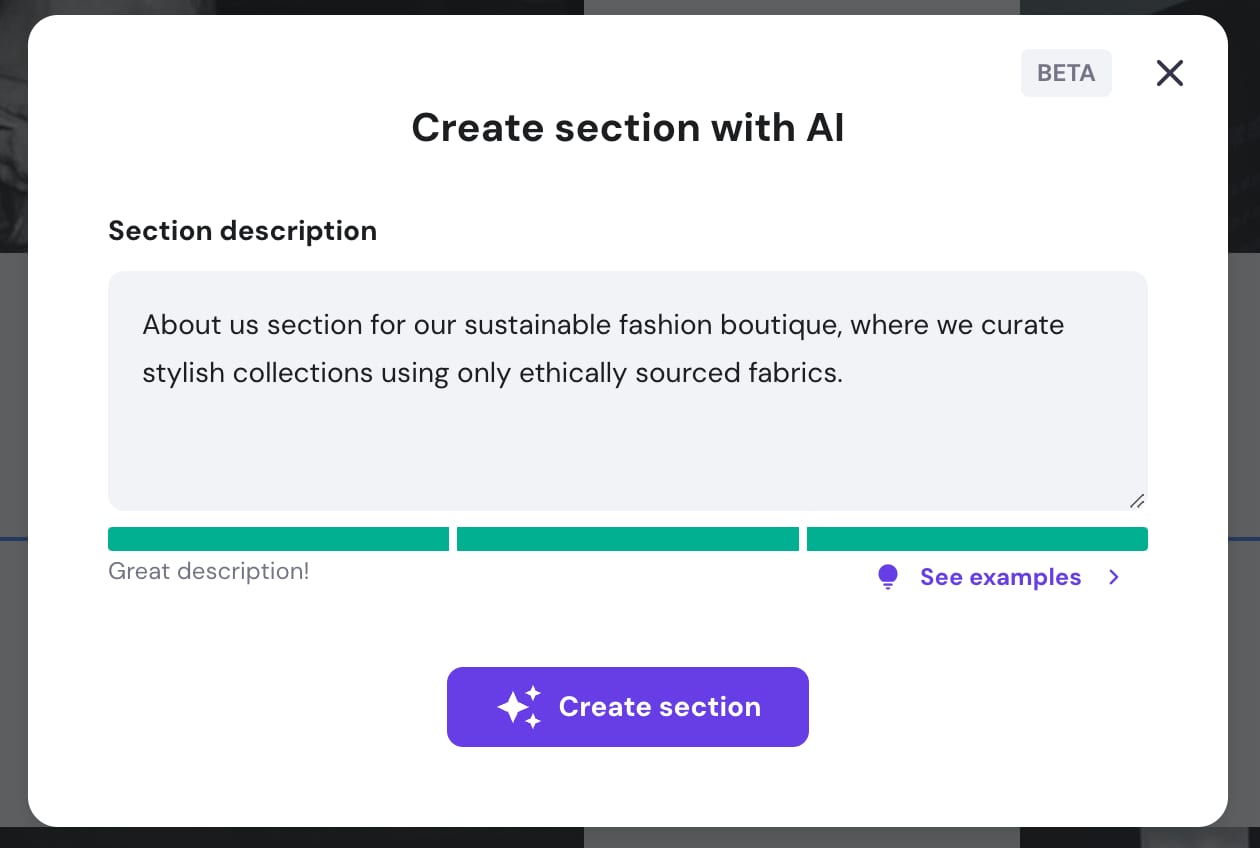
Insert your section description and click on Create section:
The generated section will be soon added to your site; you can customize it however you like. To push the changes online, update your website.