When adding a custom domain to your web, cloud, or agency hosting plan, a message indicating that the domain is already in use may appear. This acts as a checkpoint to prevent routing conflicts and does not impact your actual domain ownership.
Depending on where the domain is currently connected, the interface displays different messages:
- If a domain is already used within your current Hostinger account, the Domain connected to site message appears. For subdomains that are already added, the
Your domain can't have active subdomainsmessage is shown instead. In these cases, no further actions are required. Navigate to the hPanel Websites page and locate the desired website using the search bar. - The
Already used at Hostingermessage specifically indicates that the domain name is linked to an existing website on a separate Hostinger account.
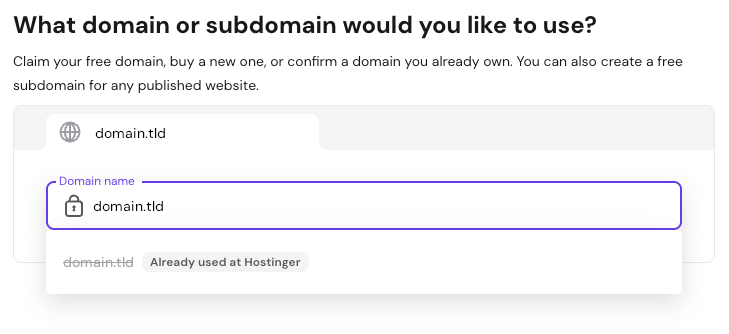
This situation can happen if the domain is connected to another profile you manage, a website created by a previous developer or agency partner, or an unrelated account from a past owner before the domain expired and you registered it. It can also occur due to another user entering it by mistake.
To link the domain to your hosting plan, you must first release it from its current location.
Option 1 – Reclaim a Hostinger-registered domain
If you purchased the domain through Hostinger and it is registered to your current Hostinger account, follow these steps to reclaim it:
- Go to hPanel → Websites → Add website.
- Select the desired website type.
- Enter the domain name.It will be listed as Owned. Click Next.
- A confirmation window appears indicating that the domain will connect to the current website and disconnect from its previous location.
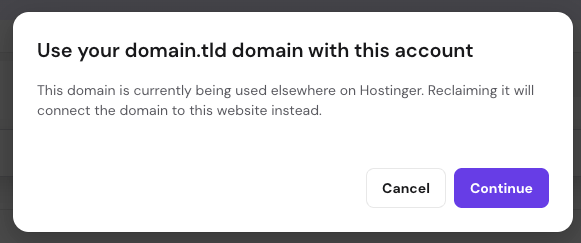
- Click Continue to reclaim the domain.
The website on the previous location automatically moves to a temporary domain so no content is lost. The account owner will receive an email notification.
NOTE
- If you own the domain but it was purchased through a different registrar, refer to Option 2.
Option 2 – Disconnect the domain manually from the other Hostinger account
If you manage or have access to the separate Hostinger account where the domain is currently linked, you can log in to release it manually. Changing the domain name of the old website to a temporary domain allows you to free it up without losing website data.
- Log in to the separate Hostinger account where the domain is currently in use.
- Navigate to the Websites section and locate the website tied to this domain. The search bar can help find it quickly.
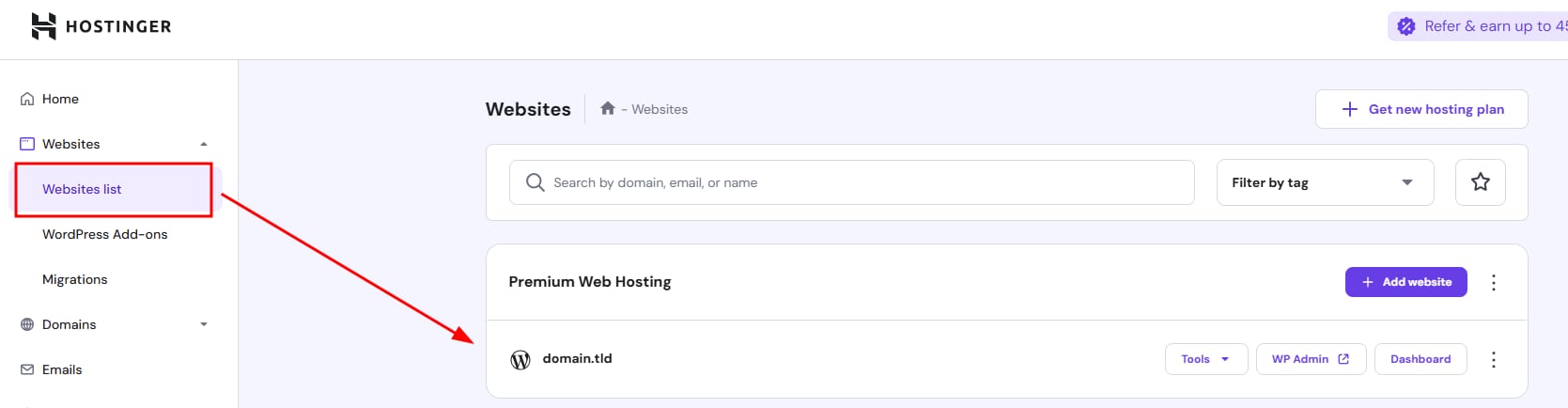
- Click on the Options button (⋮) → Change domain. Accept the warning messages.
- On the domain entry page, select Use temporary domain.
Alternatively, if you no longer need the data, you can permanently delete the website.
The domain becomes available to connect to a new website as soon as it is reclaimed or released from its previous location.
NOTES
- If the separate account belongs to a former partner or agency, you can contact them directly to request the domain release.
- If access to the other Hostinger account or its owner is unavailable, and the domain was not purchased through Hostinger, manual intervention is required. Select the Ask AI button in hPanel for assistance.
Additional resources