You can easily change your server’s SSH password from hPanel:
-
Navigate to the VPS section of hPanel and click on Manage next to your server
-
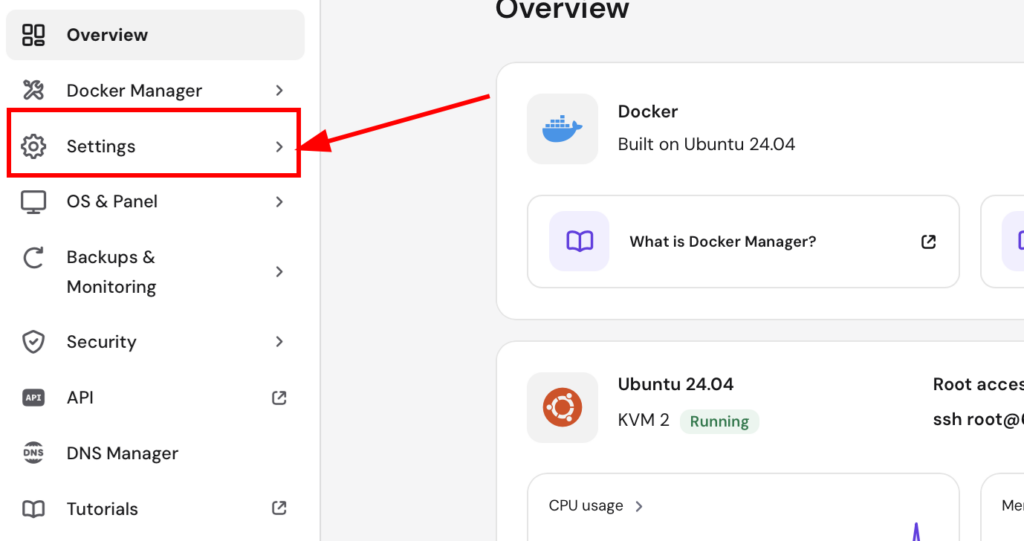
Go to the settings page from the sidebar

-
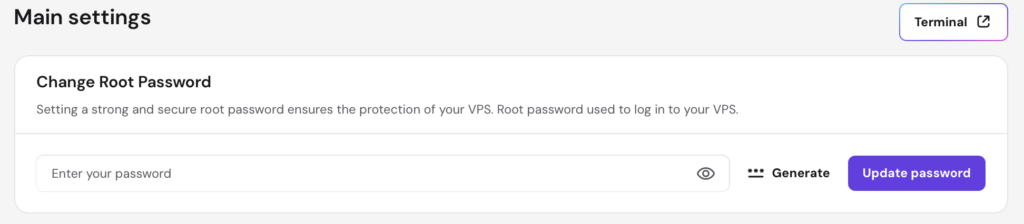
On the main settings, locate the Root password option, enter a new strong password, and click on Update:

-
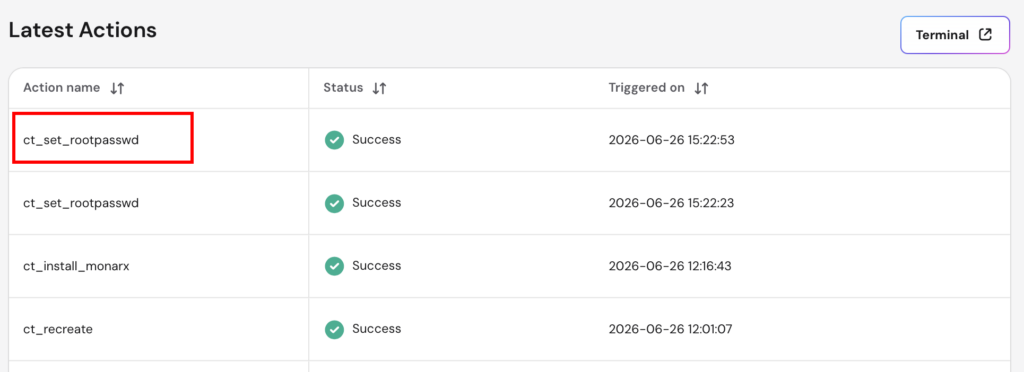
The password change can take a few moments to be applied. To verify when it’s completed, select Backup & Monitoring → Latest Actions page on the sidebar, and you’ll find it as ct_set_rootpasswd:

-
Once the status shown is Success, you can log in to your VPS using the new password
That’s it! Now you know how to change the password to access your VPS via SSH.