If you have a full backup of your website hosted on cPanel, you can easily import emails to Thunderbird with the help of the ImportExportTools NG extension. To do so, follow the steps below 👇
Step 1 – Install an Email Import Extension in Thunderbird
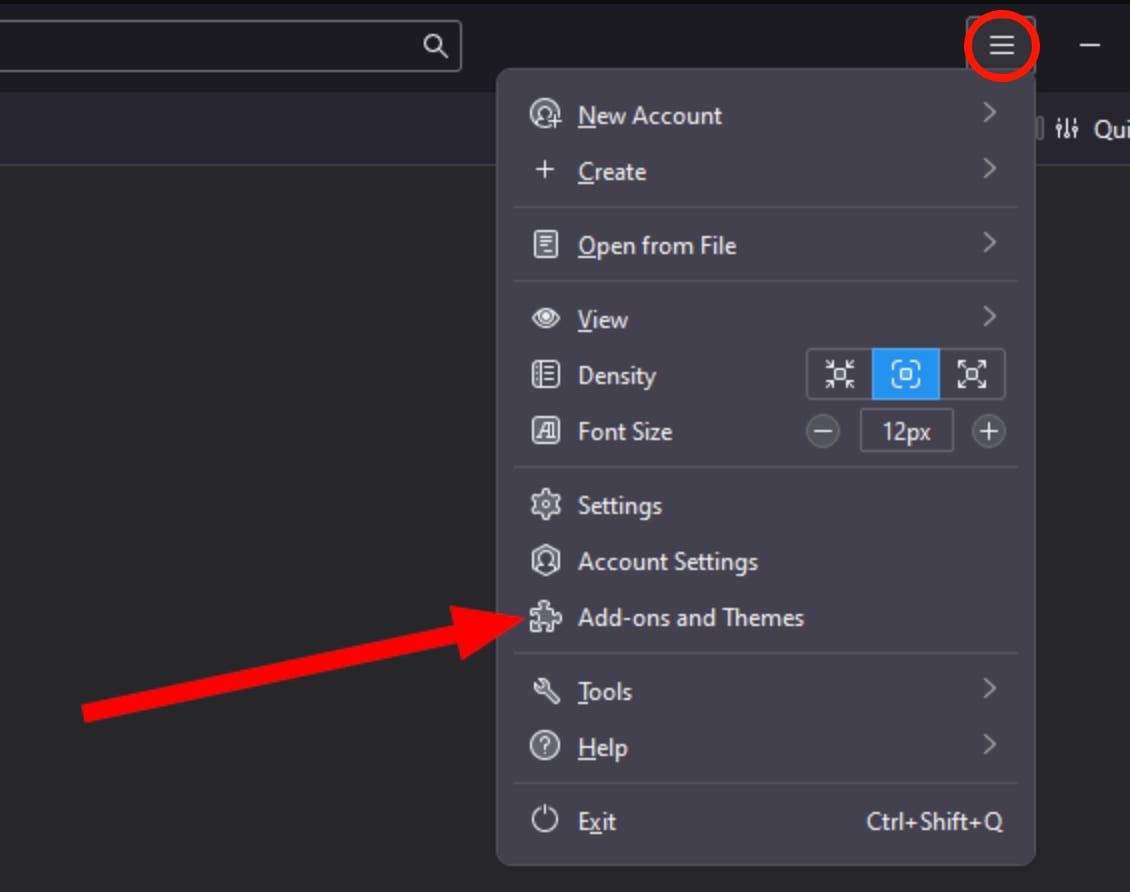
In Thunderbird, click on the triple bar ≡ in the top-right and select Add-ons and Themes from the menu:
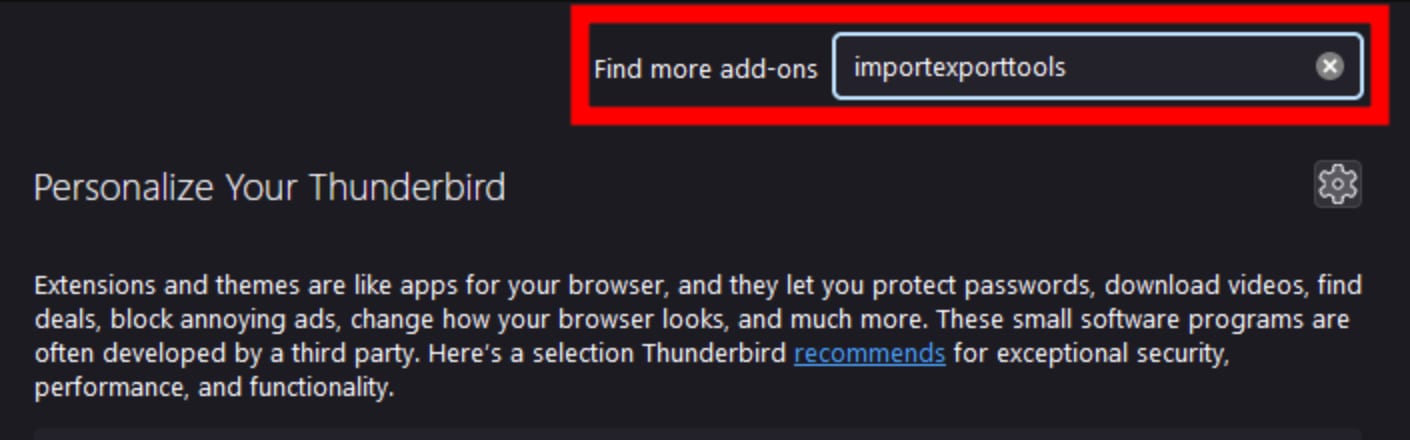
Search for the extension ImportExportTools NG:
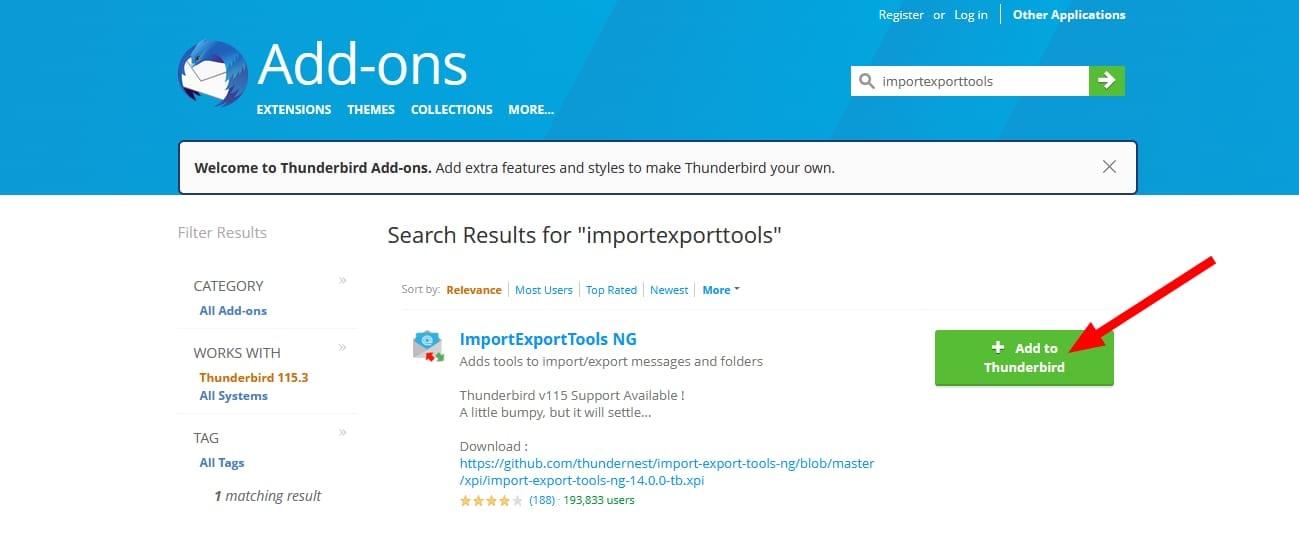
Click on Add to Thunderbird:
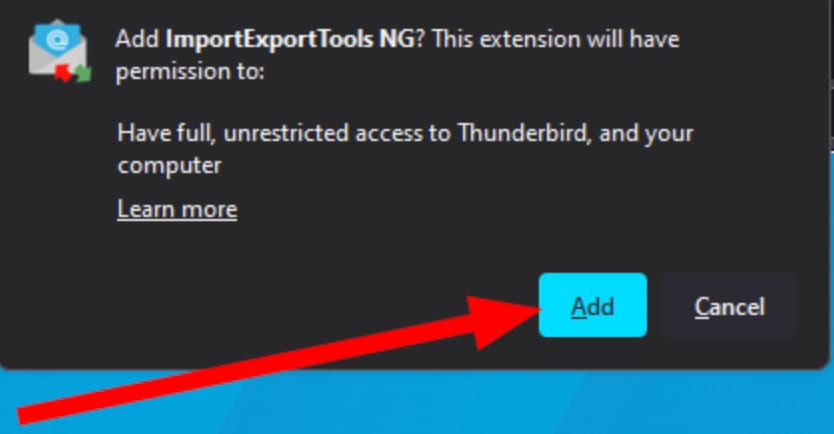
Finally, confirm the addition:
Step 2 – Start the Import Process
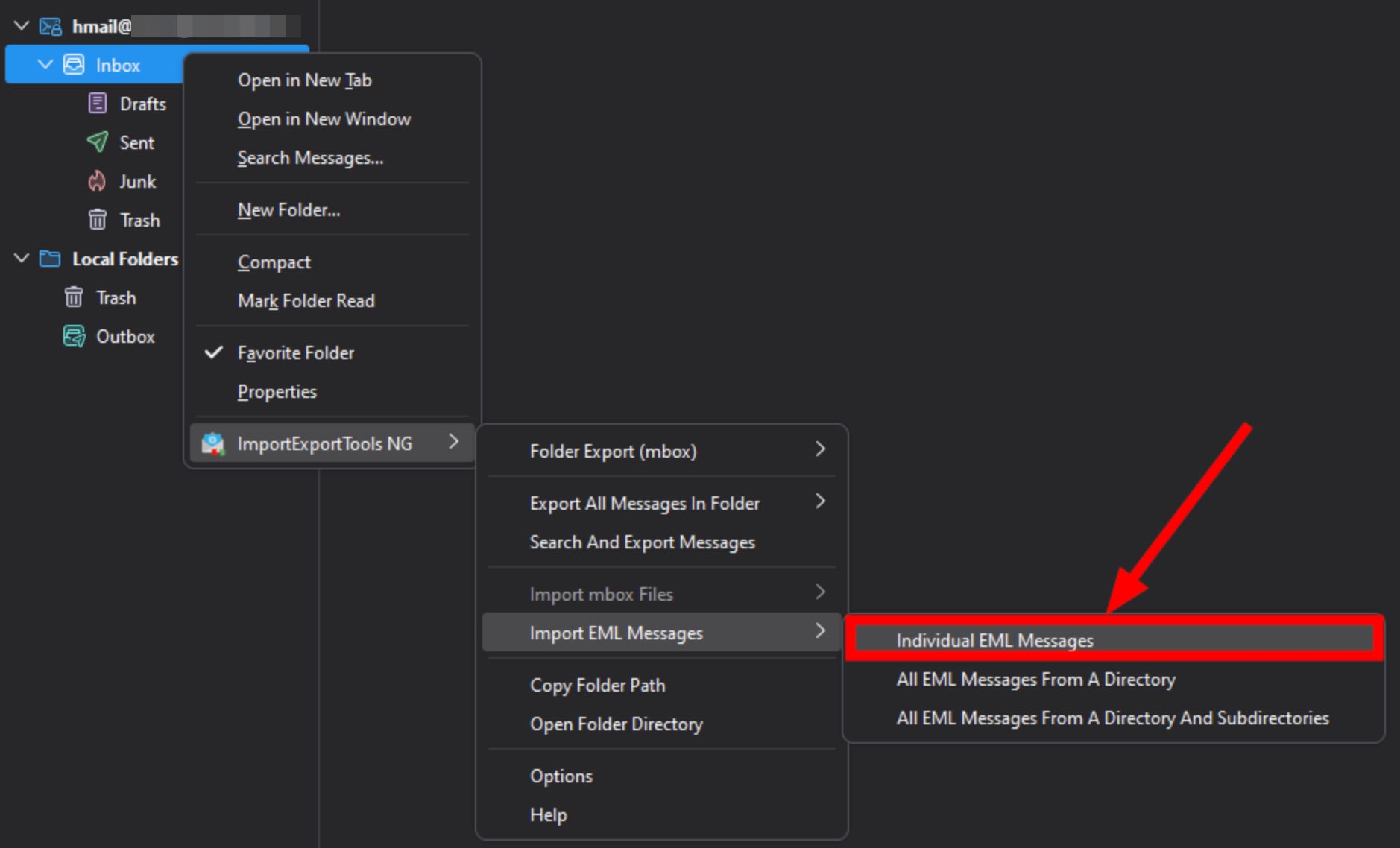
In Thunderbird, find the email account into which you wish to import emails. Right-click on Inbox and select ImportExportTools NG → Import EML Messages → Individual EML Messages:
Step 3 – Find Email Files in the Full Backup
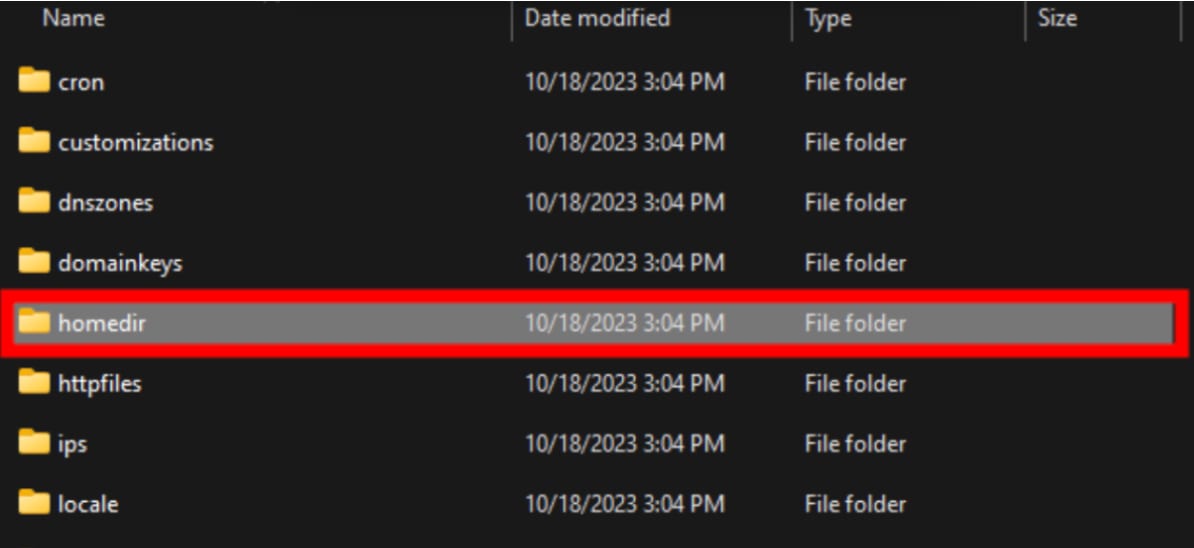
Now, within the full backup, locate the email backup folder. First, open the homedir folder:
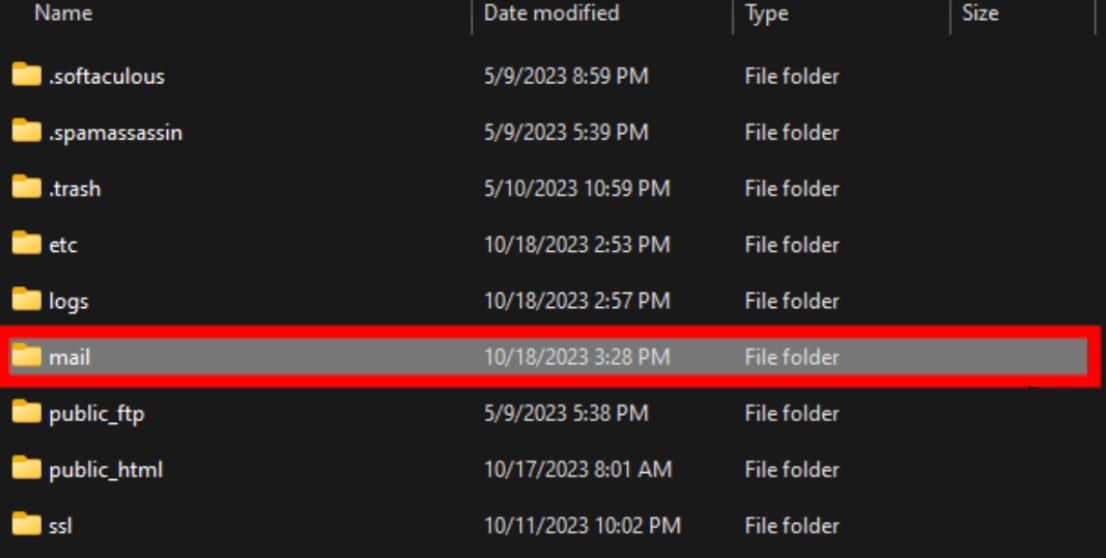
Then, open the mail folder:
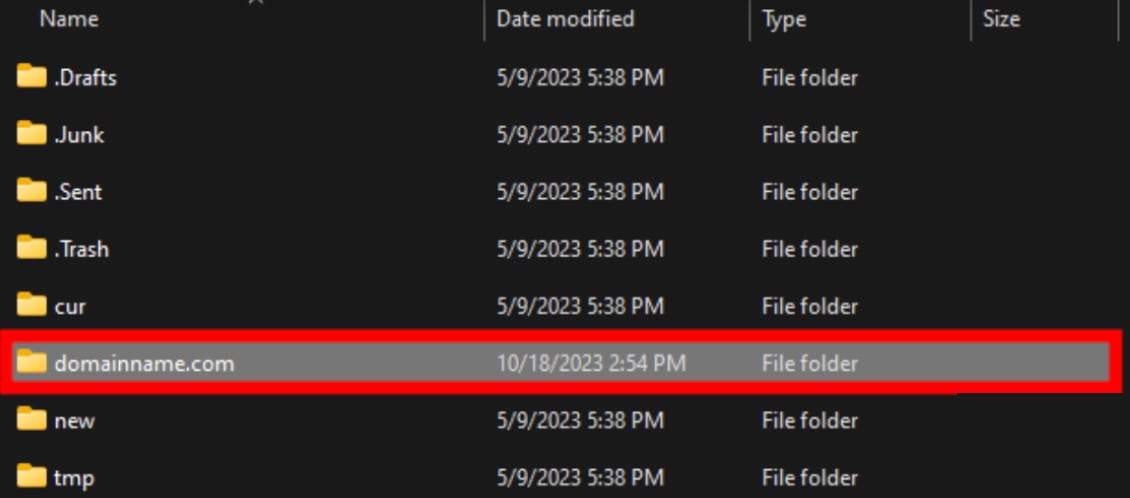
Select the folder that has the domain name of the backup in question:
Select the name of the email you want to import:

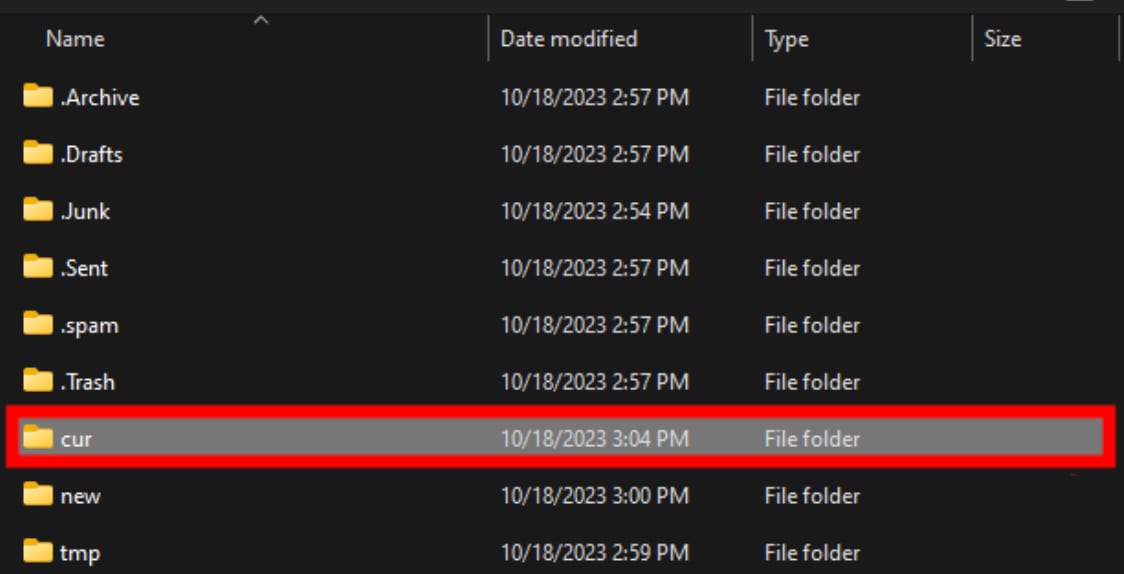
Finally, go to the cur folder of that email:
Step 4 – Finish the Import Process
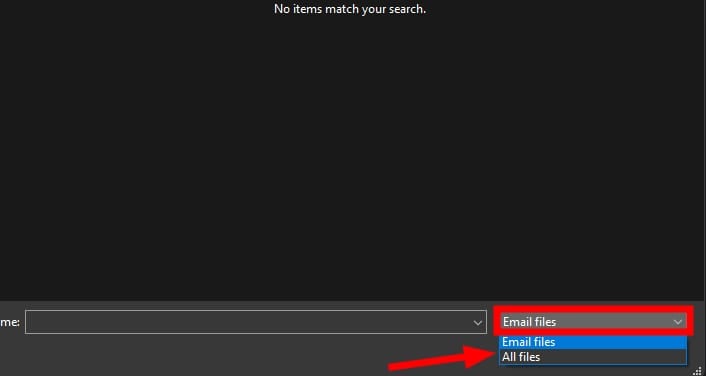
The cur folder will be empty. To view files within, select All files (instead of Emails files) here:
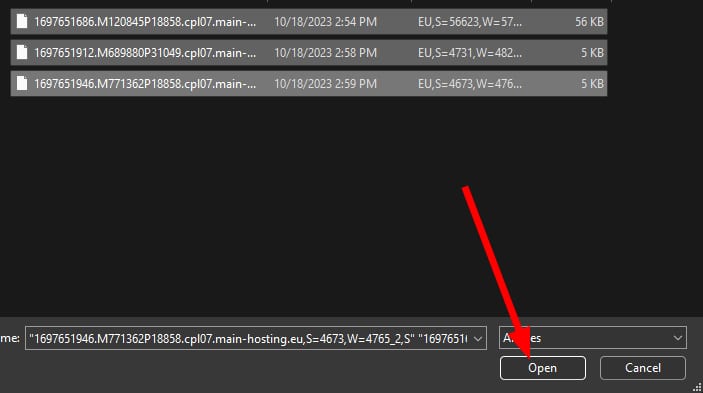
Now, select the email files and then click on Open:
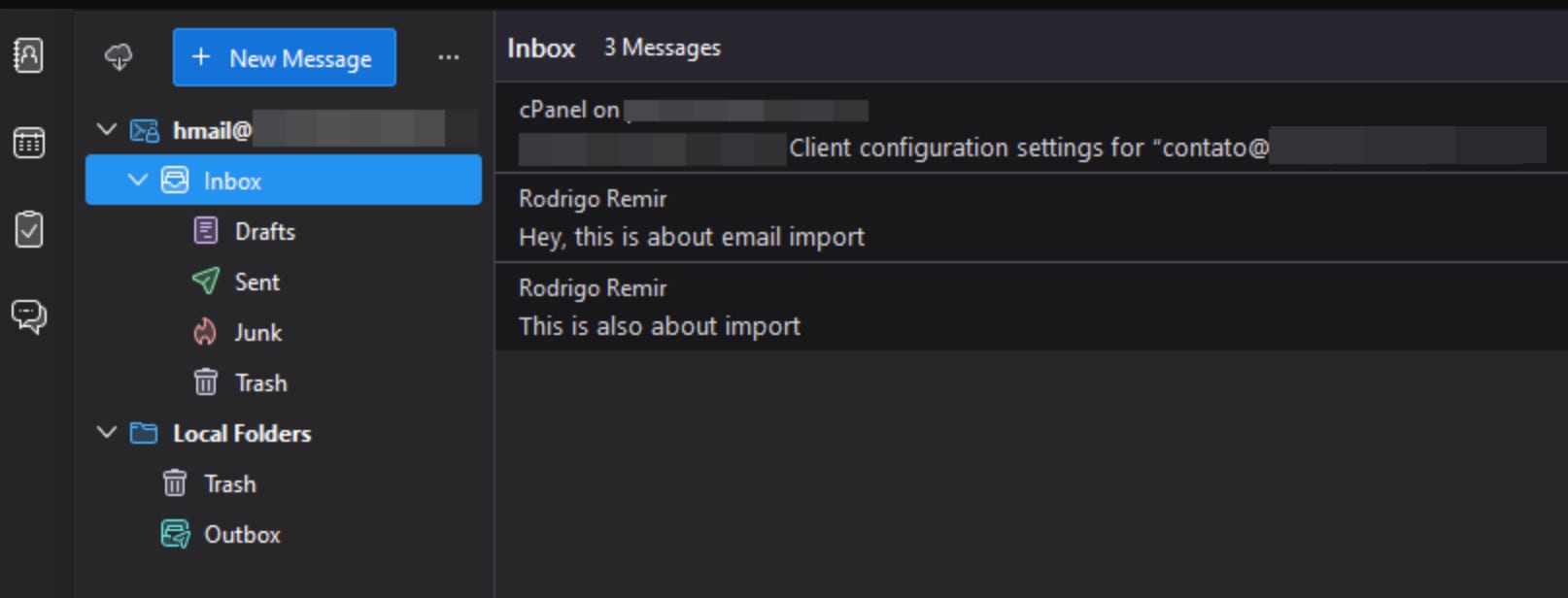
Finally, the extension will import all emails, and they will be synchronized via IMAP on the server:
And that’s it – now you know how to import emails from a full cPanel backup to Thunderbird!