DMARC stands for “Domain-Based Message Authentication, Reporting, and Compliance”. It is a standardization proposal to guarantee the authenticity of an email.
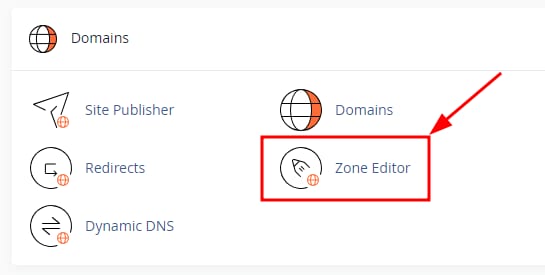
To add a DMARC record to your cPanel email, go to the cpanel domains section and select Zone Editor:
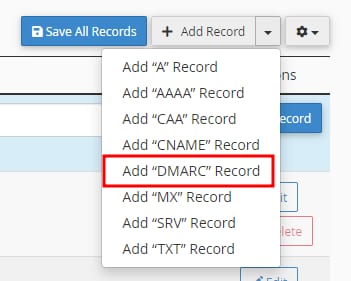
There, click the Manage button next to your domain and open the dropdown on the add record button on the top right of the list to select Add DMARC record:
The record name, TTL, and type will be added automatically. Select Raw:
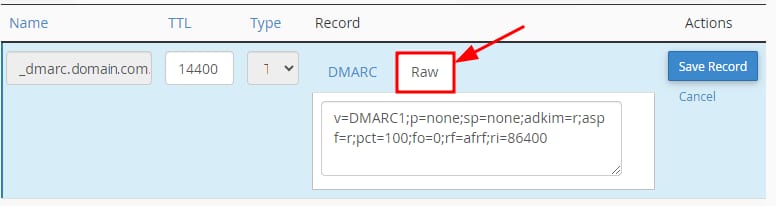
Delete the current default value and enter the following:
v=DMARC1; p=none; sp=none; rf=afrf; pct=100; ri=86400
Click Save Record to apply the changes.
After adding this record to your domain, consider 2-6 hours for the propagation process. Once propagated, your DMARC record will be fully functional.