The Hostinger File Manager includes a built-in file editor that allows you to open and modify text-based files for custom PHP/HTML and WordPress websites. This tool lets you manage essential files like .htaccess, index.php, or style.css directly from your browser without needing an external FTP client or a local code editor.
Before you start
- These steps apply to text-based files on web and cloud hosting plans.
- On agency hosting, core WordPress files are read-only and cannot be modified.
- File editing is not supported for websites created with the Hostinger Website Builder.
- To manually modify Hostinger Horizons code, use the Hostinger Horizons code editor.
Always create a backup or copy of your file before editing. Incorrect changes to system files can cause website errors.
How to open the Hostinger File Editor
Follow these steps to start editing your files:
- Access the File Manager from your hPanel.
- Navigate to the file you wish to modify.
- Double-click the file name, or right-click the file and select Edit.


Hostinger File Editor features
The File Editor has the following features:
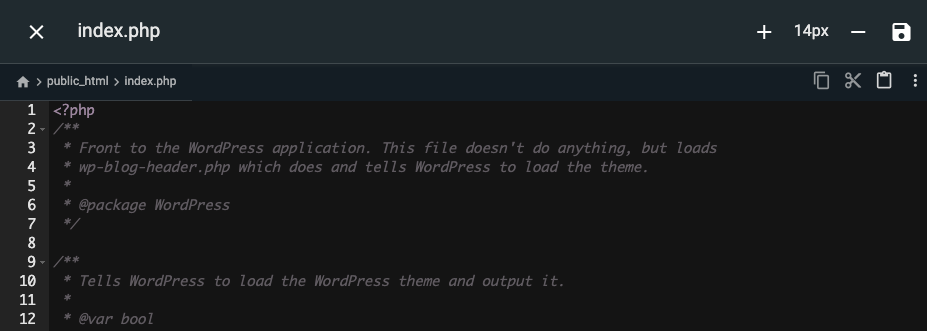
Header
- Close button: Exits the File Editor.
- Name of the currently open file.
- Font size selector: displays the current font size and options to change it.
- Save button: Saves the changes.
Top bar
- Breadcrumb: Shows the path from your website root directory (
public_html) to the currently open file. - Editing button: Copy, cut, paste.
- Options button (⋮): Opens all the available commands and their shortcuts.
- Line numbers – Indicates code lines and displays syntax error indicators or folding toggles.
Editor Area
Displays the file content. Click any line to show the cursor and begin typing.
The editor provides syntax highlighting for common programming languages. If a syntax error is detected, a red ❌ icon appears next to the line. Hover over the icon to view specific error details.
Once finished, click Save. If you click Close without saving, a popup will appear to confirm that your changes will be lost.
Hostinger File Editor shortcuts and commands
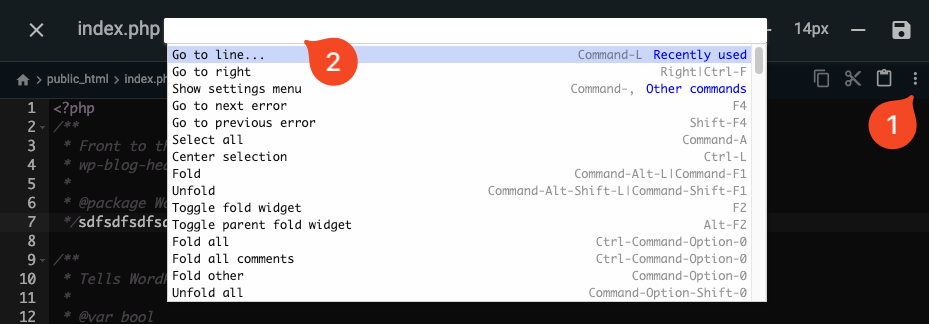
To open the full list of available actions and their corresponding keyboard shortcuts within the Hostinger File Editor, follow these steps:
- Click on the vertical ellipsis (⋮) button located in the top-right corner of the editor.
- A search bar and a dropdown menu will appear, displaying all supported commands such as Find, Replace, Fold, and Select all.

- You can scroll through the list or type a specific command in the search bar to find its shortcut for your operating system.
NOTES
- You can select blocks of code and apply editing actions such as move and copy lines up or down.
- Keyboard shortcuts for comments and code folding are only available for supported programming languages.
You can now efficiently manage and edit your website files using the built-in editor within the Hostinger File Manager.