Country blocking is a technique used to restrict access to a website based on the geographic location of the user’s IP address.
Hostinger CDN supports two country traffic modes: Block specific countries (deny selected countries) and Allow only specific countries (permit only selected countries, blocking all others). Only one mode can be active at a time.
Note that country blocking is not foolproof and can have limitations. IP addresses can be spoofed, and people may use virtual private networks (VPNs) or proxy servers to bypass country-based restrictions. Therefore, it’s often used as one layer of security or access control among other measures to protect systems and networks 💡
Block Countries
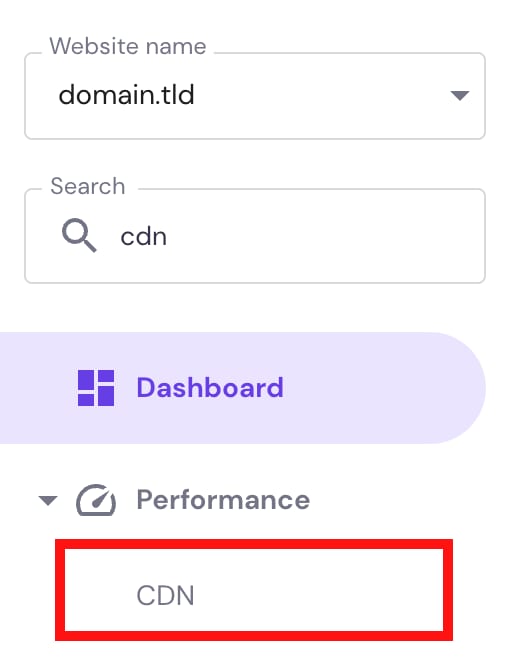
In hPanel → Websites, click on Manage next to the website in question. Then, on the sidebar, search for CDN and open its settings:
Click on the arrow > to access the CDN settings of the preferred website:

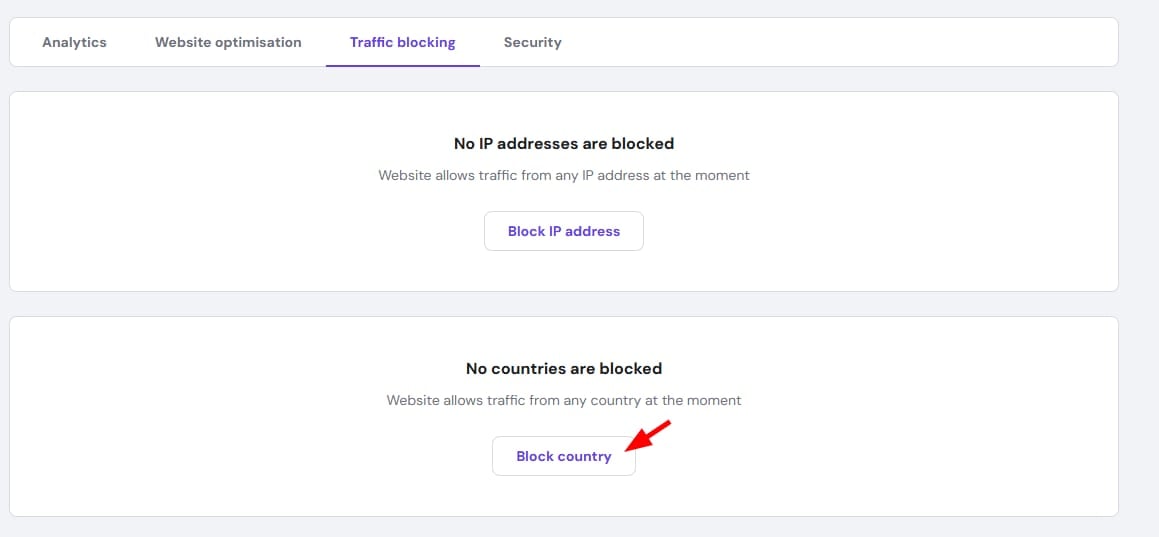
Now, open the section Traffic blocking, click on Block country, or Add country block, select the countries you want to block and click on Block to confirm:
And that’s it!
Allow Traffic Only From Specific Countries
In addition to blocking countries, Hostinger CDN supports an Allow countries mode. When enabled, only visitors from your selected countries can access the website — all other traffic is blocked at the CDN edge.
To allow traffic only from specific countries, go to hPanel → Websites, click on Manage next to the website in question, then open CDN settings from the sidebar.
Click on the arrow > to access the CDN settings of the preferred website.
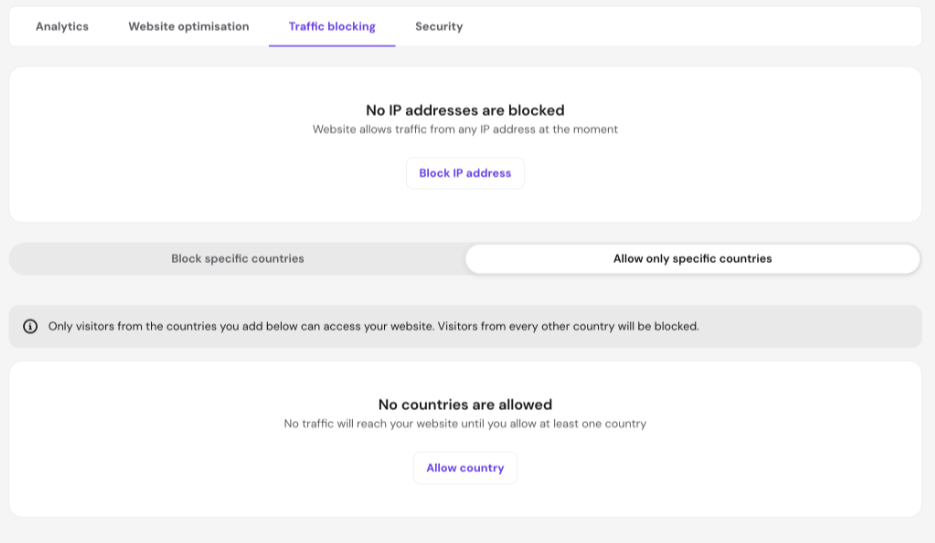
Now, open the Traffic blocking section and click the Allow only specific countries toggle. Select the countries you want to allow and confirm.
Important:
- You can use Block specific countries OR Allow only specific countries — not both at the same time.
- Switching between the two modes will clear your existing country list. This action cannot be undone.
- Country-based rules rely on IP geolocation and are not foolproof. Visitors using VPNs or proxy servers may still bypass them.
Remove the Country Block
To remove a country block, in hPanel → Websites, click on Manage next to the website in question. Then, on the sidebar search for CDN and open its settings:
Click on the arrow > to access the CDN settings of the preferred website:

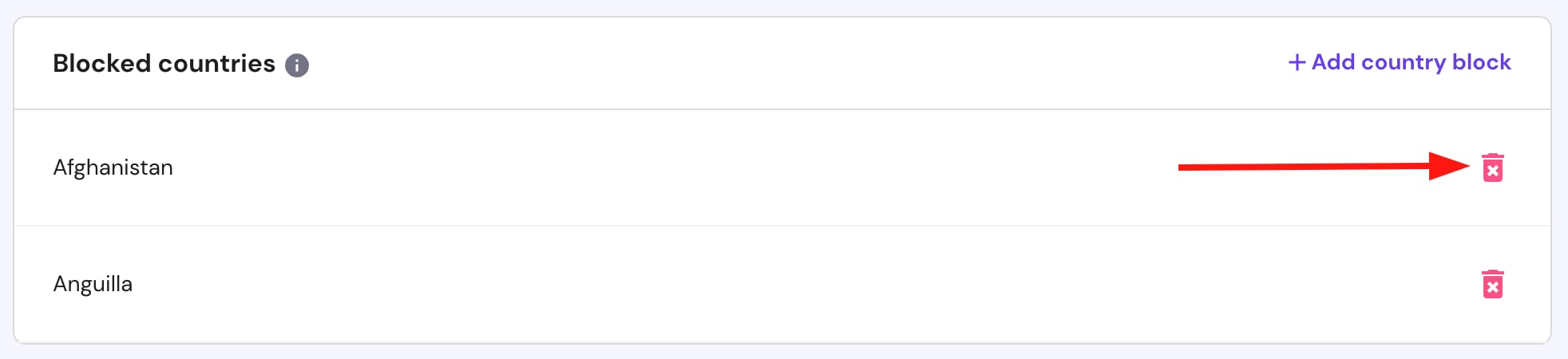
Now, open the section Traffic blocking, click on the trash bin icon, and then click on Delete to confirm:
Alternatively, you can also block IP addresses 💡