Once you paste any custom code and update your website, the code is added to your website’s source code.
As Hostinger Website Builder is the best compatible with Google Chrome, the below instruction applies when using this particular internet browser 💡
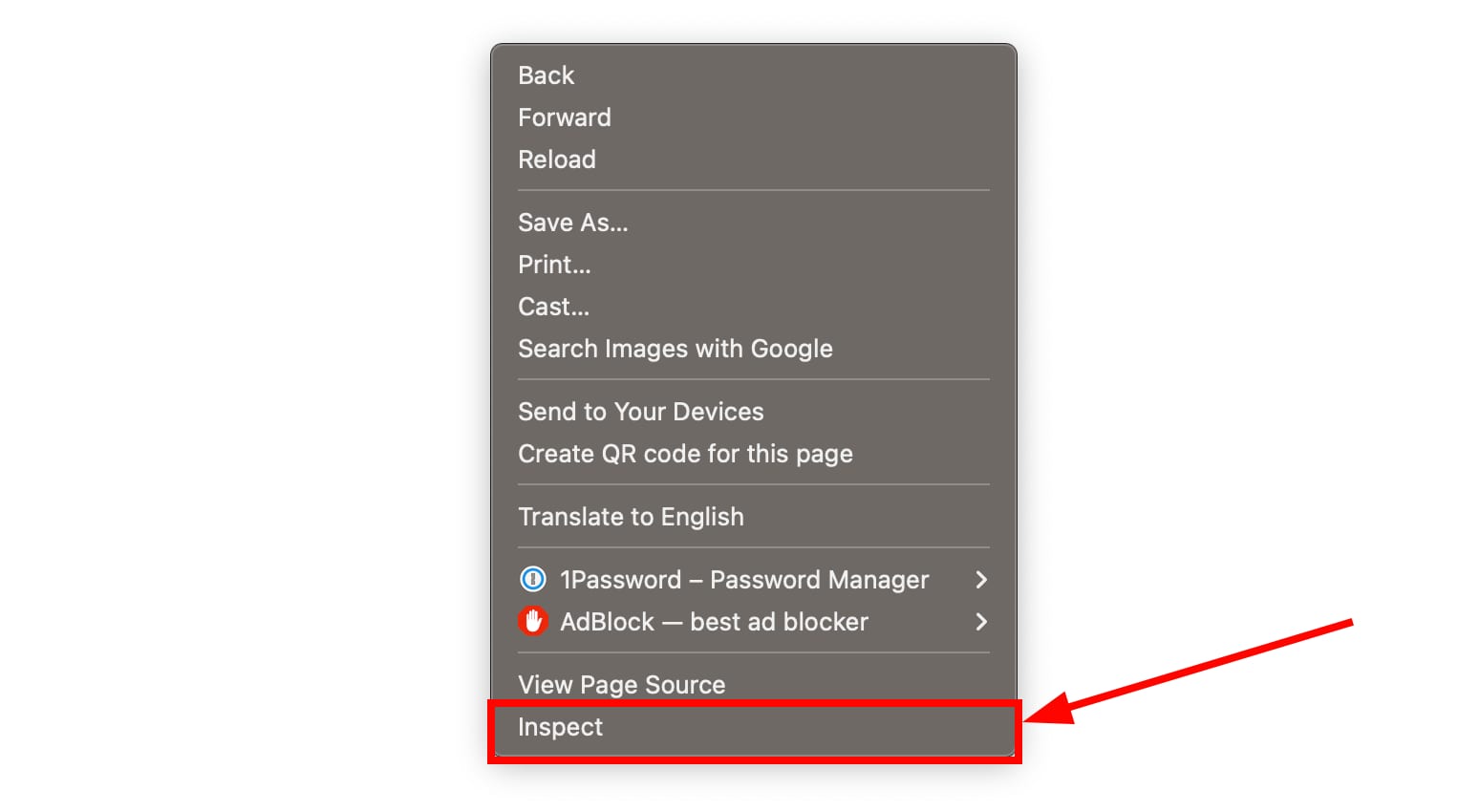
To check it, open your website, right-click on the page, and select Inspect:
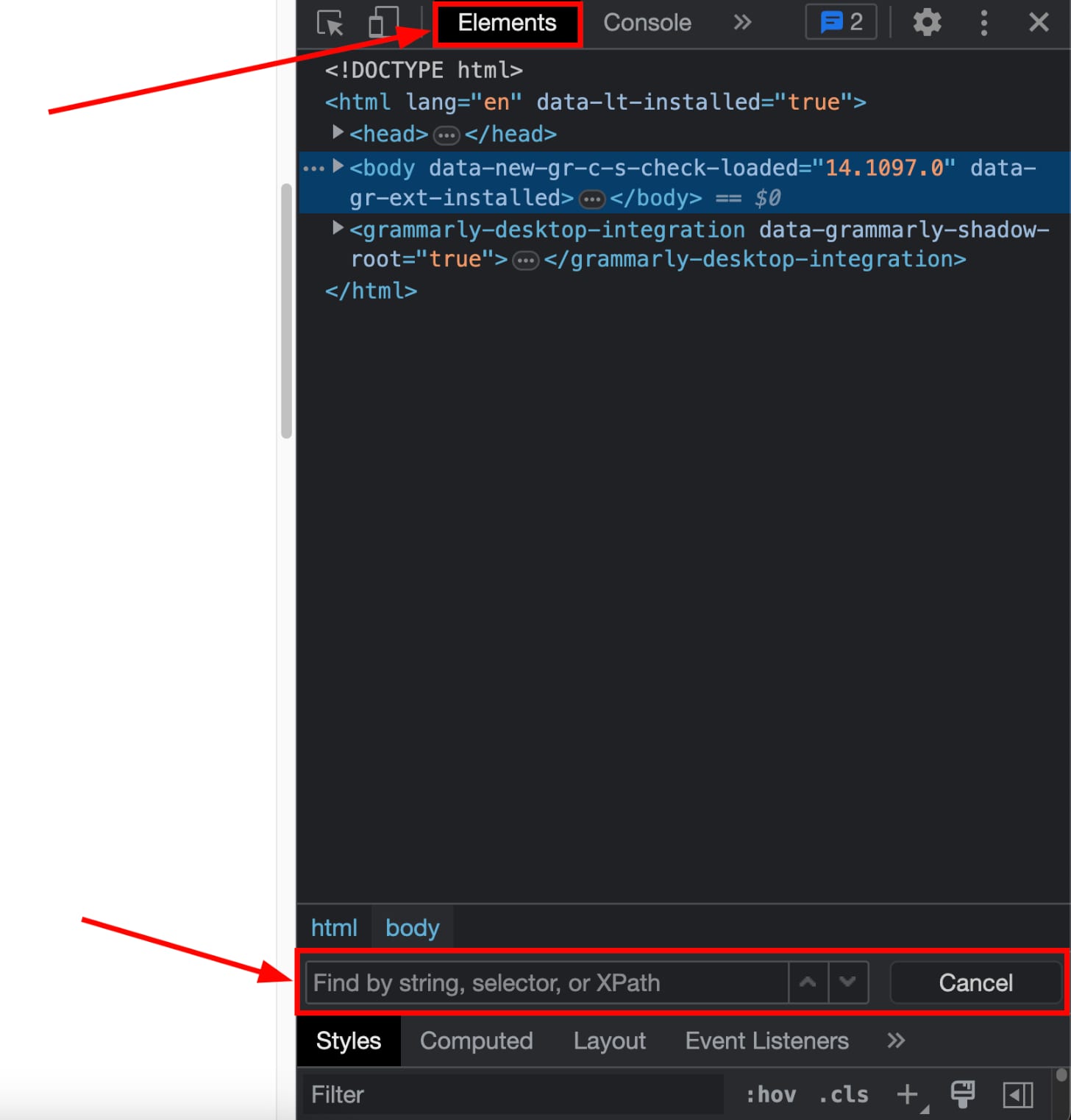
Open the Elements tab, click CTRL+F (Windows) or CMD+F (macOS), and you’ll see a search bar:
In the search field, you can either paste the whole code or just a keyword or phrase from your code (e.g., your Google Analytics ID):
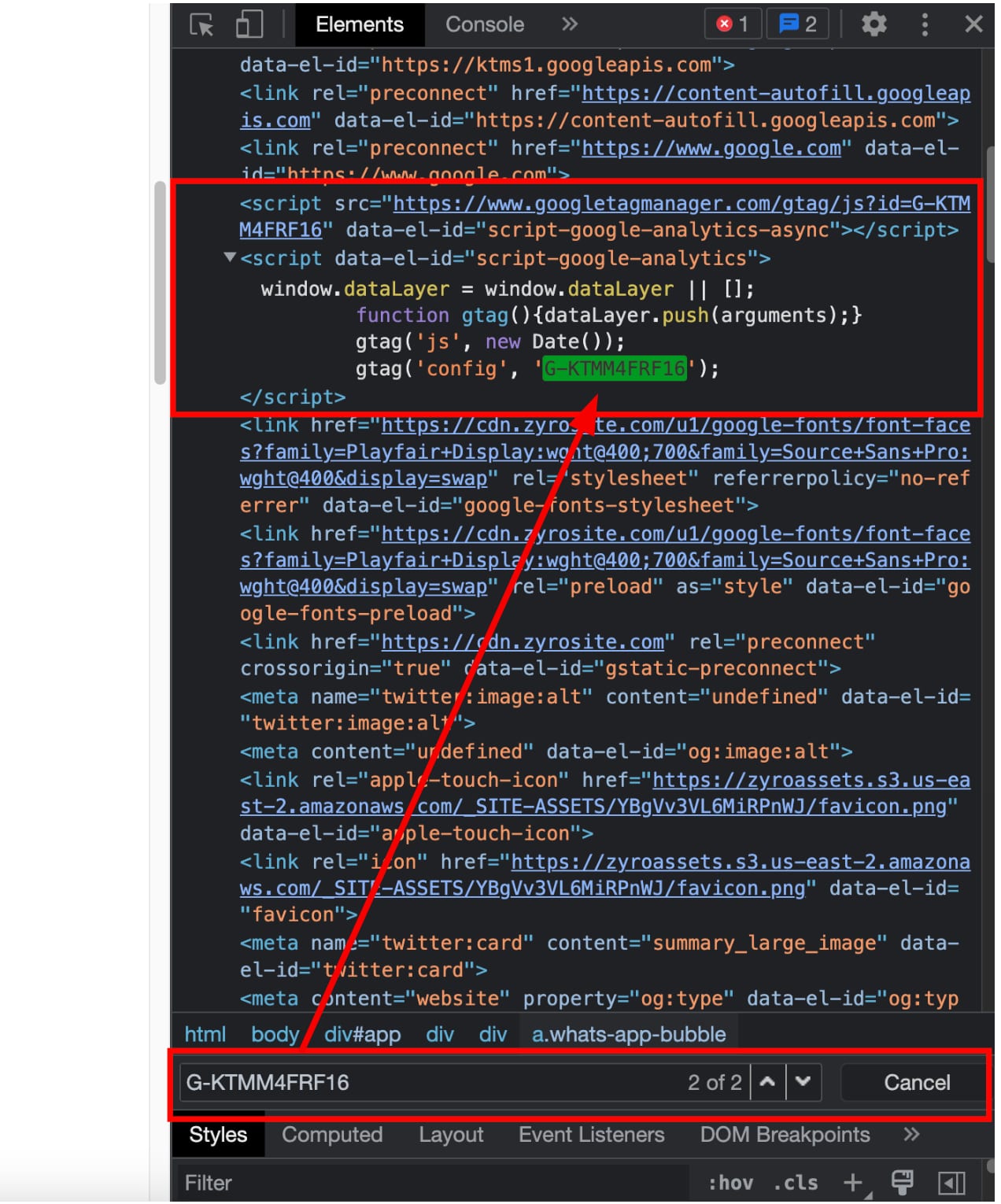
This way, you should be able to find the integration in your website’s source code 🕵️♂️