If you use Hostinger Website Builder, you can add a password to any of your website pages. This article will help you set it up 👇
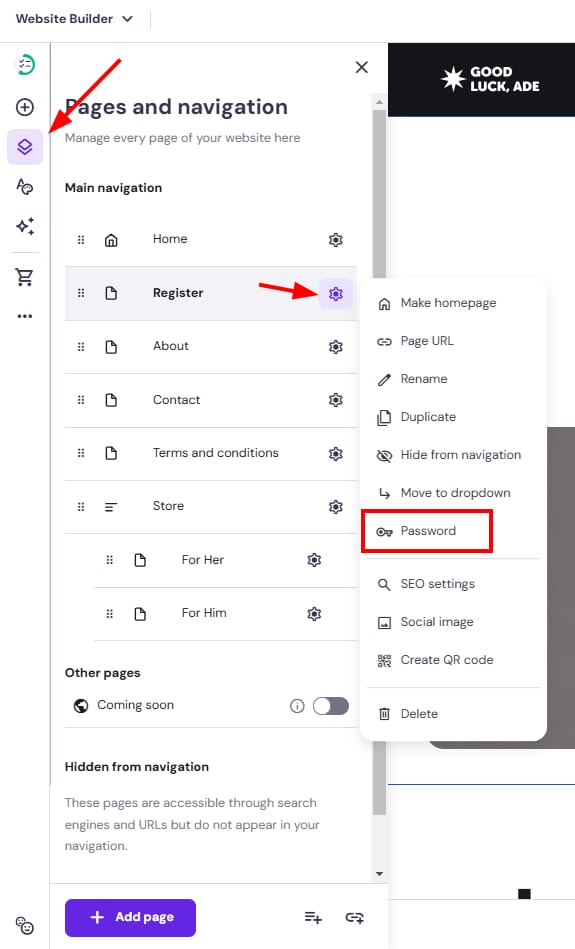
1. In the builder, expand the Pages and navigation panel on the left, and find the page in question. Then, open its settings, and click on Password:
2. Click on Enable password, and insert the preferred:
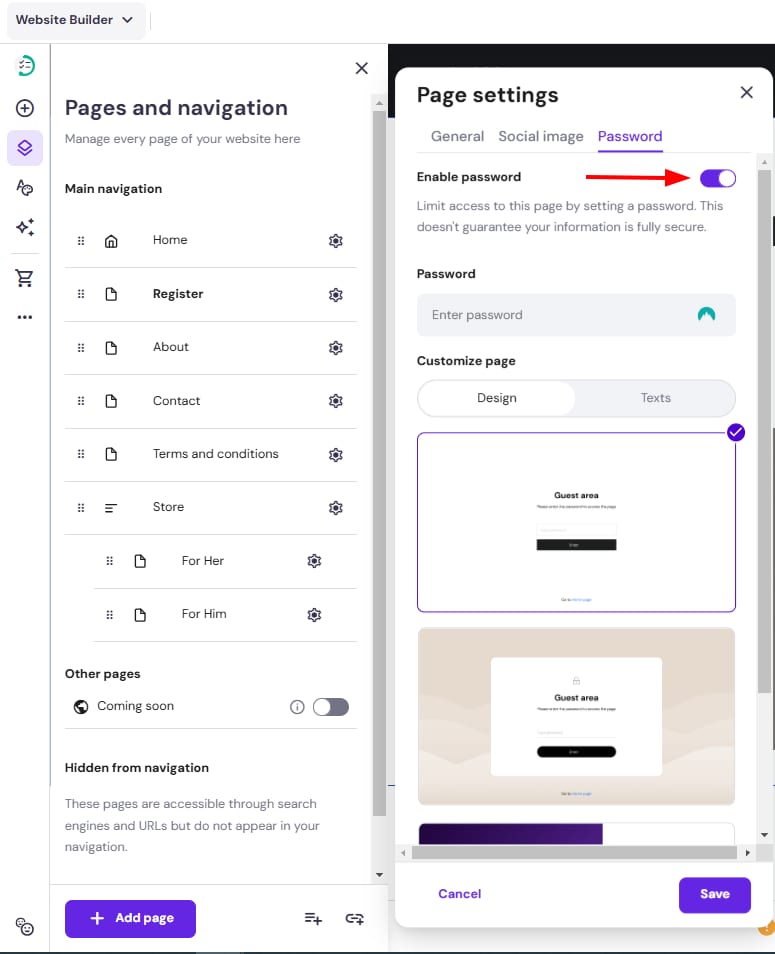
3. Choose the design and customize the texts of the guest area.
4. Finally, save the changes and update your website.
NOTES
-
You can freely view the page (without entering the password) in the preview mode; the password is only required on the live website
-
Each page can have a different password, and each login area can have a different design
-
The login page will include a link that will take the visitor back to the homepage (unless you password-protect the homepage)
-
The password is hashed using SHA-256 therefore it is never stored in plain text