To send emails via PrestaShop, you need to configure some email parameters.
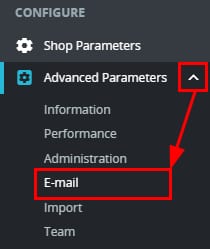
To do it, go to your PrestaShop administrator panel, and navigate to Advanced Parameters → E-mail:
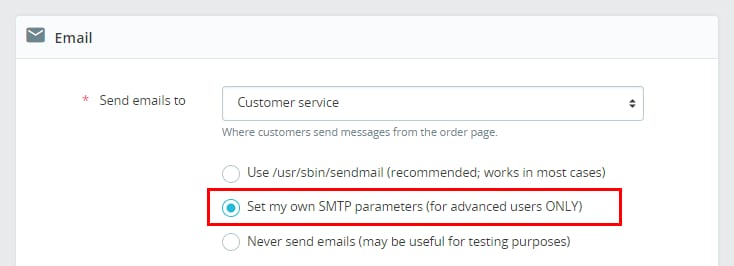
In the Email section, select Set my own SMTP parameters:
Now, configure the SMTP server according to the email service you use, entering the following information:
-
Email domain name – the domain name of your PrestaShop website
-
SMTP server – the host of your email server, obtained from the articles given above
-
SMTP username – your complete email address as created on your hosting panel
-
SMTP password – the password of your email address
-
Encryption – select the encryption type corresponding to your email service. Typically, it will be SSL or TLS
-
SMTP Port – enter the port to securely connect via SMTP, it should correspond with the encryption type selected above
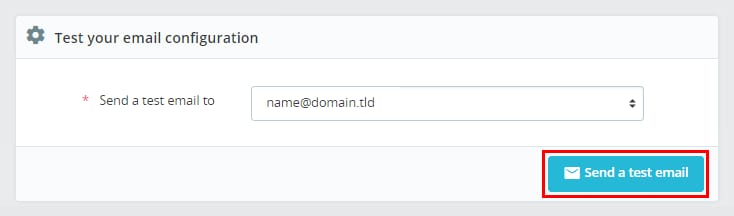
Once you fill in these details, click on Save to apply the changes. Then, test it by clicking on Send Test Email:
Now you can send emails from PrestaShop 🎉
Fixing Possible Errors
If you encounter any issues, first check if your email service is enabled.
If the email service is active, we highly recommend you reset your email password and input the SMTP parameters one more time.
Alternatively, you double-check that the encryption method and port are correct and matching.
Fixing the ‘Expected response code 354’ Error
If you get the following error when sending the test email:
Error: Please check your configuration
Expected response code 354 but got code "554", with message "554 5.5.1 Error: no valid recipients "
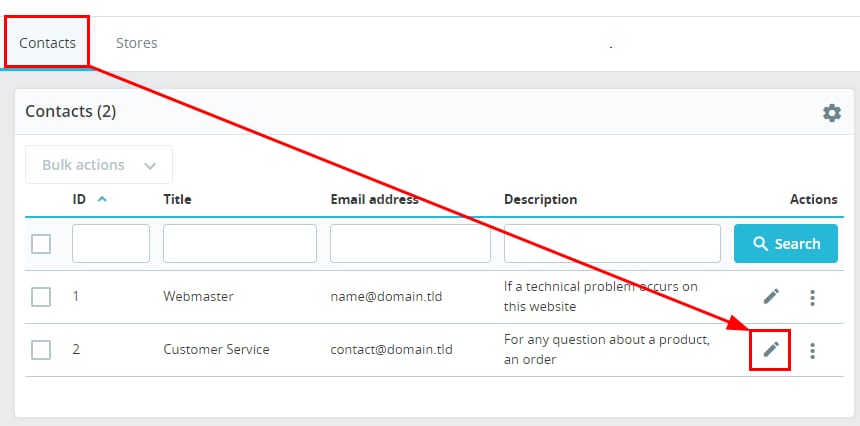
It means the email address you’ve specified for the SMTP username does not match the addresses specified in the shop parameters. To fix it, navigate to Shop Parameters → Contacts, and update the email address in the Contacts tab:
Next, go to the Stores tab, and update the shop email address:
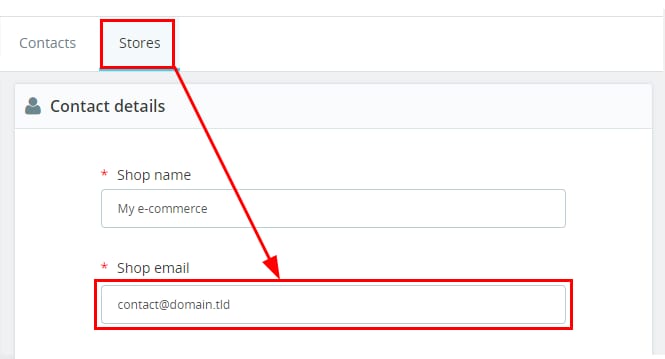
Finally, scroll down, and click on Save.
Once the same email address is specified in all three places (as the SMTP username, in the Contacts tab, and in the Stores tab), try sending the test message again 😊