If you use Hostinger Website Builder, you can get detailed insights into who visits your website with the help of our built-in analytics tool. Analyze your website traffic and tailor your content more effectively to suit your audience!
To see the traffic overview, your website must be published. The first data is available one hour after publishing the website. The data is automatically updated every 24 hours 💡
Within the builder, expand the Analytics panel on the left:
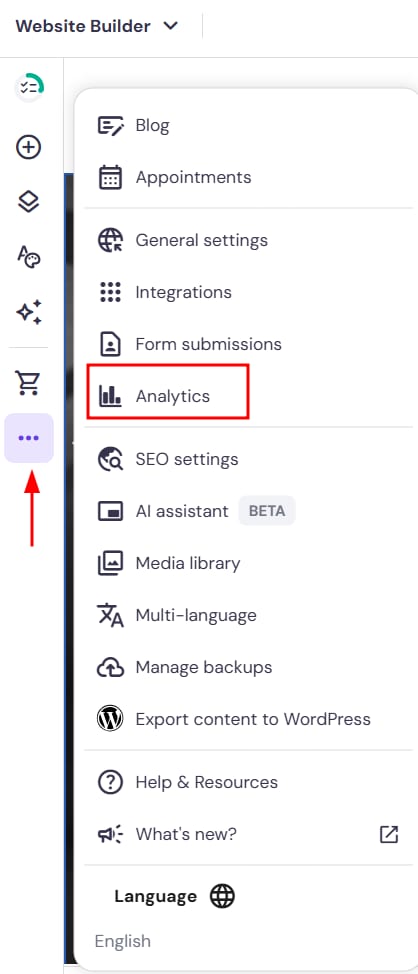
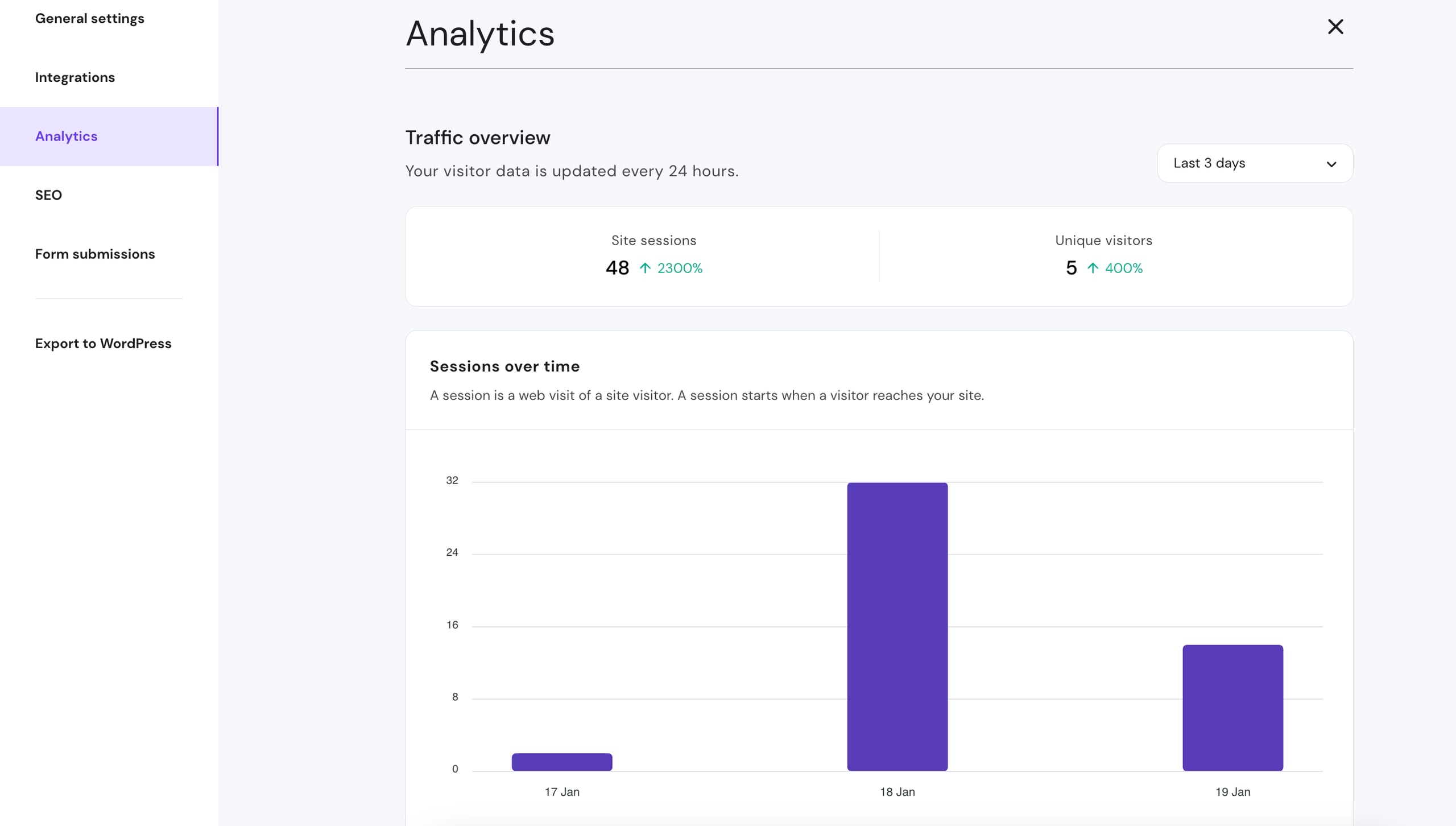
There, you can see the following sessions:
|
Over time |
By country |
By device |
|
Last three, seven, or 30 days It shows both total sessions (including search engine bots) and the number of unique visitors |
Check what countries your visitors are from |
Desktop vs. mobile |
The Analytics tool collects data through Cloudflare CDN and doesn’t use any cookies or third-party integrations. In other words, this tool doesn’t require visitor’s consent and is irrelevant to mention in your Privacy policy because:
-
It doesn’t collect any personal data
-
The collected data is only used for traffic overview
-
The collected data is not shared or connected with data from other websites
In addition to the Analytics panel inside the Website Builder editor, you can now view your site’s traffic data directly from the Website Builder dashboard in hPanel — without needing to open the editor.
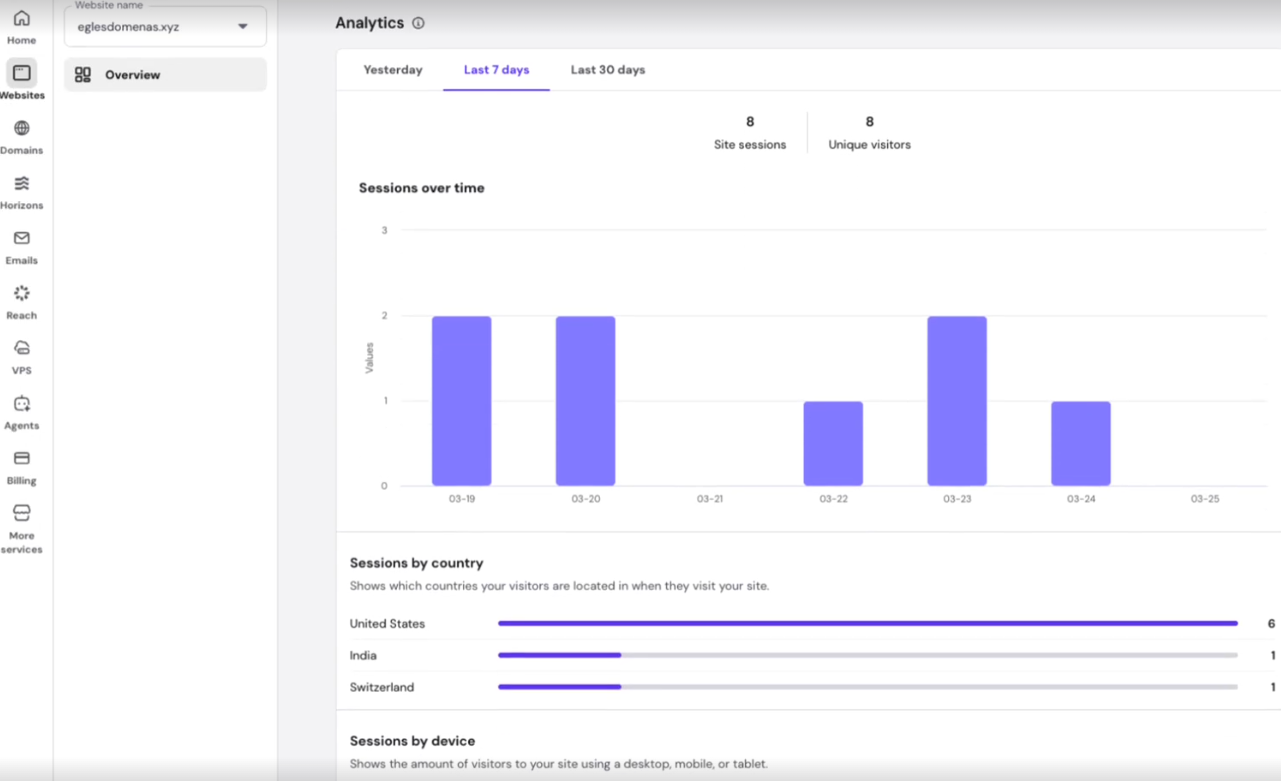
What you can see on the dashboard:
- Sessions by country — see which countries your visitors are coming from
- Sessions by device type — desktop vs. mobile breakdown
- Time range filter — view data for the last day, 7, or 30 days
You can also check eCommerce analytics (store users) such as Total Sales, Orders, and Average Order Value for the current month.
How to access it:
- Log in to hPanel
- Go to Websites and find your Website Builder site
- Click Manage
- Scroll to the Analytics section on the dashboard
That’s it – now you know how to use the Analytics tool and understand its data!