If you use Titan Email, your emails are automatically signed with a default key.
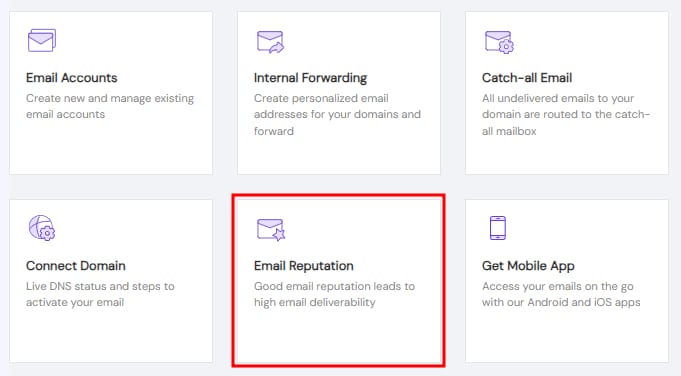
To check the value of your DKIM record, go to the Emails section, click on Manage next to the email service in question, and select Email Reputation:
On the Add DKIM record, click on ADD to expand the section:

There, you will find the details of your DKIM keys. It will look similar to this:
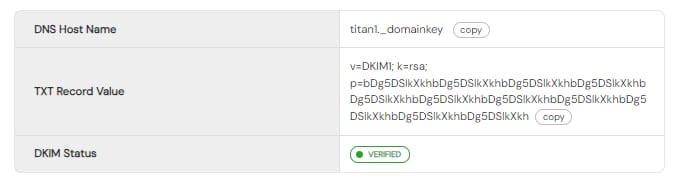
Use the copy buttons and create a new TXT record in your domain’s DNS zone using these values.
After making these changes, consider up to 24 hours for them to propagate worldwide and the DKIM record to be fully operative💡