To transfer a domain name to another provider, the domain must be active (not suspended or canceled).
Step 1 – Gather the Necessary Details
To transfer a .lt domain to Hostinger, you’ll need to obtain the following details:
-
Domain transfer authorization code (also known as the EPP code), e.g., 0000-0000-0000-0000
-
The contact details of the current domain owner
You can usually find these in your current registrar’s control panel. If they are not visible, contact their support team for assistance
Alternatively, these details can be found in your Domreg account. Domreg is the registry of all .lt domains. If you’ve ever registered a .lt domain, a Domreg account was created for you automatically. To access it, see below 👇
How to Check the Details in Domreg Directly
- Locate your registrant ID in the activation email sent by hostmaster@domreg.lt.
- Go to the Domreg website, navigate to Services, and select Domain registrant account.

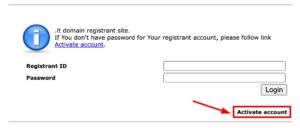
- Click Activate account and enter your registrant ID and email to receive a login link.

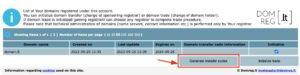
- Once logged in, use the Generate transfer codes section to get your EPP code.

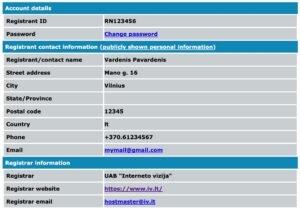
- Check the MY INFORMATION section to find the owner’s contact details.


Step 2 – Initiate the Transfer
You can start the transfer process in two ways:
- Existing customers: Log in to your Hostinger account, go to the Domains section, and select Transfer an existing domain. Enter your domain and complete the payment

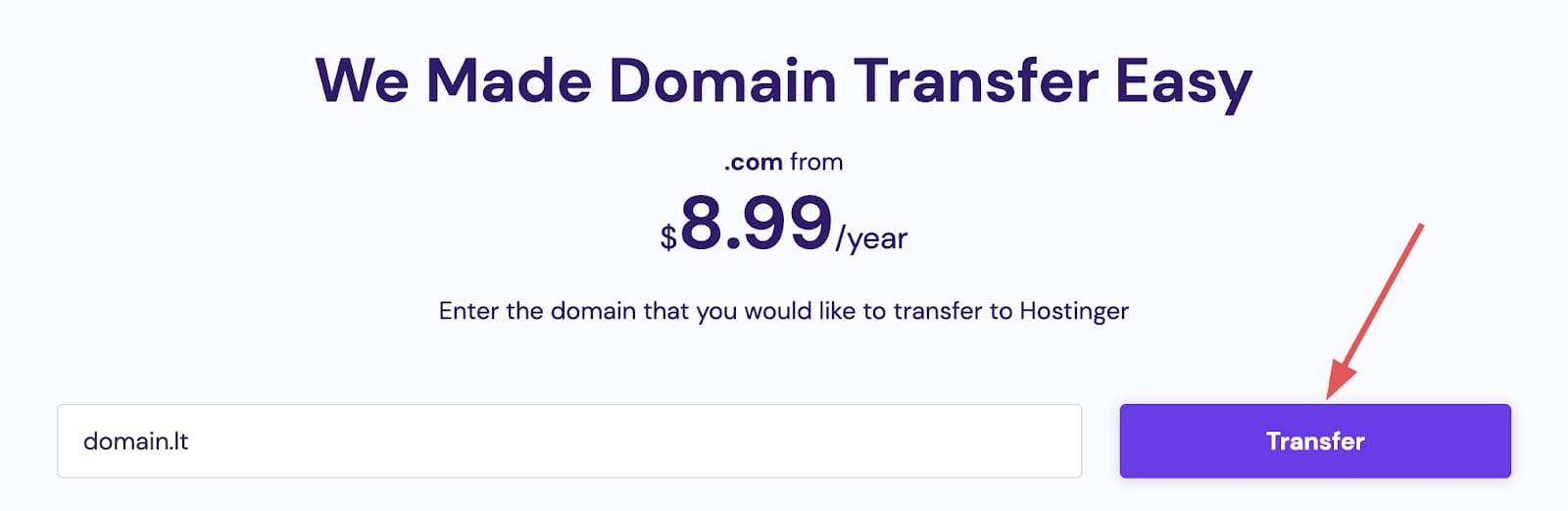
- New customers: Go to the Hostinger Domain Transfer page, enter your domain name, and follow the checkout steps to create your account.
Step 3 – Configure DNS and owner details
Open the transfer form from the Home or Domain Transfers section of your hPanel.
Set the domain owner details
Fill in the contact details for the domain owner. These must identically match the current details found in Step 1 to avoid transfer failure.
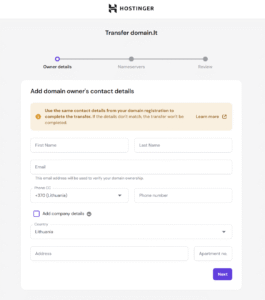
Choose nameserver settings
During the transfer process, which can take up to 7 days, nameservers are locked and cannot be changed. You must select your DNS management preference before the transfer begins:
- Keep existing nameservers
- Switch to Hostinger’s nameservers
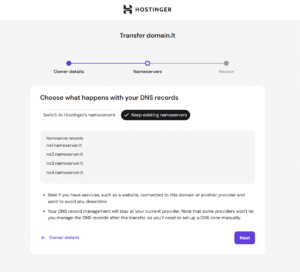
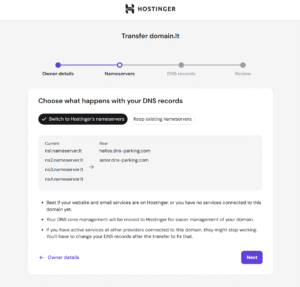
You have two options to choose from:
| Options | Reasons for choosing the option |
| Option 1 –
Keep existing nameservers |
|
| Option 2 –
Switch to Hostinger’s nameservers |
|
Step 4 – Complete the transfer
After selecting your nameservers, you will be prompted to enter the Domain transfer authorization code (EPP code) you gathered earlier.
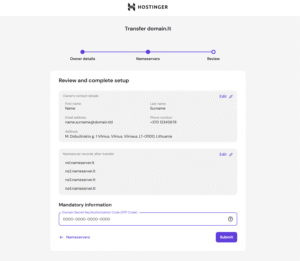
Click Submit once you enter the EPP code. If the details are correct, the transfer for .lt domains is often completed instantly, and the domain will appear in your Domains section.
NOTES
- If your current registrar refuses to provide an EPP code, you can request a provider change directly through the Domreg registry.
- Ensure that the email address used for the transfer is active, as it is used to verify ownership.