In Hostinger Website Builder, you can change the button shape in two ways:
-
Globally – apply the changes to all button elements across your website
-
Locally – change the shape of a particular button element
Global Button Shape Settings
Expand the Website styles panel on the left, open the Buttons tab, and select the preferred button shape (oval, rounded, rectangular):
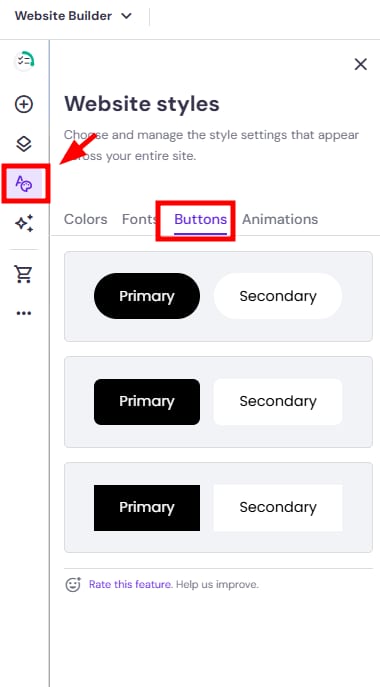
If you make changes in the global style settings, they are applied to all buttons across your website, including regular buttons, “Add to bag” buttons in single product and product list sections, and submit buttons in contact and subscription forms.
Local Button Shape Settings
Locally, you can change the button shape for the following elements:
-
Regular button elements
-
“Add to bag“ button elements
-
Contact form elements
-
Subscription form elements
Regular and “Add to bag“ buttons
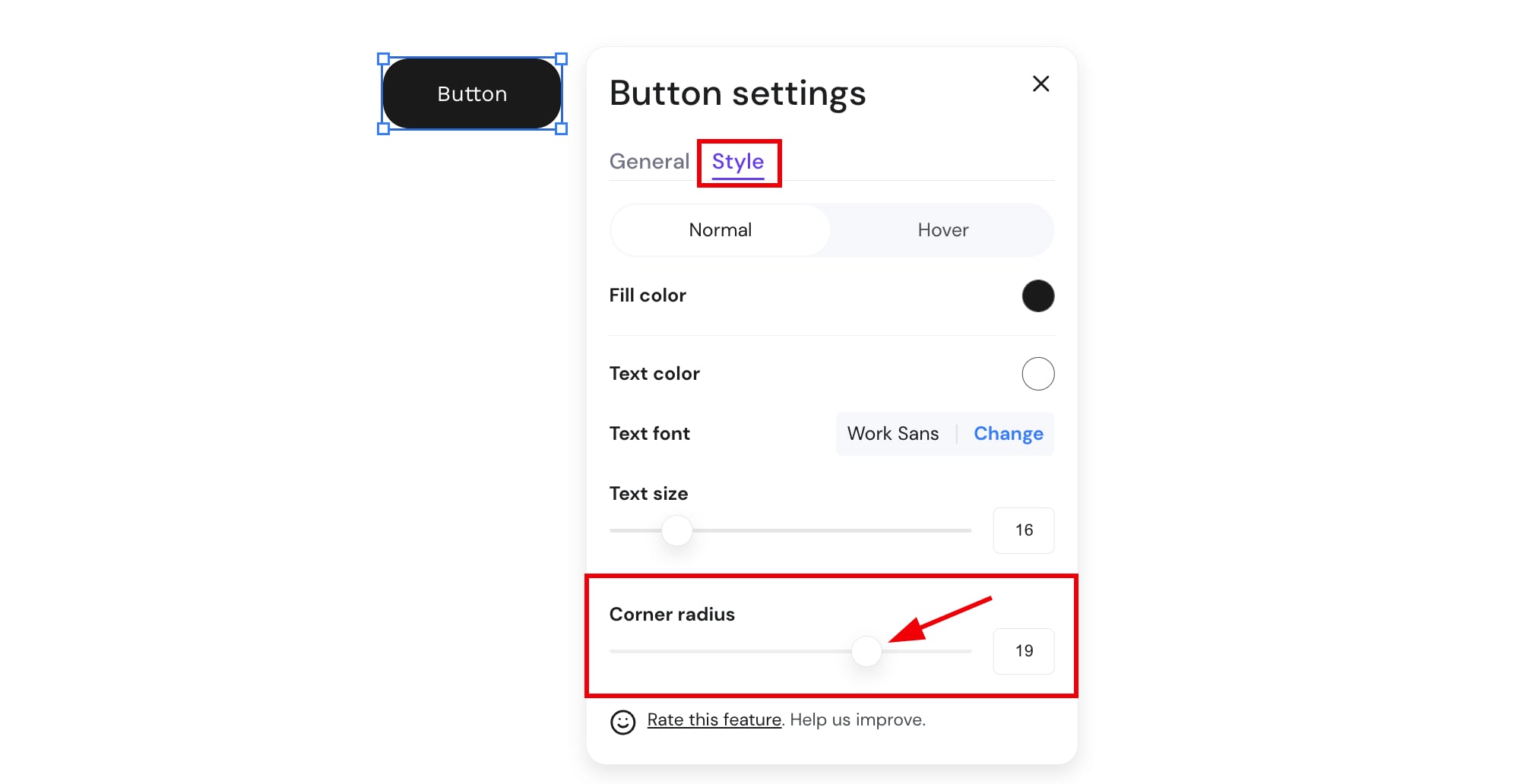
Within the editor, click on a button element and select Edit button. Then, open the Style tab and change the corner radius:
The “Submit“ button in contact and subscription forms
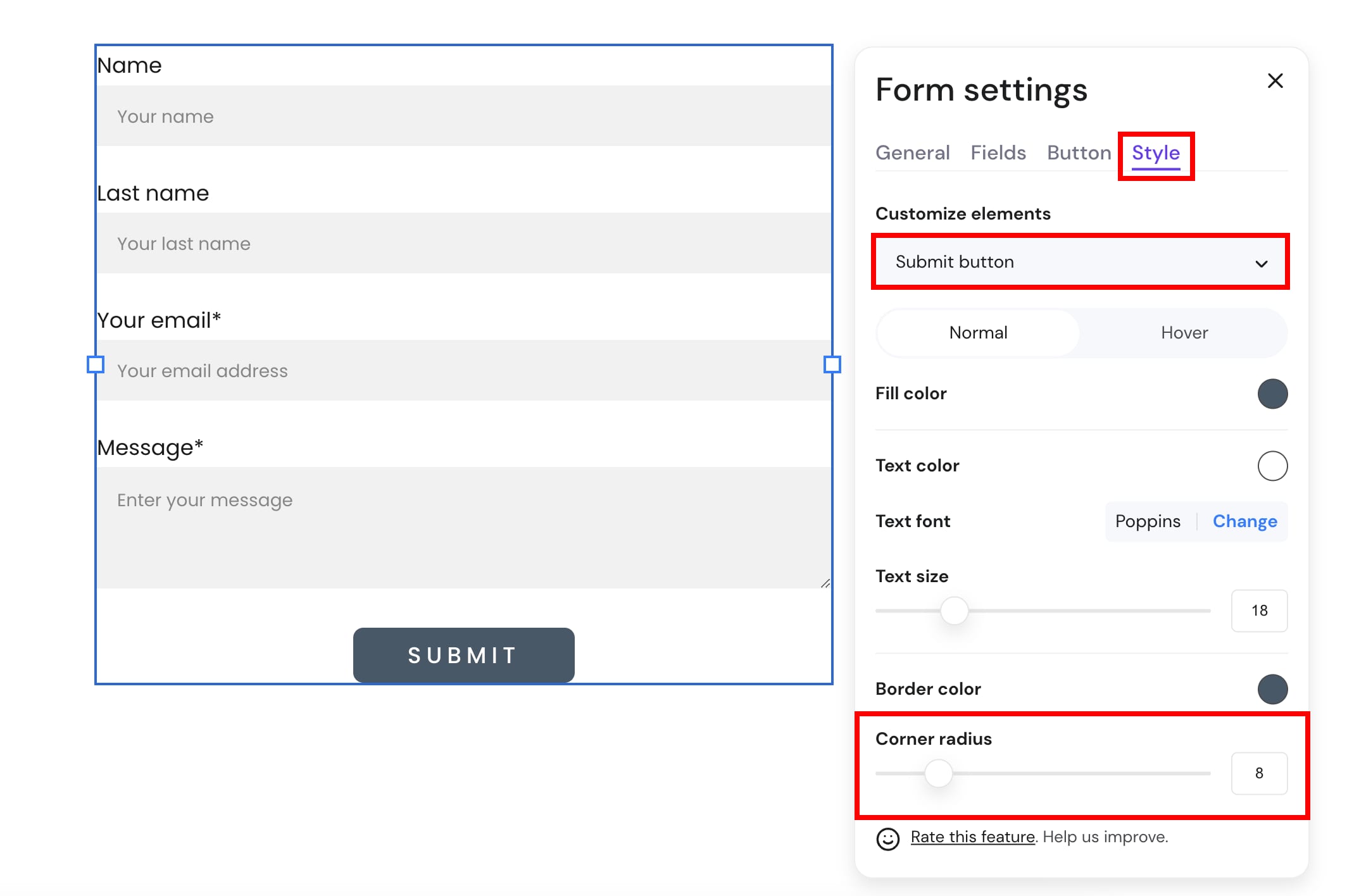
Click on the contact or subscription form and select Edit form. Open the Style tab and select Submit button from the dropdown. Then, change the corner radius:
And that’s it!