After enabling the eCommerce platform on your website, you can easily enable or disable the shopping bag in your website’s header settings.
For example, if you offer a single product or accept donations, you may enable express checkout by disabling the shopping bag. This way, your clients can buy one product at a time and are instantly redirected to the checkout page (instead of the shopping bag).
Within the website builder, click on your website’s header section, and then click on the shopping bag icon:
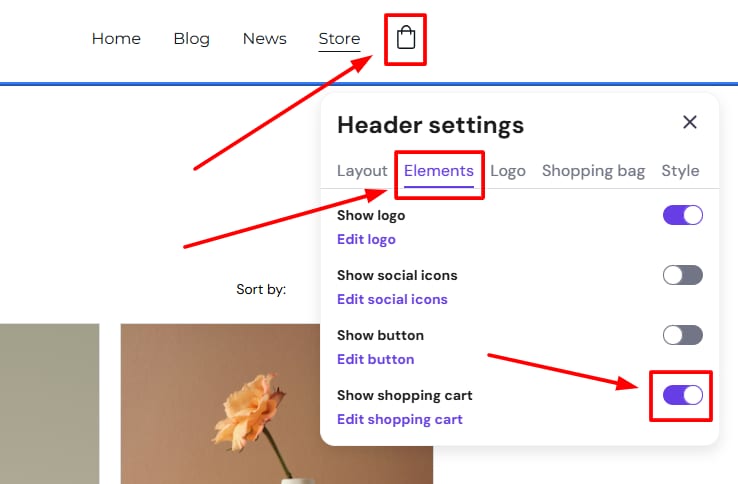
NOTE: If you can’t see the header section, it’s likely that all your website pages are hidden from the navigation menu.
Toggle the Enable shopping bag button to enable or disable the shopping bag.
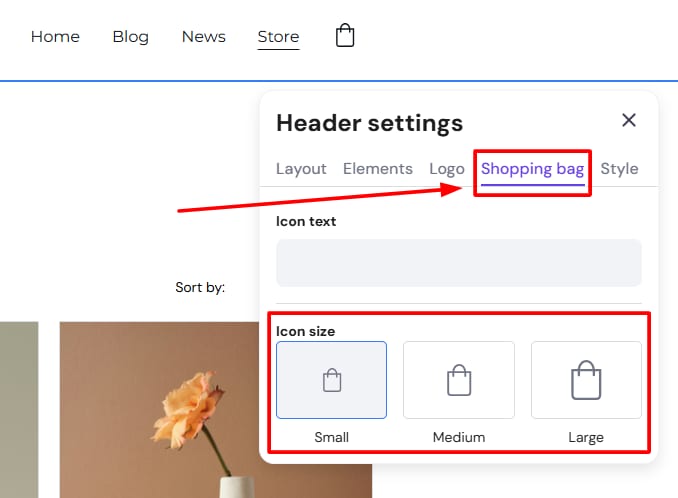
You can also change the icon text and size here:
To change the color of the shopping bag icon, open the Style tab and change the header text color:
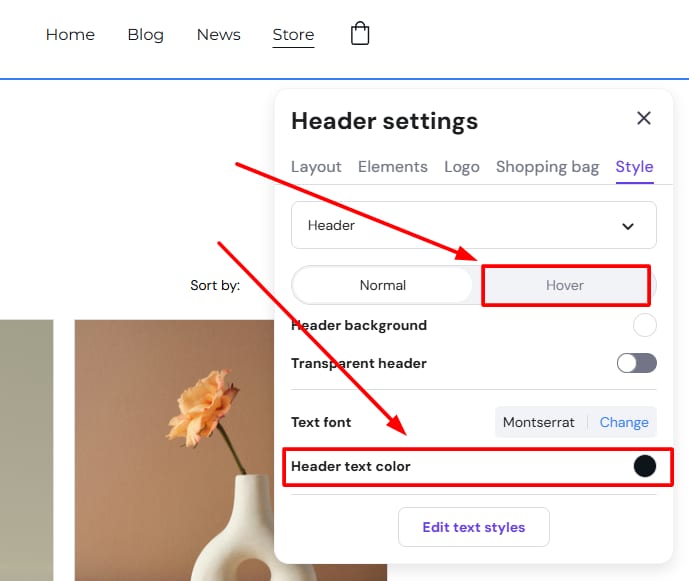
You can also style the hover color as showcased in the image above.
To change the shopping bag language, access the store management area and go to the Store settings → Checkout → Checkout language.