Publishing is the specific process of making your website live on the internet when using the Hostinger Website Builder. While other website creation methods may not require this step, a Hostinger Website Builder project exists as a private draft until it is published for the first time. Attempting to access an unpublished website may result in 404 or SSL protocol errors.
How to publish your Hostinger Website Builder website
To make your website public for the first time, follow these steps:
- Open the Hostinger Website Builder platform.
- Go to hPanel → Websites.
- Locate your website and click Edit website next to it.
- Click the Go live button in the top-right corner.

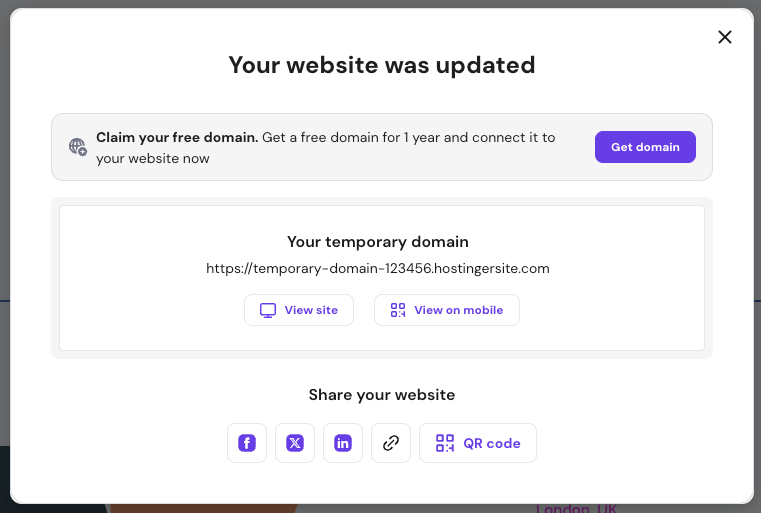
- A confirmation message appears once the website is successfully published with the following options:

- View site: open you website on a new tab
- View on mobile: displays a QR code for a quick access to your website from your mobile or tablet.
- Social icons: create posts on social media to share your website.
- Link: copy your website’s URL
- QR code: customize and create a downloadable QR code.
Update your website

Afterward, wait a few minutes and check your website in an incognito or private window to verify the applied changes.
Troubleshooting
If your website is not visible after several hours, consider these common causes:
- Coming Soon mode: Check if this mode is enabled in your settings, as it prevents visitors from seeing your content.
- Domain propagation: If you have recently connected your website to a custom domain, changes can take up to 24 hours to work globally.
- If issues persist after disabling coming soon mode and waiting for propagation, refer to this guide for more troubleshooting steps: Hostinger Website Builder: Troubleshoot website issues.
Once published, your website is accessible to the world. If you just connected a domain, it may take several hours to function fully; during this time, you can use the auto-generated preview domain provided in the builder.