Tables are very useful for displaying particular information, such as size charts or pricing.
You can create tables using free online table generators and embed them into your website created with Hostinger Website Builder. In this example, the Tables Generator tool is used. Follow the below steps to create a simple table and embed it on your website 👇
1. Open the Tables Generator tool.
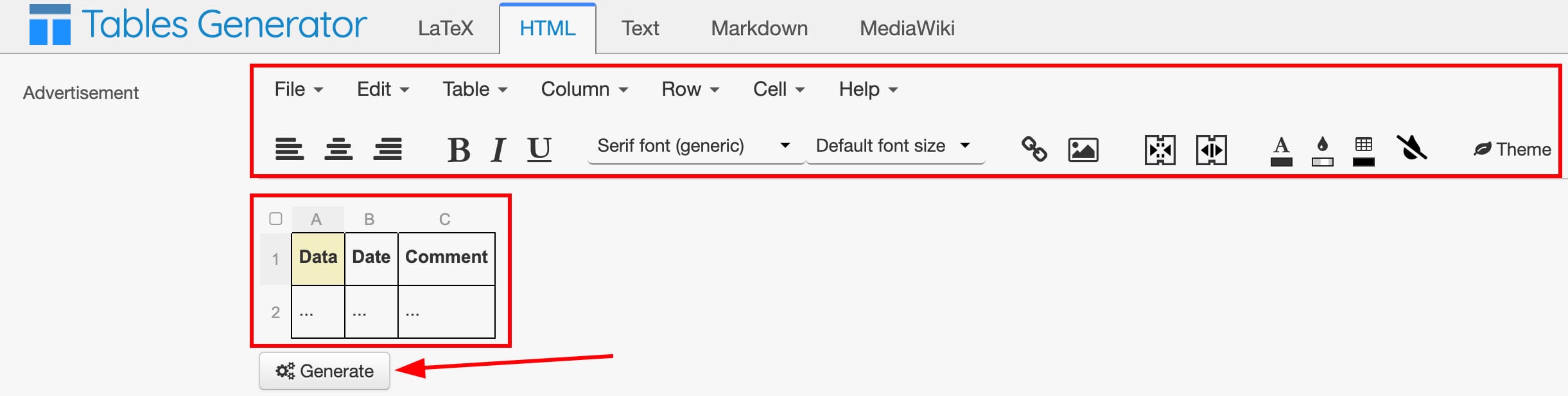
2. Create and customize your table using the toolbar and enter all values inside the table cells. Click on Generate:
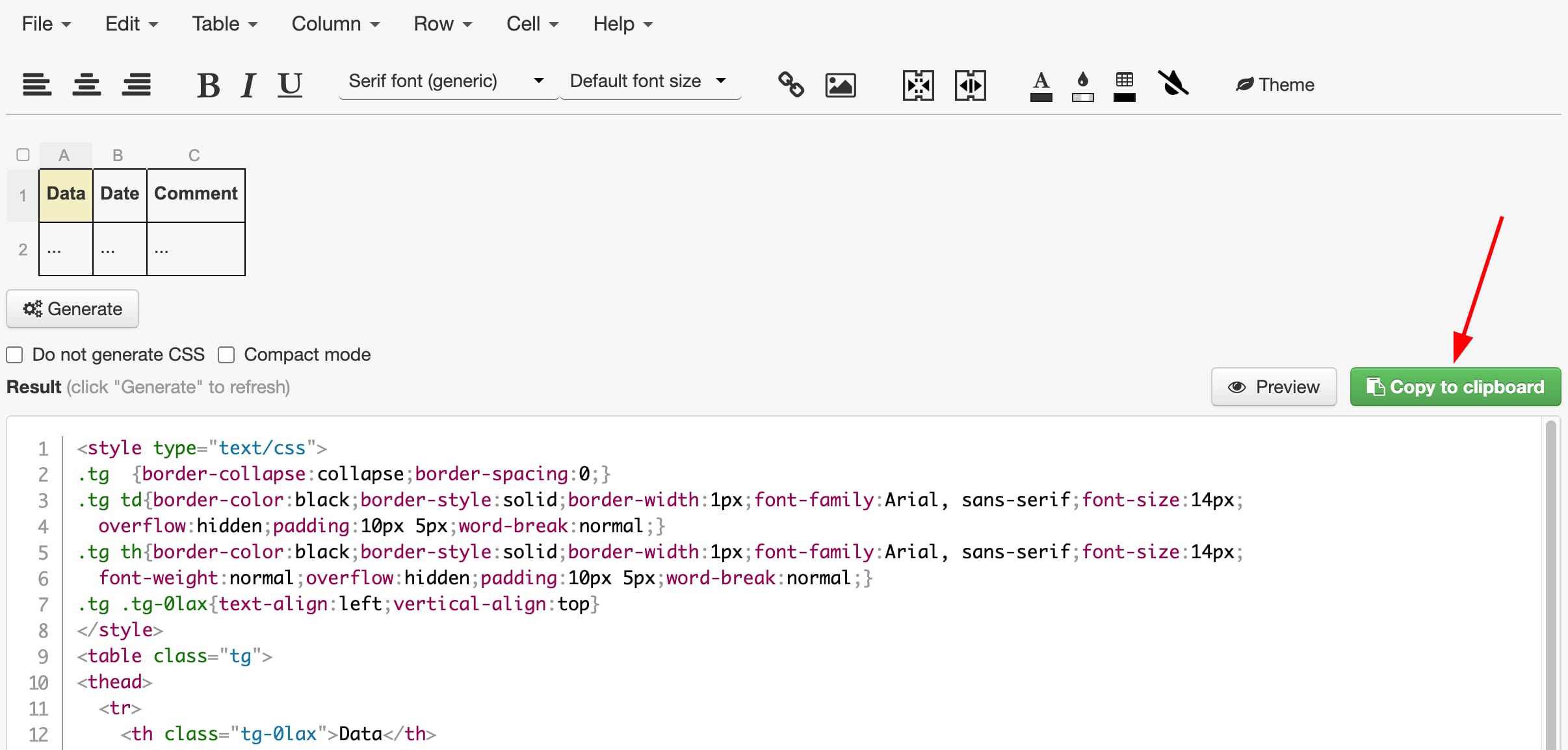
3. Once you’ve created a table, copy the generated code:
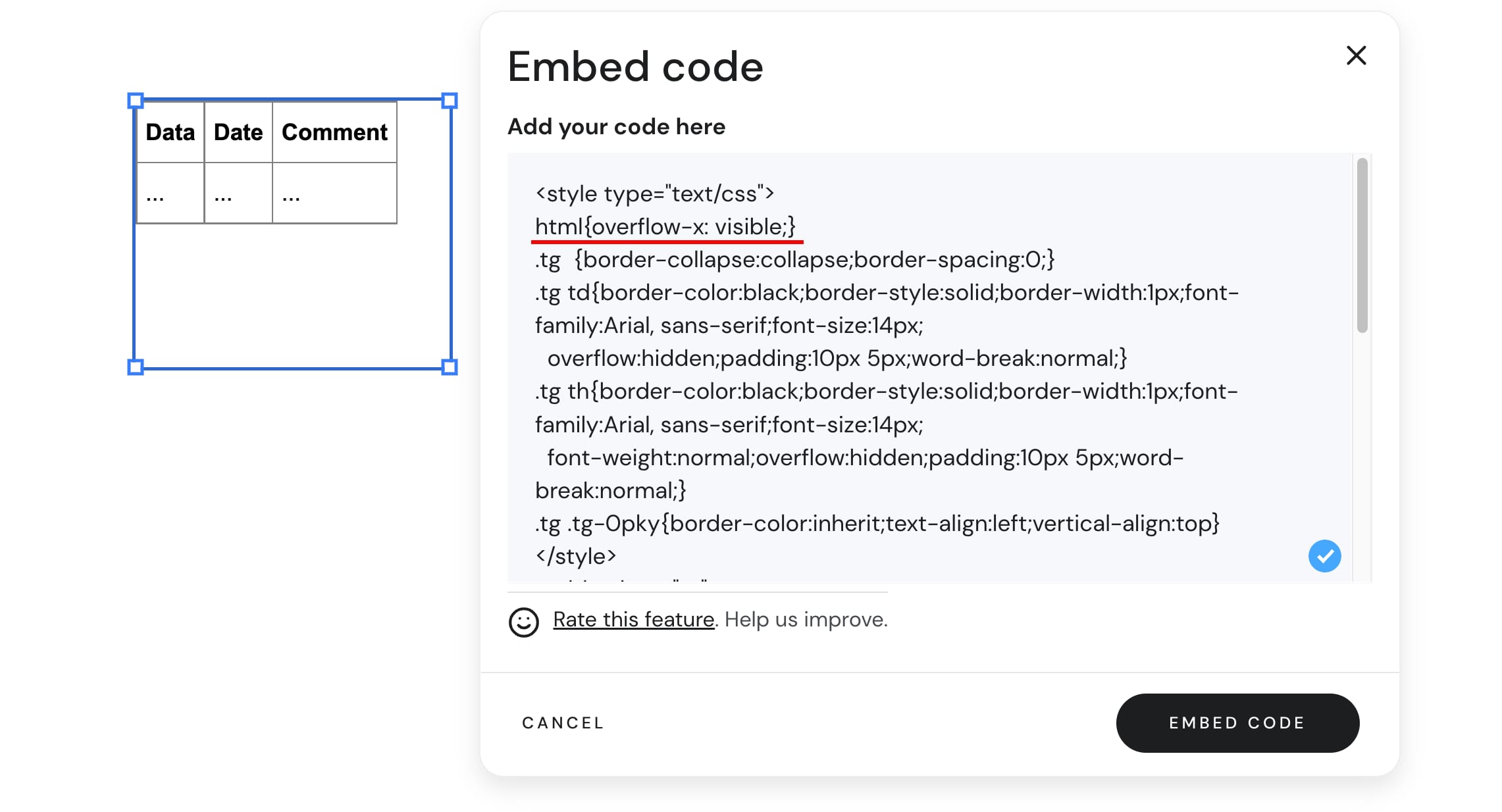
4. Open Hostinger Website Builder and add an embed code element to the preferred area of your website. Paste the copied code into it.
For the table to be scrollable, add the below line at the beginning of your code after the first line <style type="text/css">:
html{overflow-x: visible;}The created table will be displayed on your website:
You can save your table data for future editing using the Save table… button. You will be able to upload your saved table to this tool again using the Load table… button and make changes to the table later:

And that’s it!