When you create a new page with Hostinger Website Builder, the page URL automatically mimics the page title.
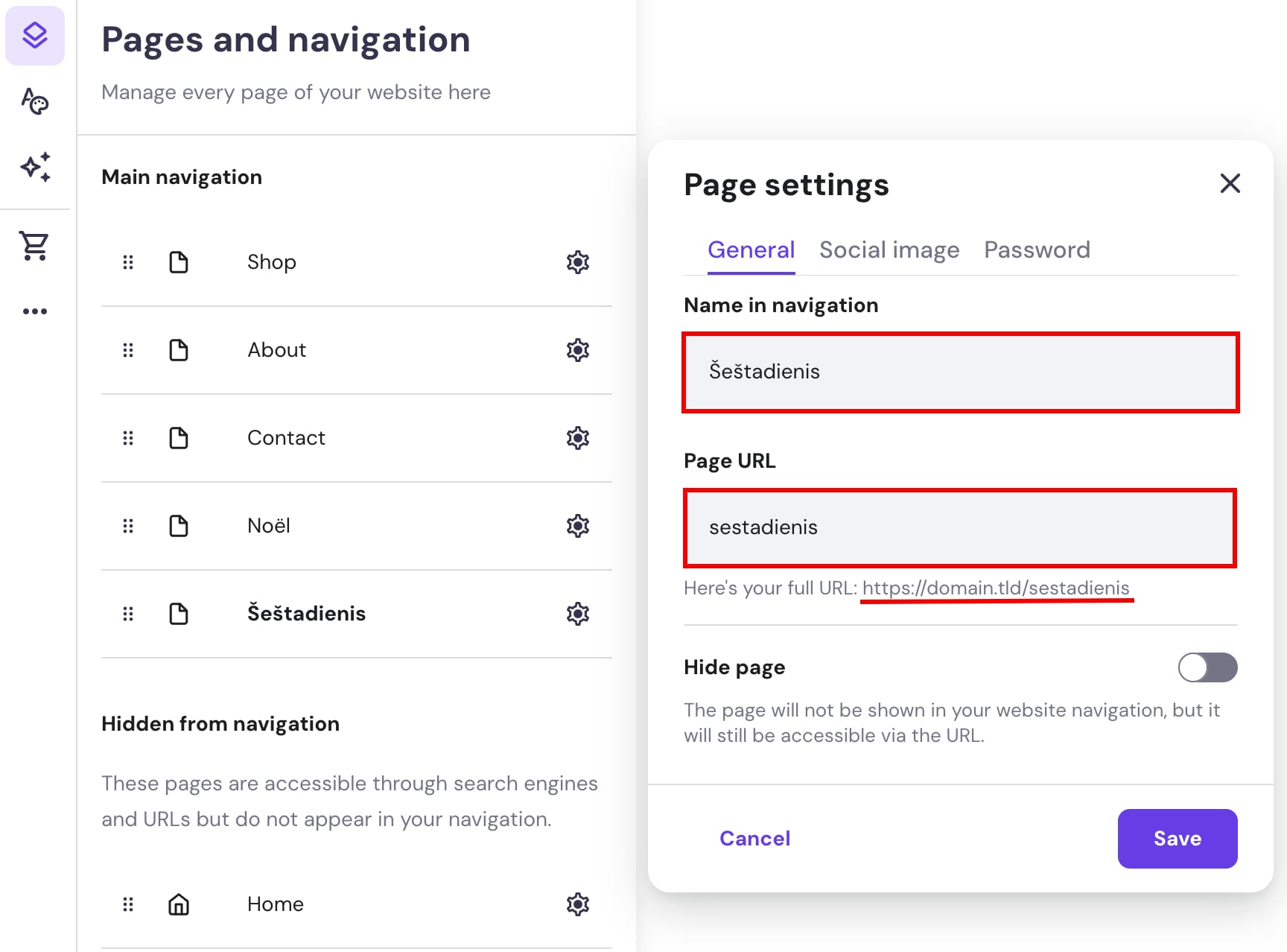
If you rename the page, the URL is also automatically updated. Non-Latin symbols are replaced with Latin symbols:
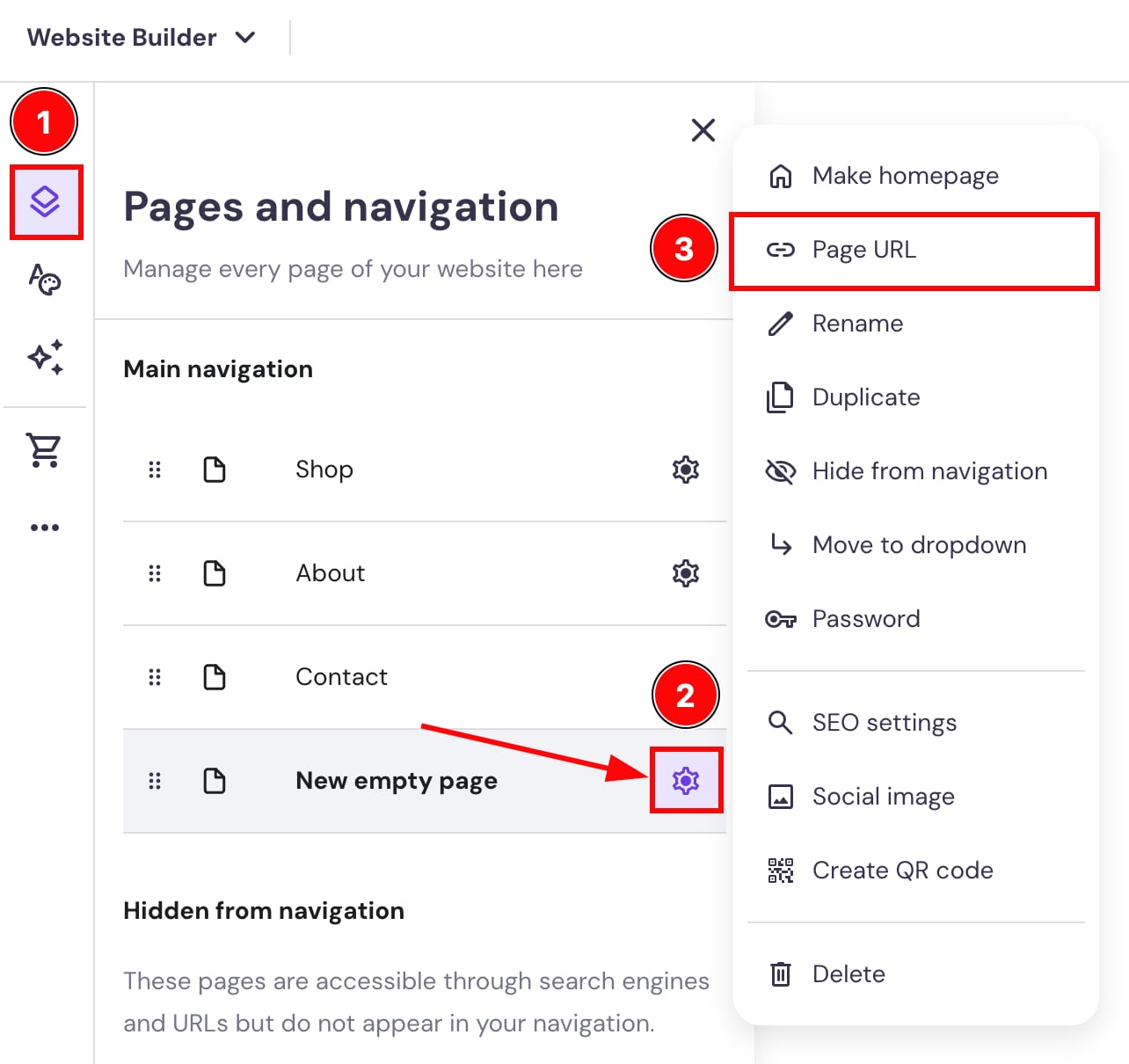
You can easily change that anytime. Within the builder, open the Pages and navigation panel on the left, then open the settings of a particular page, and select Page URL:
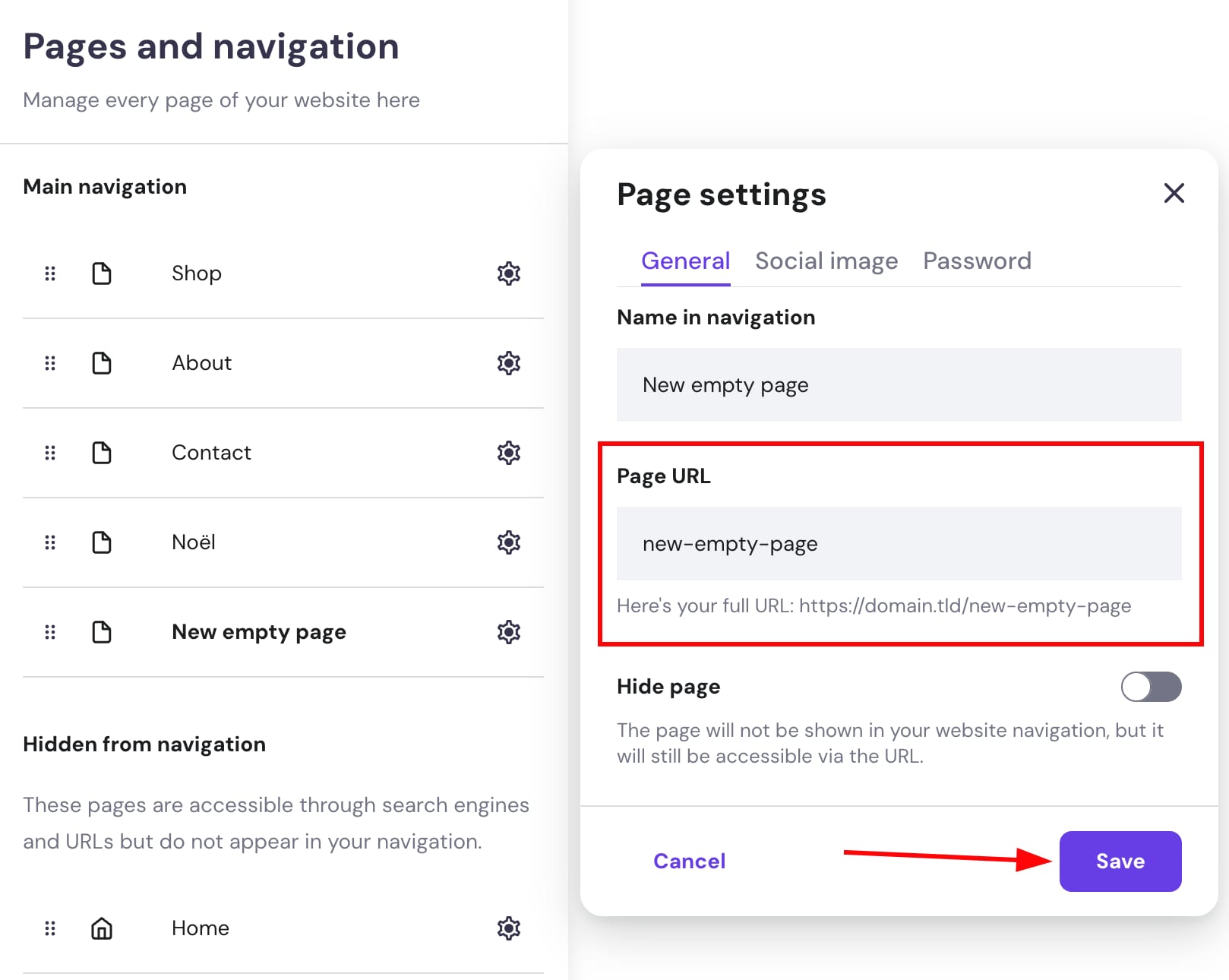
Edit the page URL and save the changes:
Remember to update your website for the changes to reflect online.
To edit a blog post URL, go to the general blog post settings, and to edit a product URL, open the product page settings 💡