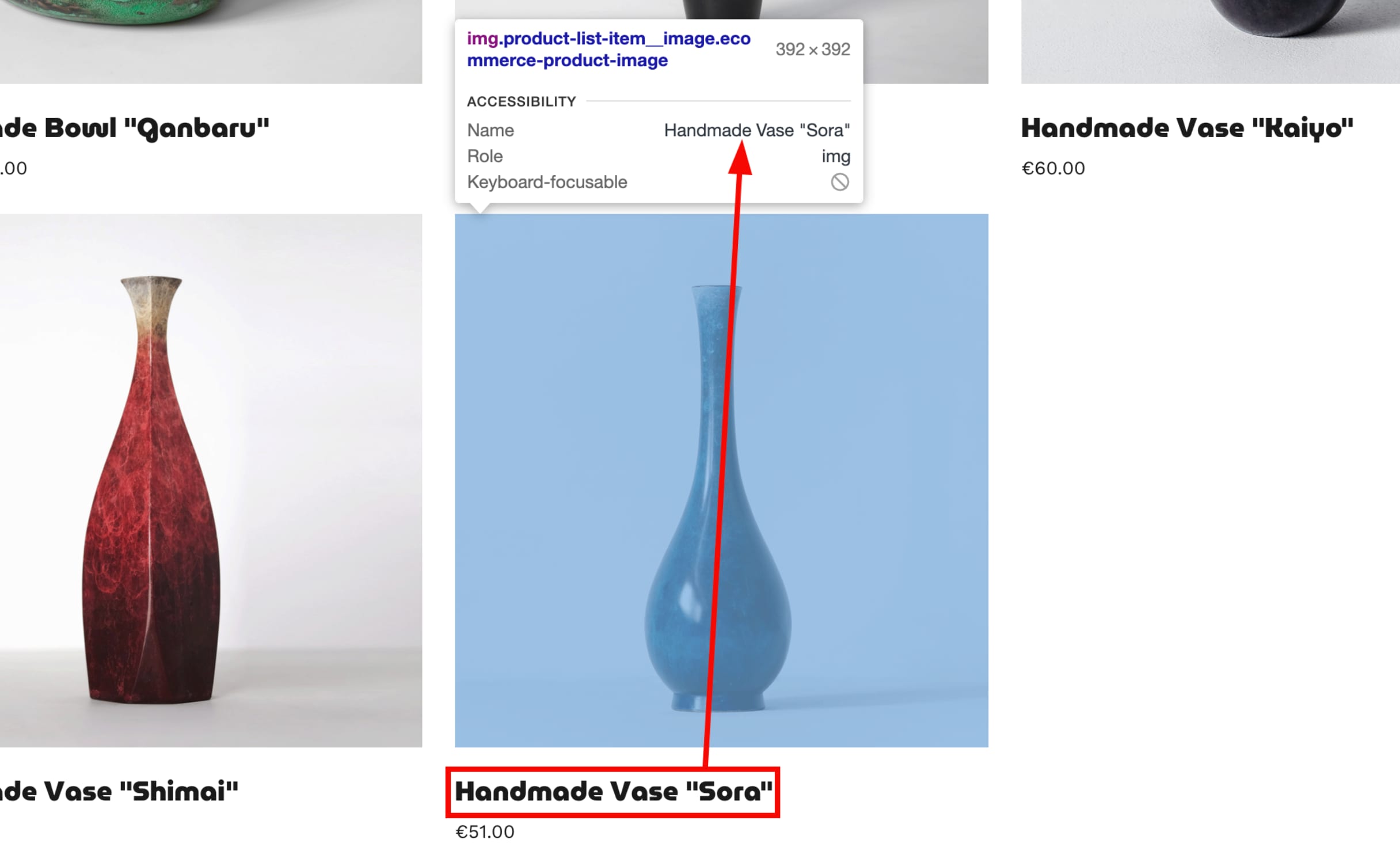
Adding alternative text to images not only makes your website more accessible for visitors (e.g., people using screen readers) but also helps search engines understand your page content better. In Hostinger Website Builder, there are two ways to add alt text to images:
The Media Library
Within the builder, click on the three dots on the left to access Website Settings.
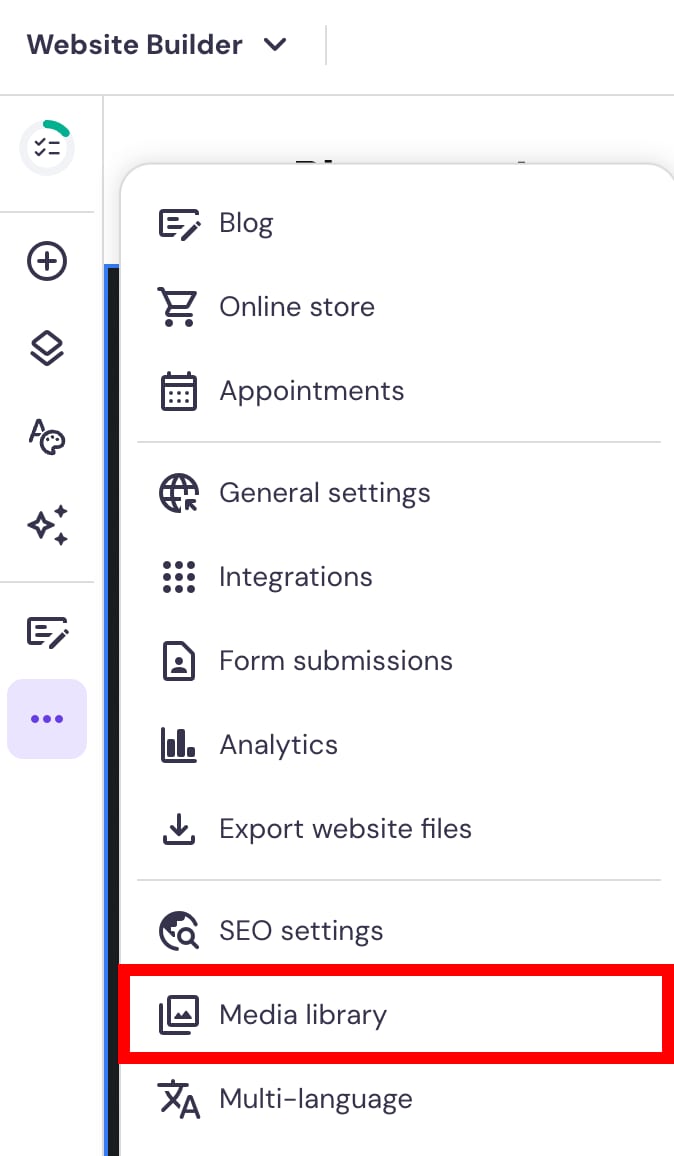
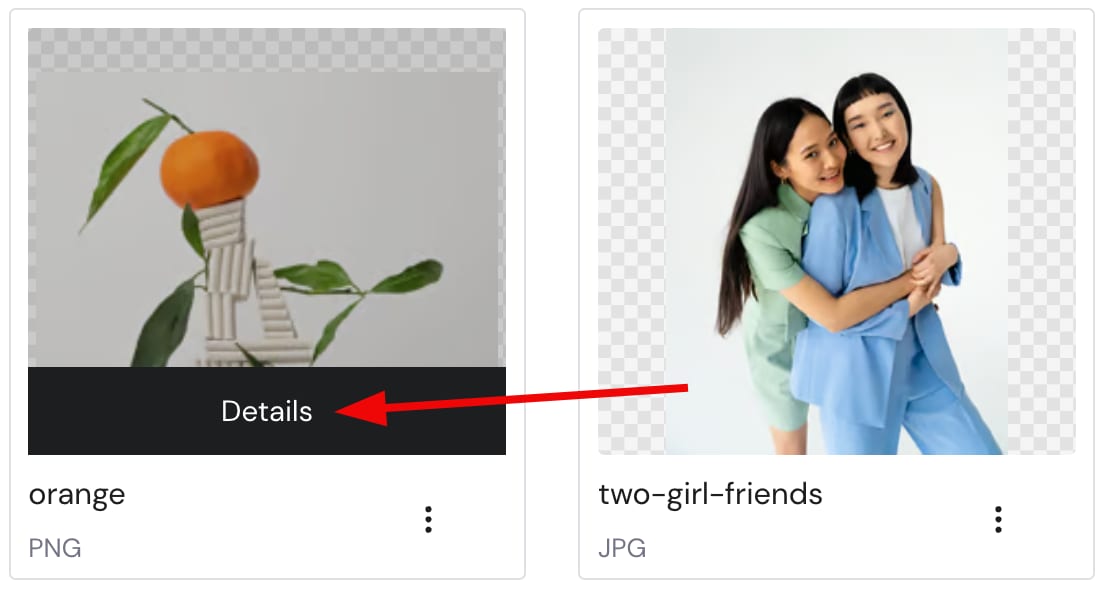
Once the menu opens up, click on Media library and open the details of the preferred image file:
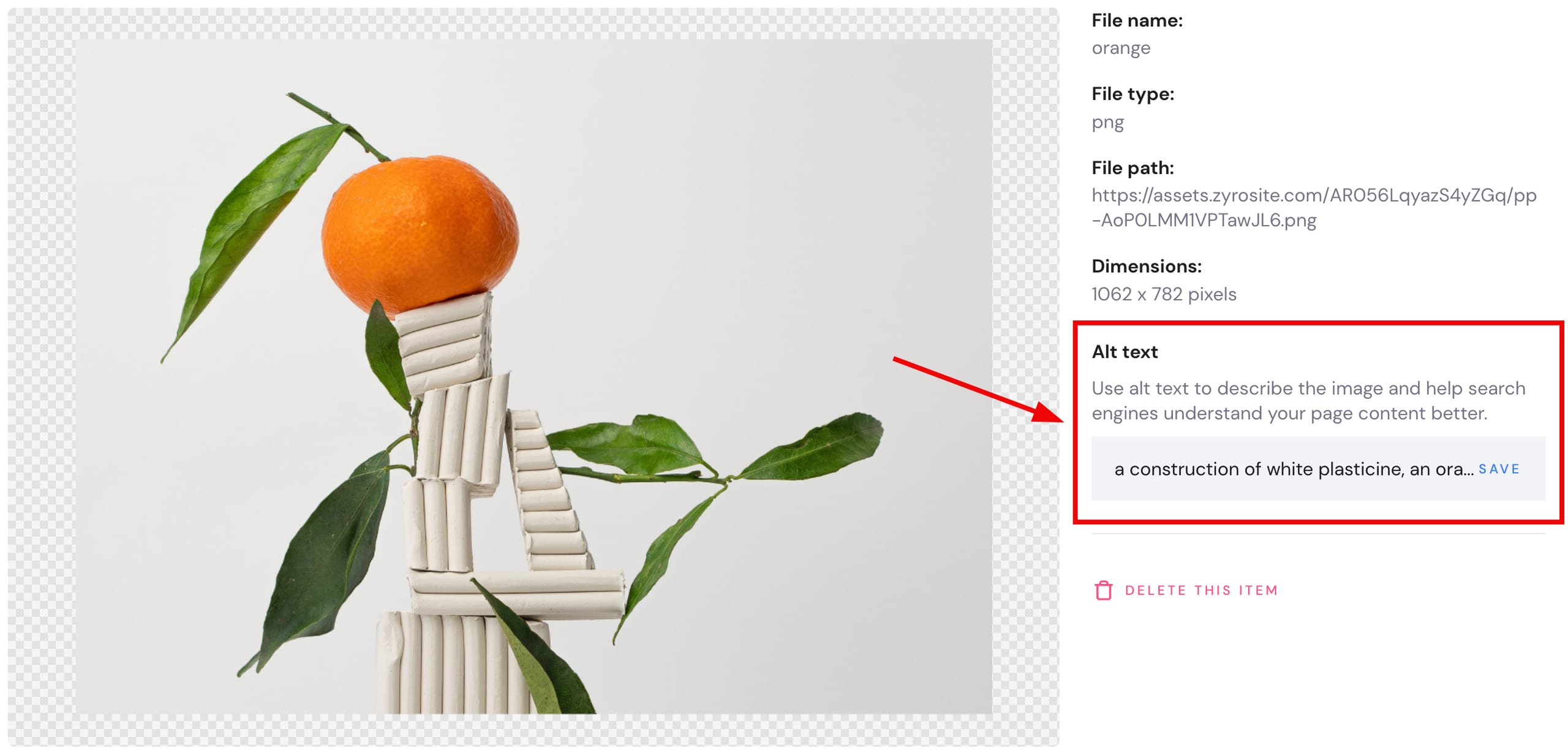
Insert the description of the image and save it:
In the Image Element Settings
Open a page on your website and click on the preferred image. Then, select Change image. In the image settings, find the Alt text field and insert a description of the image there:
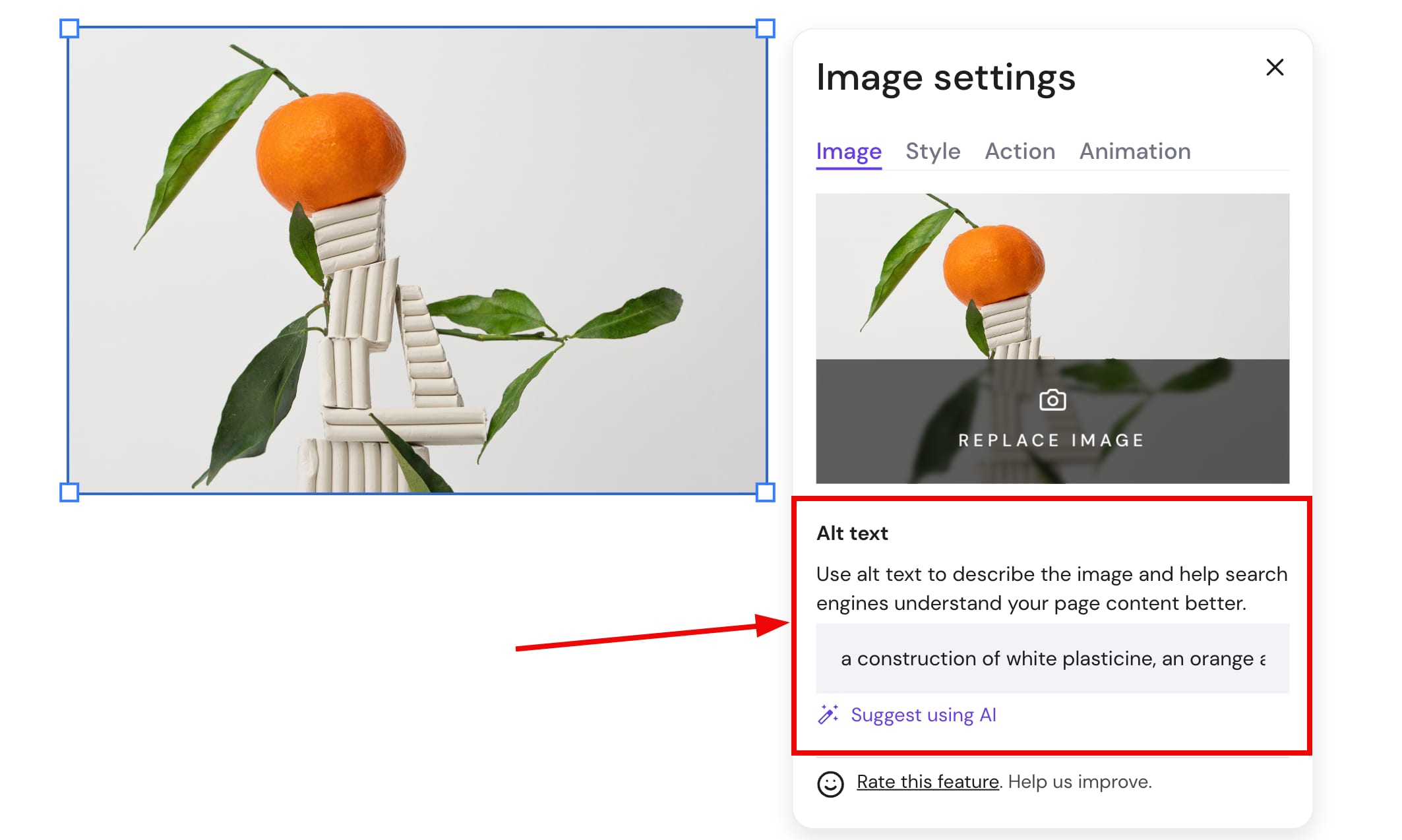
You may also use an AI-generated alt text by clicking on Suggest using AI ✨
If you run an online store, the product title is automatically used as the alt text for the main product image by default: