Meta titles and descriptions of web pages are shown in the search results:

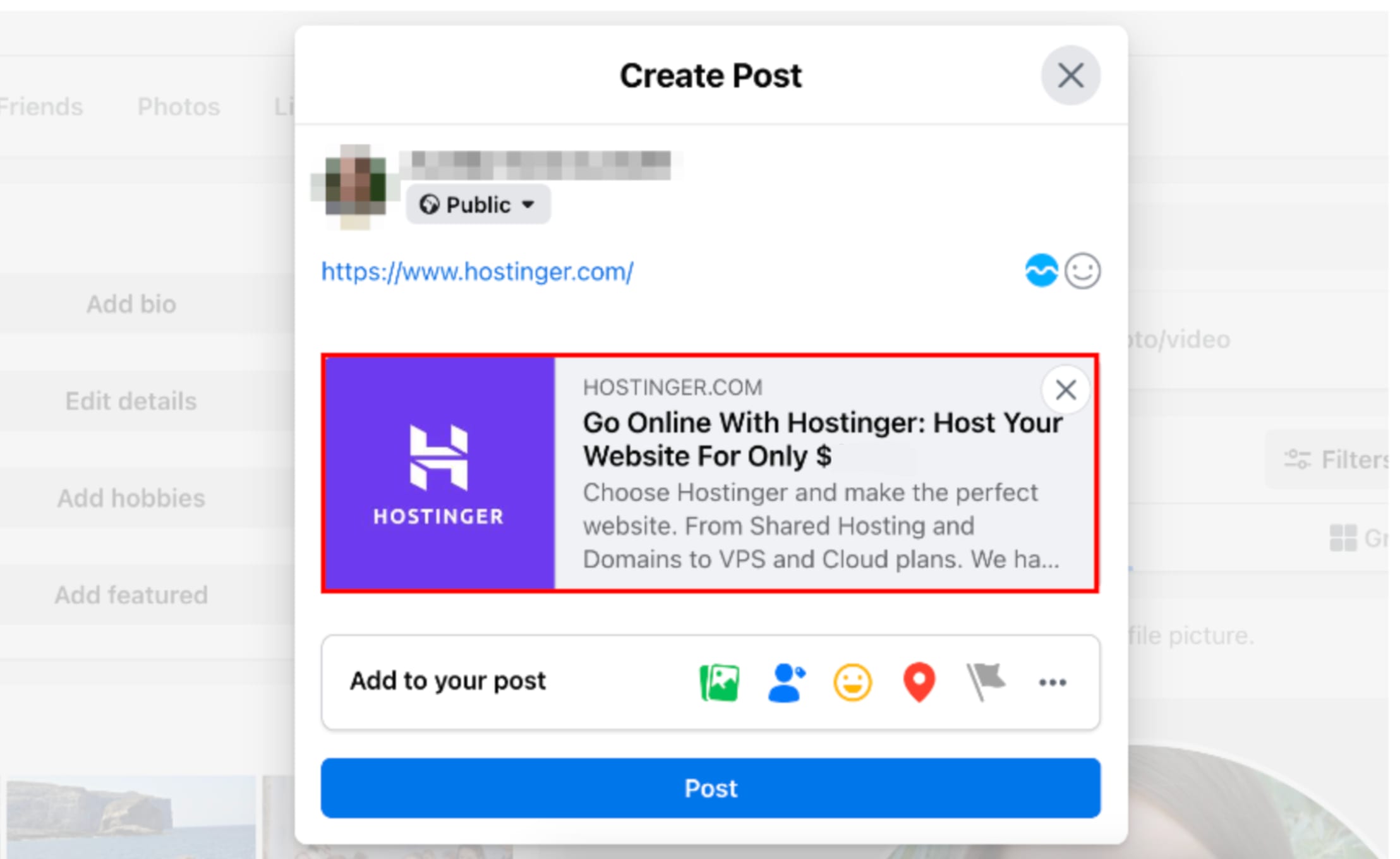
They’re also visible when sharing website links on social media:
Together with a favicon, meta titles are also visible in browser tabs:

Meta titles and descriptions are concise pieces of information about what visitors can expect to find on your pages.
Adding meta titles and descriptions
The blog post title and description are automatically used as its meta title and description. If it’s a product page, refer here: Product SEO Settings 💡
To add meta titles and descriptions to your website pages using Hostinger Website Builder, follow these steps:
-
Within the builder, click on the three dots on the left to access Website Settings.
-
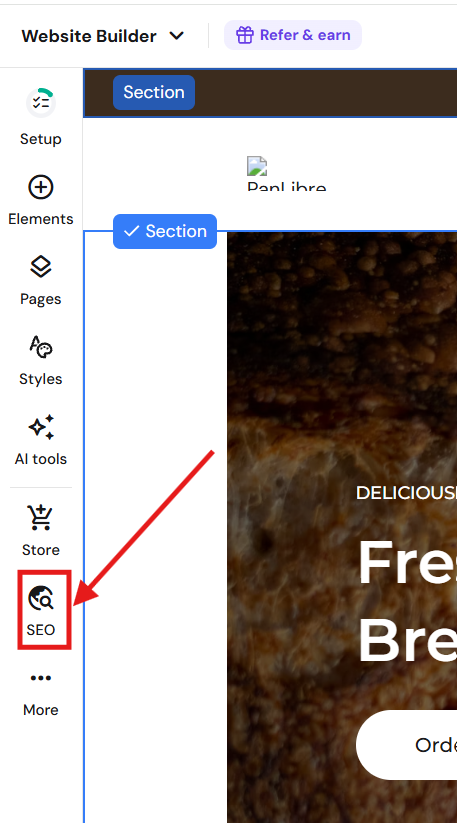
Once the menu opens up, click on SEO settings.

-
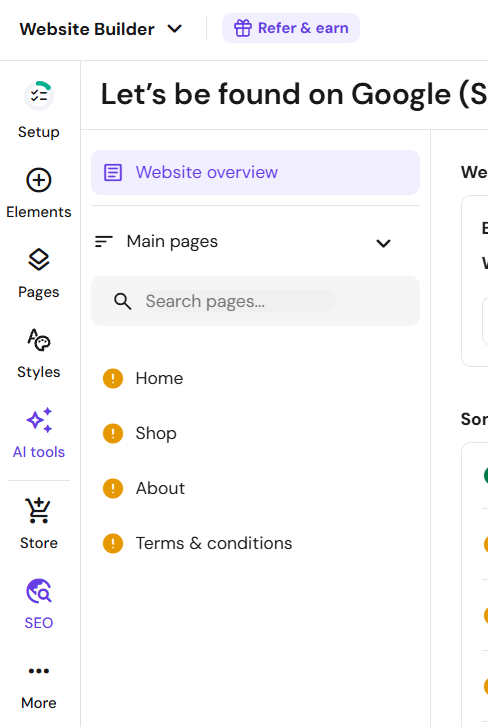
Find the page in question:

-
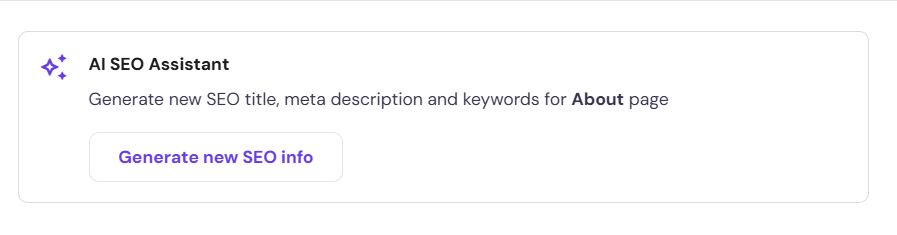
On the right, use our AI SEO Assistant, or manually fill the fields SEO title and Meta description in:


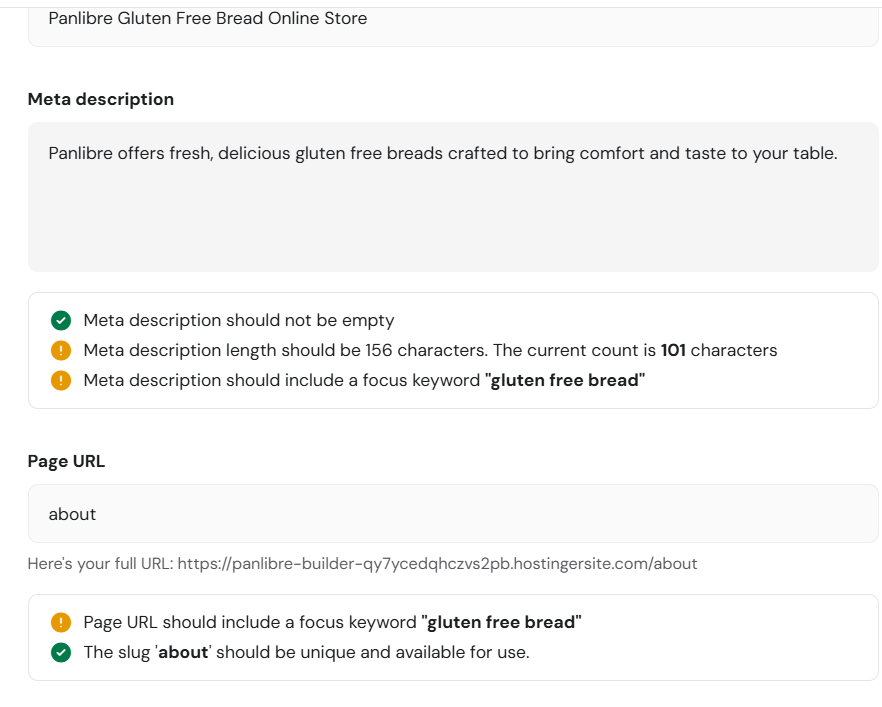
After making any changes, make sure to update your website.
NOTES
-
The recommended meta title length is up to 60 symbols (incl. spaces)
-
The recommended meta description length is up to 160 symbols (incl. spaces)
Meta titles and descriptions immediately update in browser tabs. However, they don’t immediately update in search results: it takes from a few days to a few weeks for them to reflect on Google.
Troubleshooting
Browser tabs
If meta titles don’t update in browser tabs, follow these steps:
-
Check if they are added and saved in your SEO settings.
-
Make sure to update your website.
-
-
Check the website using an incognito/private browsing window.
-
Check the website using different devices (e.g., your smartphone, tablet, or friend’s PC).
-
Check the website using different networks (try Wi-Fi instead of mobile data or vice versa).
-
-
If the above doesn’t help, get in touch with us.
Search results
If meta titles and descriptions don’t update in search results, note that:
-
Search engines need time to recrawl your website pages; it takes from a few days to a few weeks for new information to reflect in search results.
-
Search engines first need to detect and evaluate these changes, and only then are they updated in the search results.
-
-
Using Google Search Console may help you speed this process up:
Social media
If meta titles and descriptions don’t update when sharing website links on social media posts, refer to this article: Outdated titles, descriptions, and preview images on social media platforms.
Site title
The Site Title of webpages is shown in the tab of the browser, alongside the name of the website:

To change the site title of your website pages using Hostinger Website Builder, follow these steps:
-
Within the builder, click the three dots on the left to access Website Settings:
-
Once the menu opens up, click on SEO settings:
-
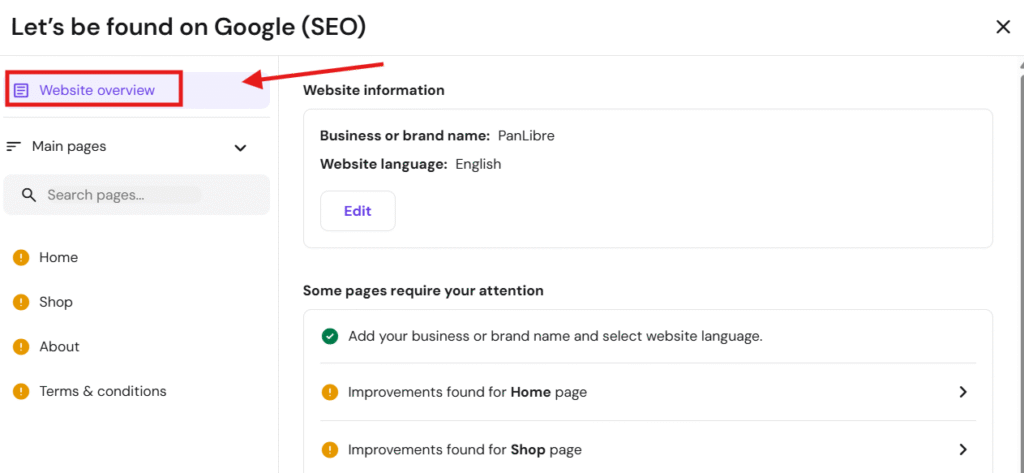
Access the Website Overview section, and click on the “Edit” Button:

-
Once there, you will be presented with the option to update the “Business or Brand Name”
-
After making any changes, make sure to update your website.