Custom code allows adding various third-party elements, features, and integrations to your site. This is the code that goes to the <body> of your website. If instead you want to add code to the <head>, follow our article about it.
To do this with Hostinger Website Builder, follow the instructions below 👇
Embedding Custom Code
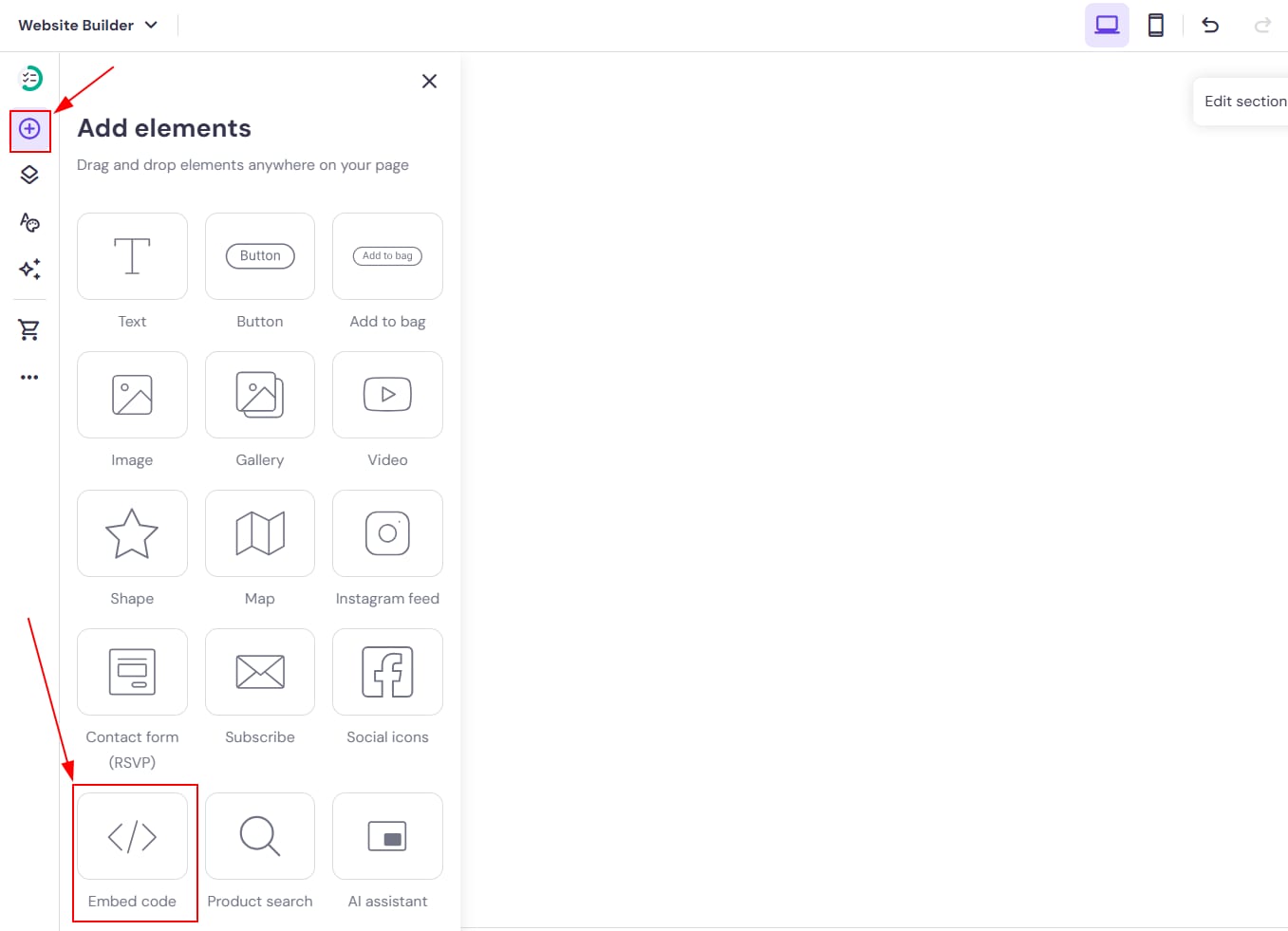
Within the builder, open the Add elements panel on the left, and drag and drop the embed code element to the desired place on your page:
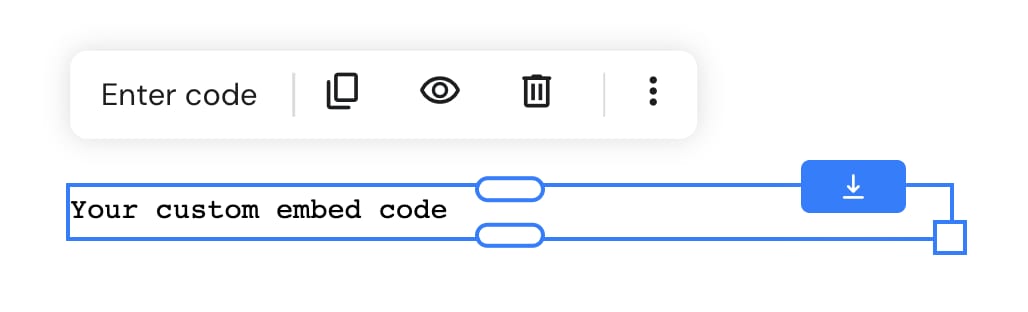
Click on the element to see more options: enter code, duplicate, change visibility, delete, resize, etc.:
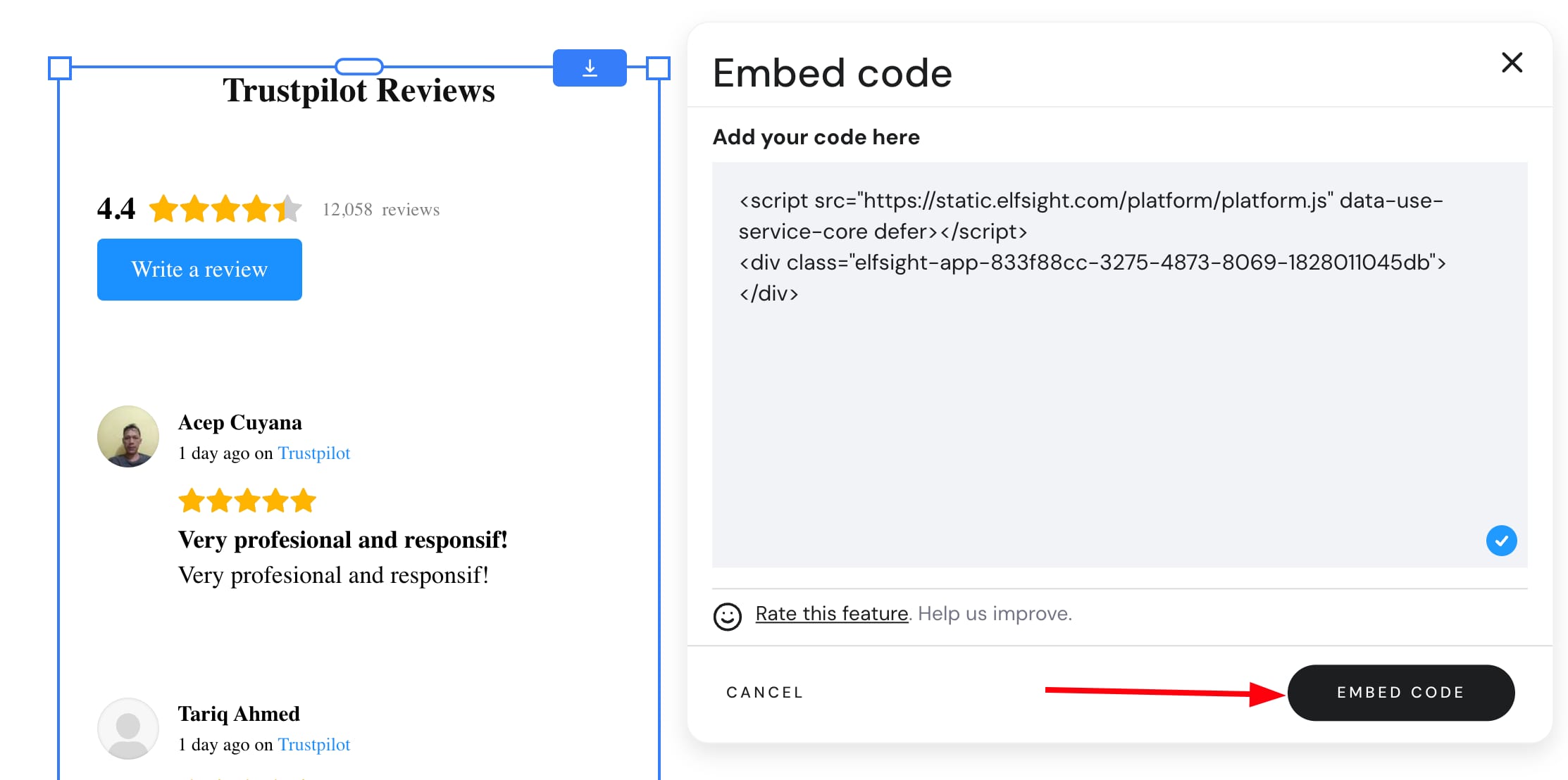
Click on Enter code, insert your code, and click on Embed code:
Finally, update your website for the changes to reflect online.
Troubleshooting
If there’s a URL in your custom code:
-
Make sure to use HTTPS; HTTP links aren’t secure, and browsers often block them
-
Remove spaces from the URL
Bad example:
<iframe src=" http://code.com " frameBorder="0" width="900" scrolling="no" height="900" height="900"></iframe>Good example:
<iframe src="https://code.com" frameBorder="0" width="900" scrolling="no" height="900" height="900"></iframe>If you’ve inserted the correct code and updated the website, but no widget is visible online, clear the browser’s cache.
If that doesn’t help, we highly recommend you reach out to the developers or support department of the platform from which you took the code for the widget.