If you use Hostinger Website Builder, integrating Google Tag Manager (GTM) into your site is relatively straightforward – you only need to know your GTM container ID (GTM-XXXXXXX).
For tracking scripts to work properly, make sure that a cookie banner is enabled on your website 💡
Connecting Google Tag Manager to Your Website
Within the builder, access the integrations settings, find the Google Tag Manager field, and insert your GTM container ID there:
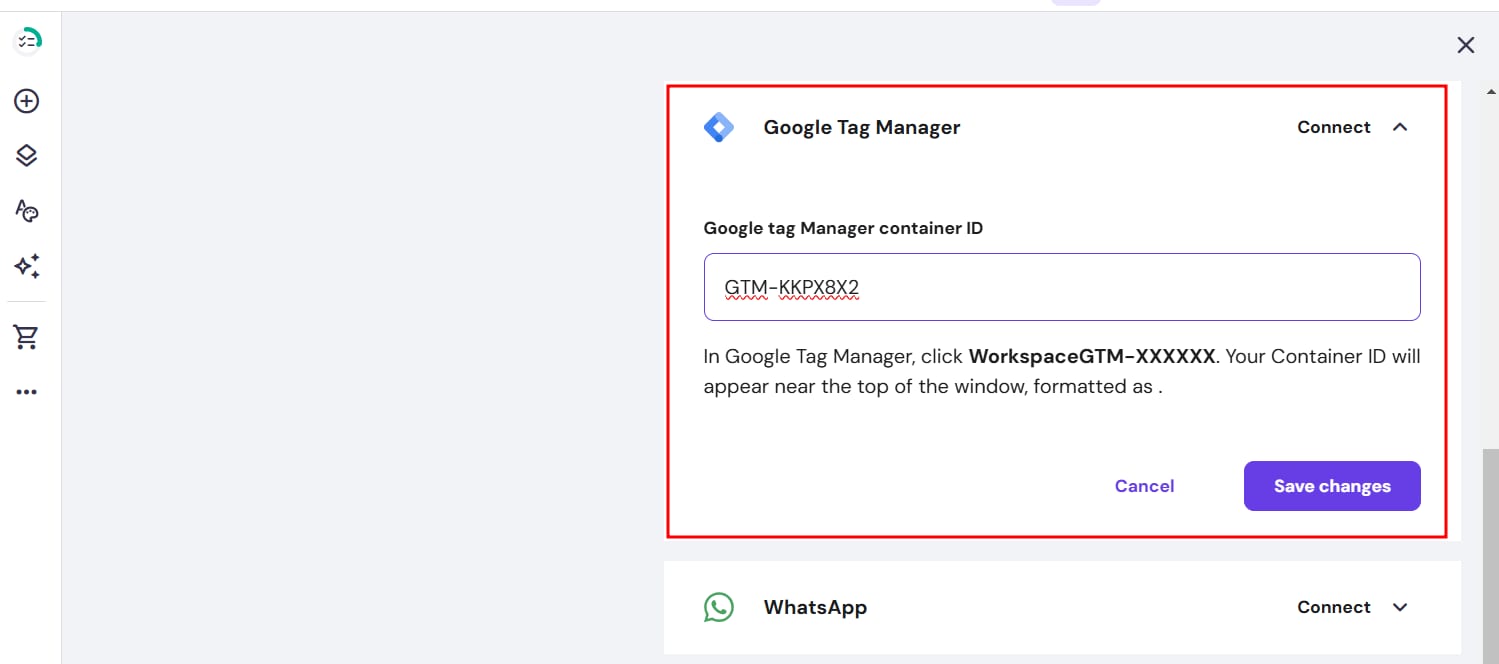
Save the changes and update your website.
Finding the Container ID
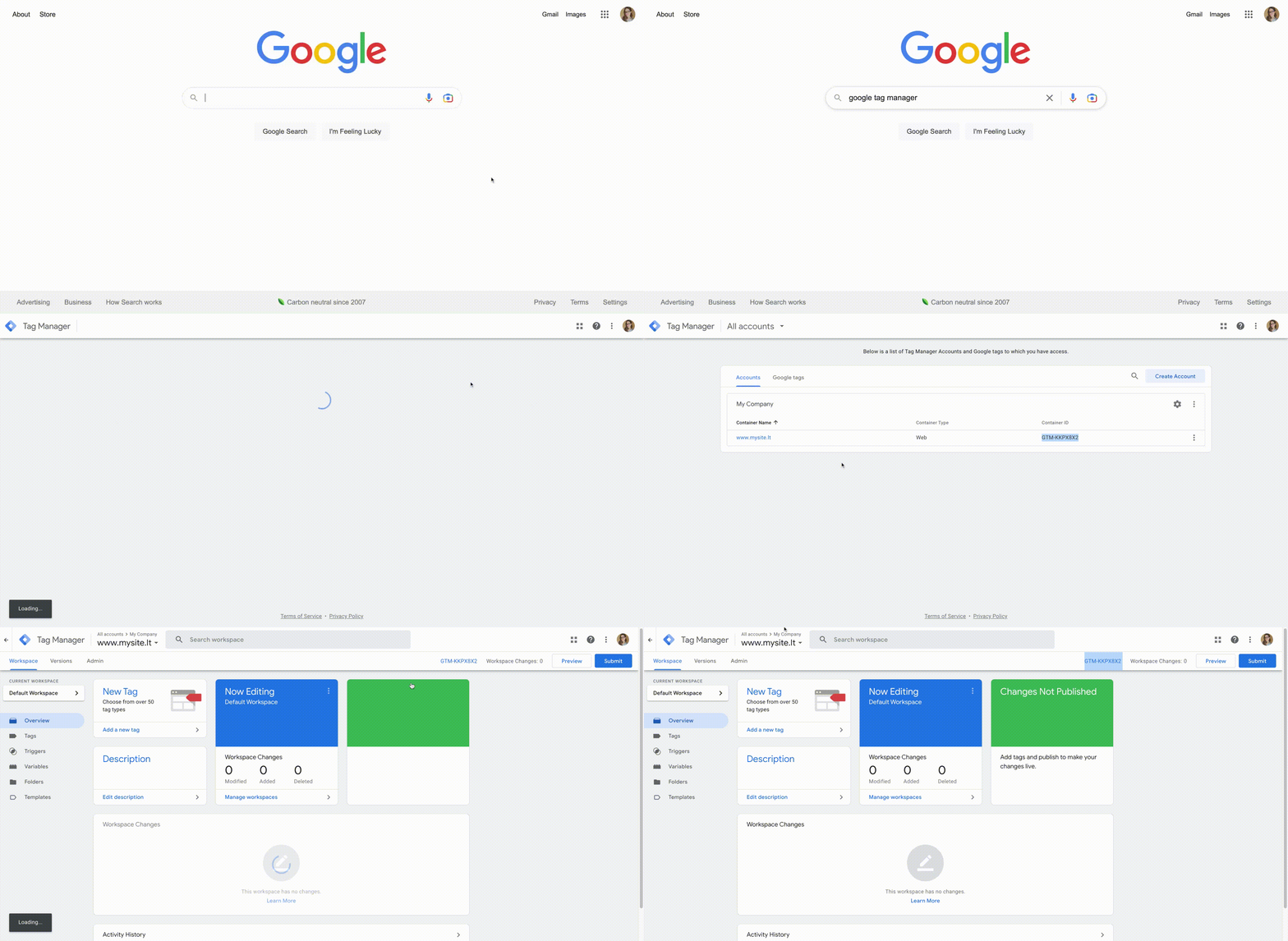
1. Log in to your Google Tag Manager account.
2. You’ll see the Container ID, which consists of GTM- and some letters or numbers – that’s the ID you need to paste in your website’s integrations settings:
If you struggle to find the container ID, refer to this Tag Manager Help article 💡