While using Hostinger Website Builder, it’s easy to add more text to your website.
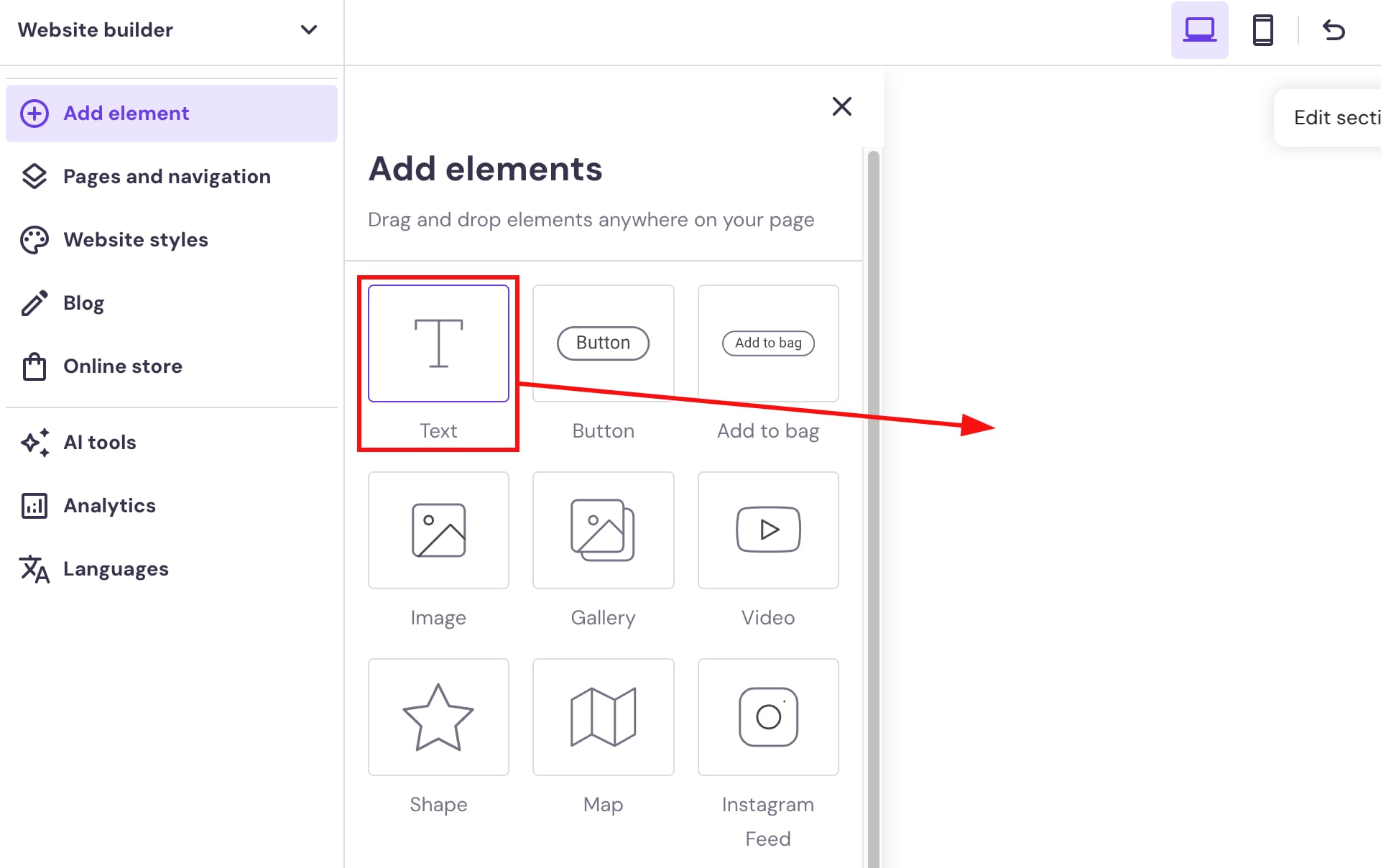
Open the builder, and expand the Add element menu on the left. Then, drag and drop a text element onto the desired section on your page:
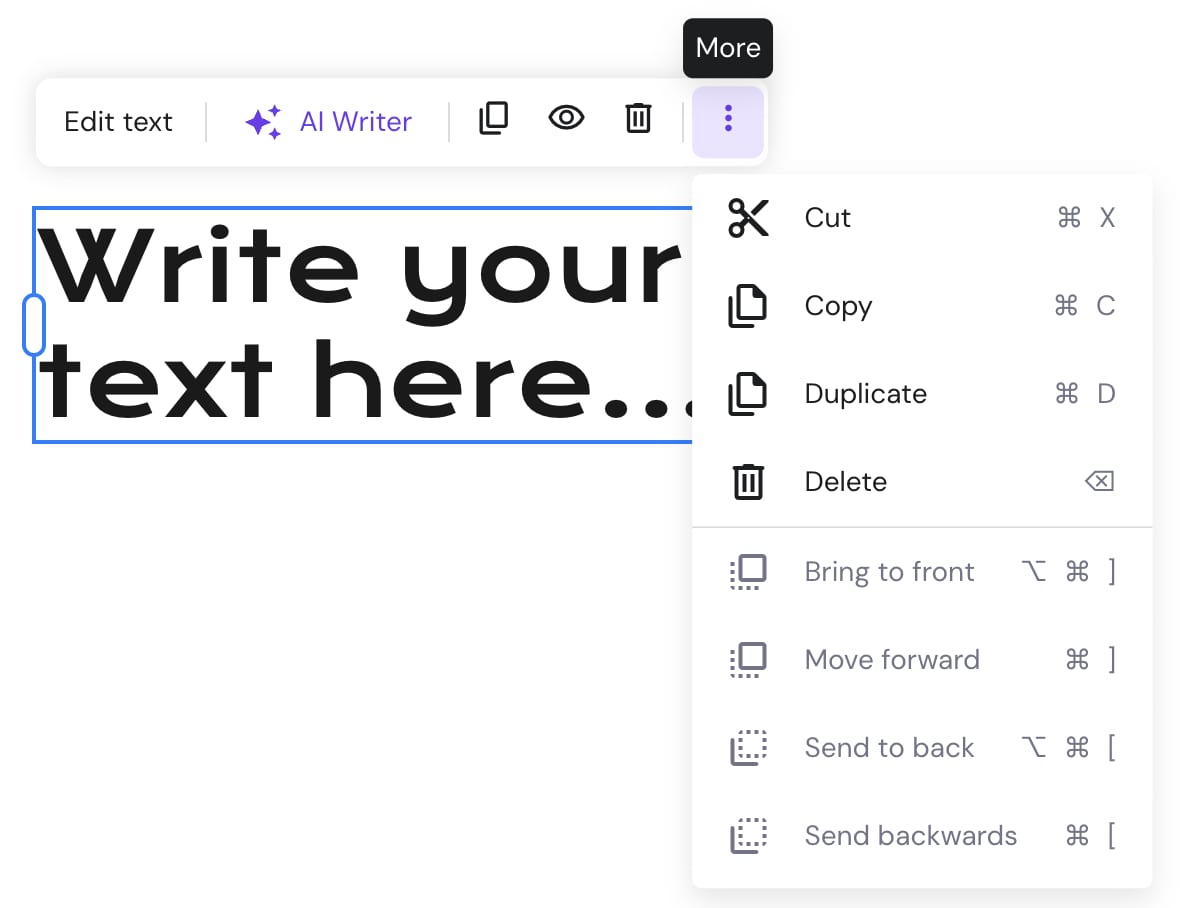
Click on the text element to view more options (edit, duplicate, hide, delete, resize, etc.):
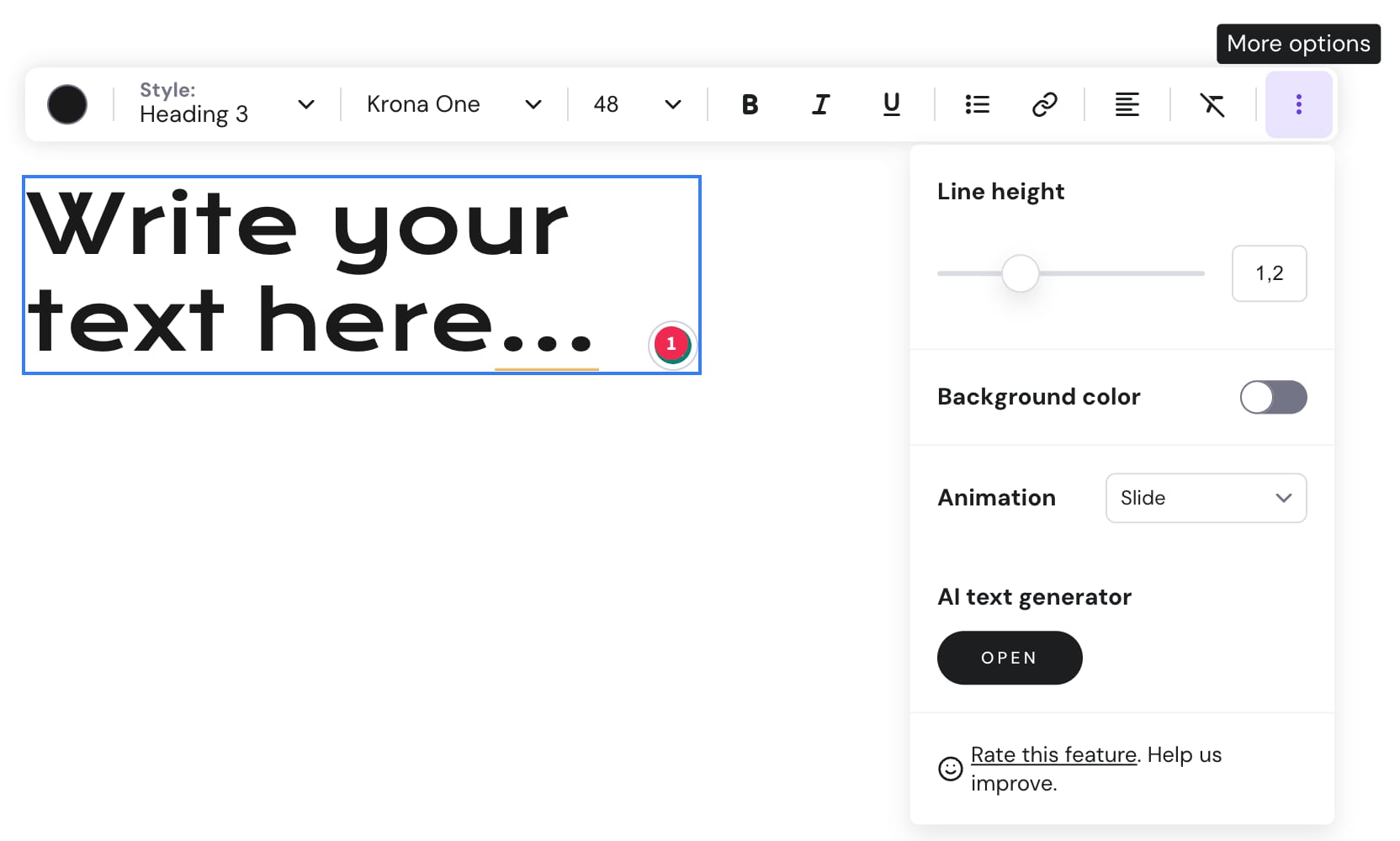
You can use a variety of text editing tools by clicking on Edit text:
NOTES
-
There are two ways to change the text style:
-
Globally – affects all the text of a particular style
-
Locally – affects a particular text element
-
-
Learn how to upload a custom font