In Hostinger Website Builder, the easiest way to add buttons to your website is to use button elements.
Button elements
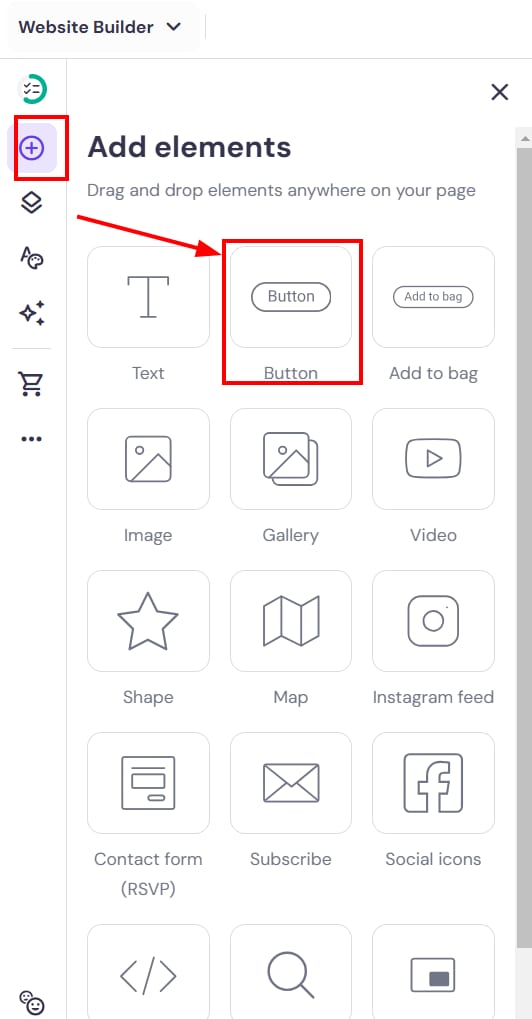
Within the editor, expand the Add elements panel on the left. Select the button element and drag and drop it anywhere on your website:
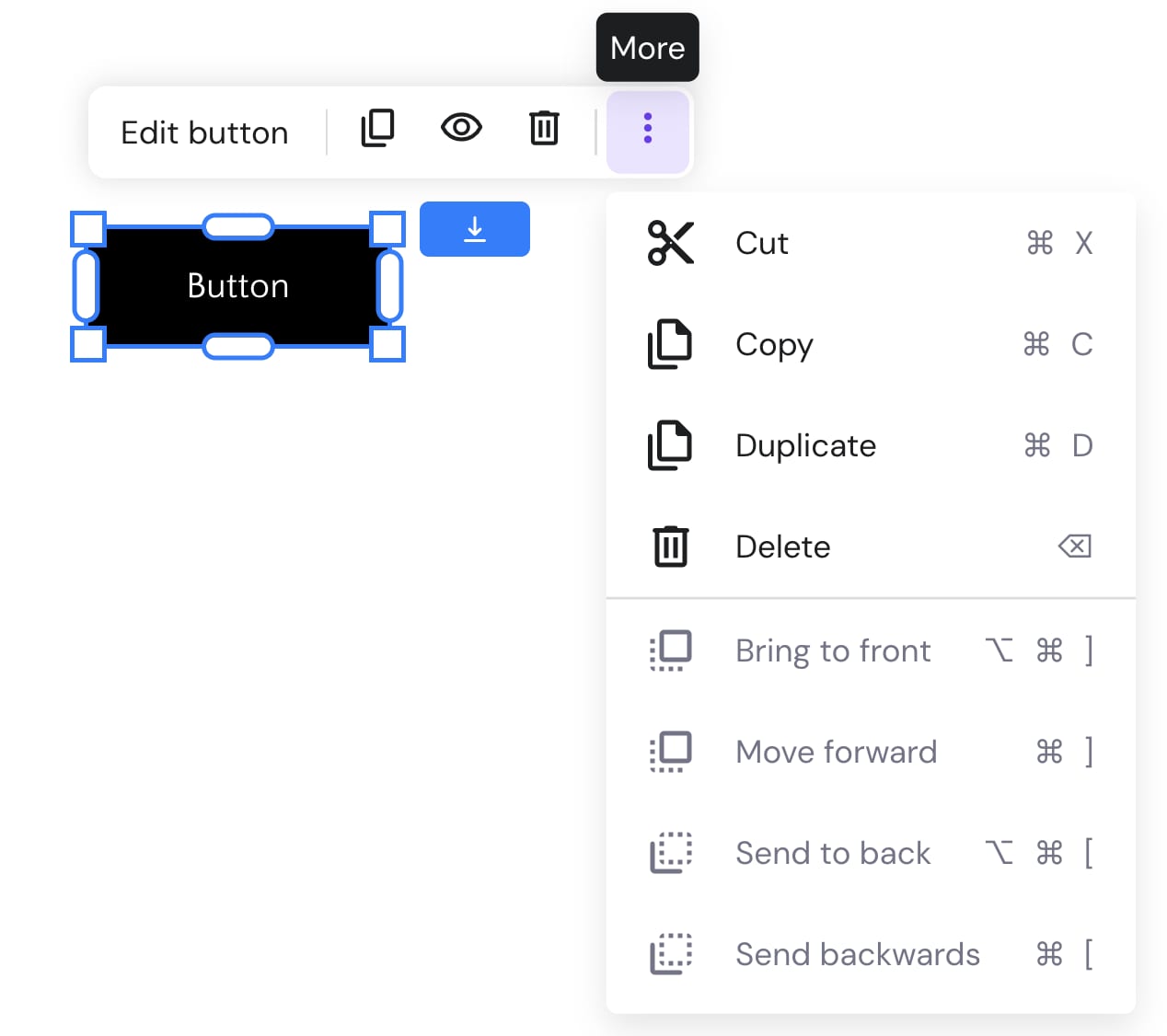
Click on the button to see more options (edit, duplicate, hide, delete, resize, etc.):
Click on Edit button to open its settings:
|
General |
Style |
Animation |
|
Button text: rename the button Linking options: hyperlink a button with:
|
Change the following style attributes of the button:
|
Adding a button to the header
Within the editor, click on the header, and then Edit header:

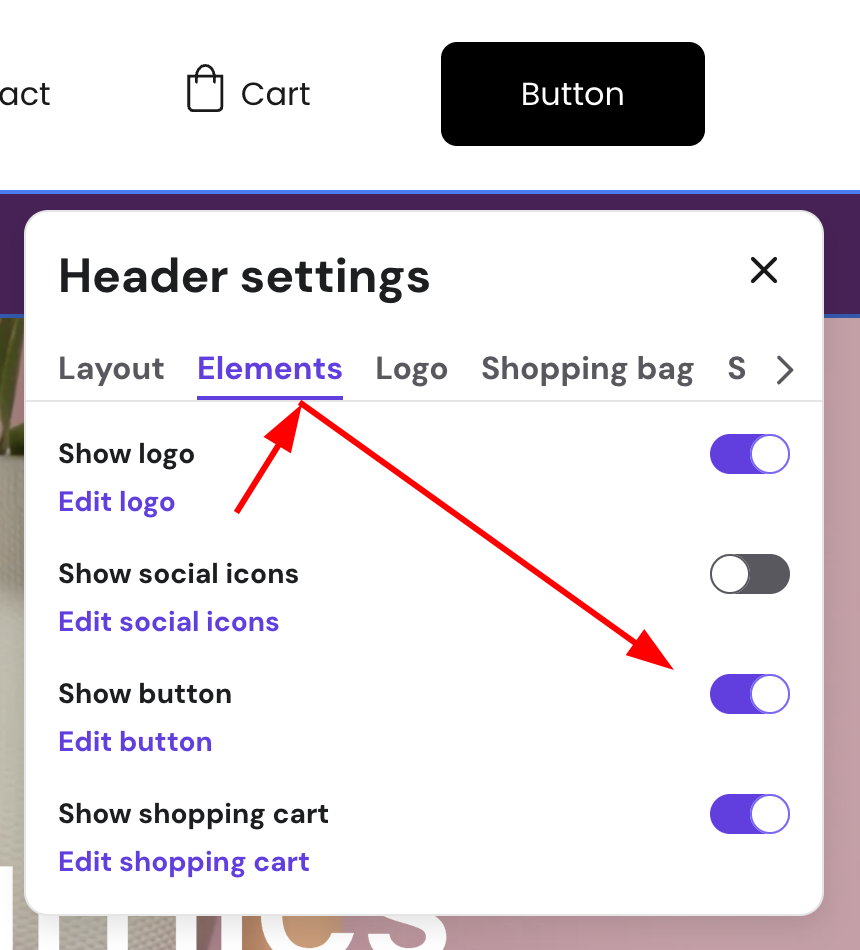
Then, click Elements, and toggle Show button on. You can customize how the button looks like by clicking Edit button:
NOTES
-
Another way to add buttons is using embed code elements — this way, you can add PayPal, Share, Tweet, and other buttons
-
Learn more about “Add to bag” buttons