If you use Hostinger Website Builder, you can upload files to the media library and make them downloadable with a single click on a website’s menu link, button, text, or image.
Adding a download link to the website’s menu bar
1. Within the editor, expand the Pages and navigation panel on the left and click Add link:
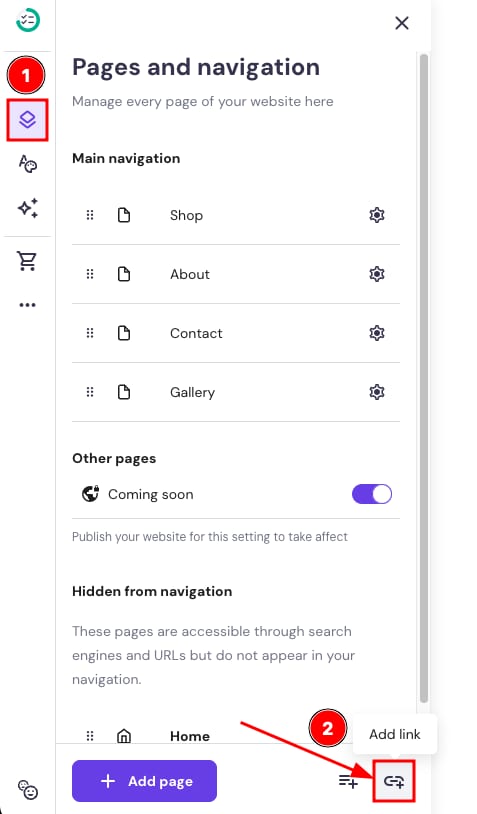
2. Under the Name in navigation, insert the link name that’ll be shown in the menu bar (e.g., Download e-book). Under the Link to, select File download and click Select file. Pick a file from the media library or upload a new one from your device:
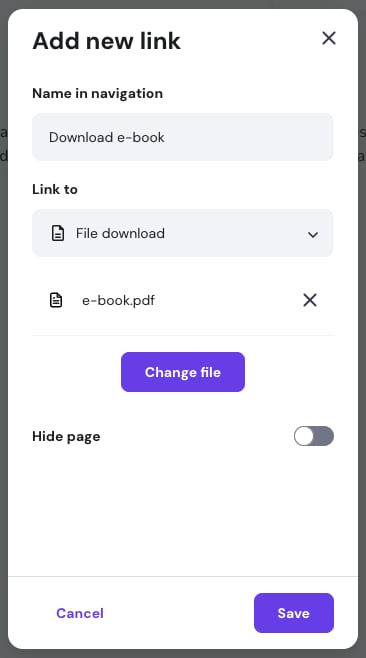
4. Click Save and update your website.
Linking a file to a button
1. Within the editor, click on a button element that you want to link to a file, and click Edit button.
2. Under the Button text, insert the name of a button (e.g., Download e-book). Under the Link to, select File download and then click on Select file. Pick a file from the media library or upload a new one from your device:
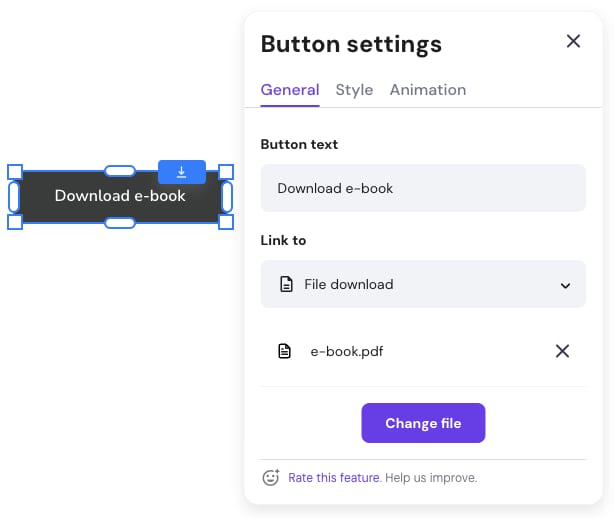
4. Click outside the button settings box (the changes are saved automatically) and update your website.
Hyperlinking a text with a file
1. Within the editor, find the preferred text element, select the text you want to hyperlink, and click the link icon (the chain symbol).
2. Under the Link to, select File download, and then click on Select file. Pick a file from the media library or upload a new one from your device:
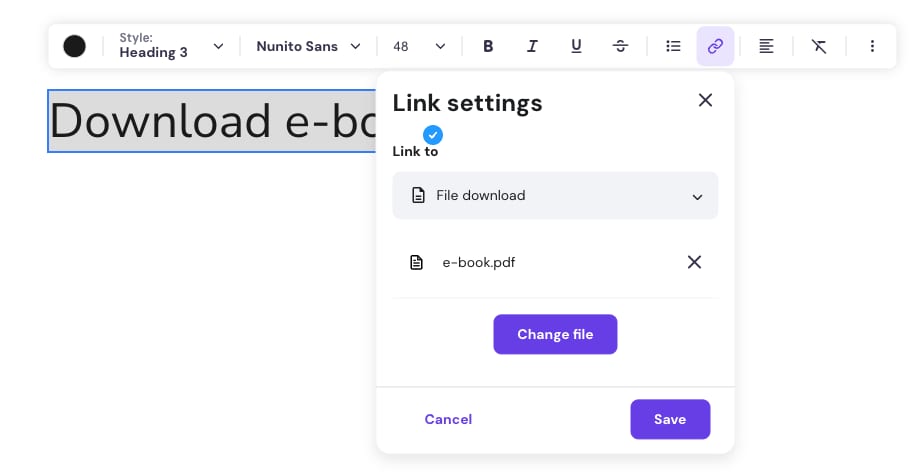
3. Click Save and update your website.
Linking a file to an image
1. Within the editor, click on an image you want to link to a file and click on Edit image.
2. Open the Action tab, and under the On click select Open link. Under the Link to, choose File download, and then click on Select file. Pick a file from the media library or upload a new one from your device:
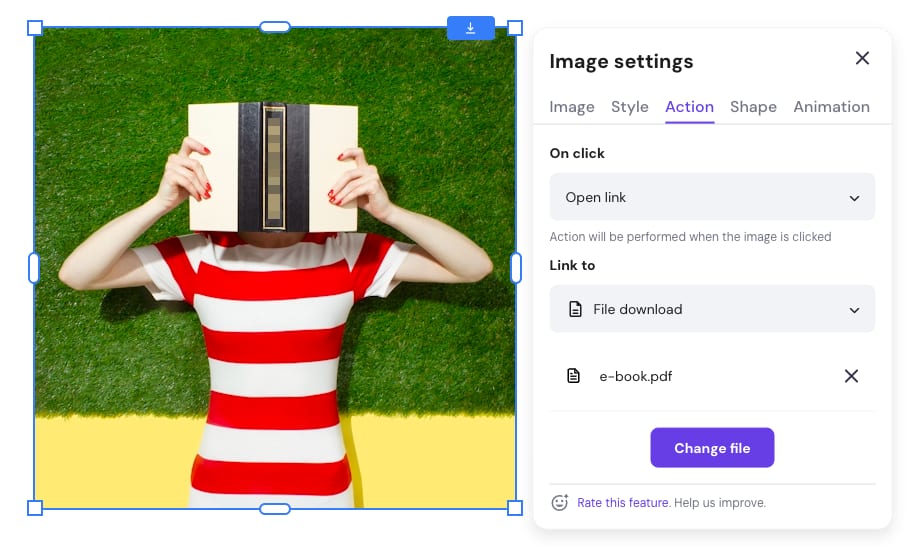
5. Click outside the image settings box (the changes are saved automatically) and update your website.
Unsupported File Types
Due to security reasons, you won’t be able to upload files in the following formats 👇
|
1-G |
H-P |
R-Z |
|
|
|