With Hostinger Website Builder, you can easily offer your website in various languages.
Adding a new language duplicates current pages and their content in your default language. Therefore, it’s recommended to add more languages once your website is finished in the default language 💡
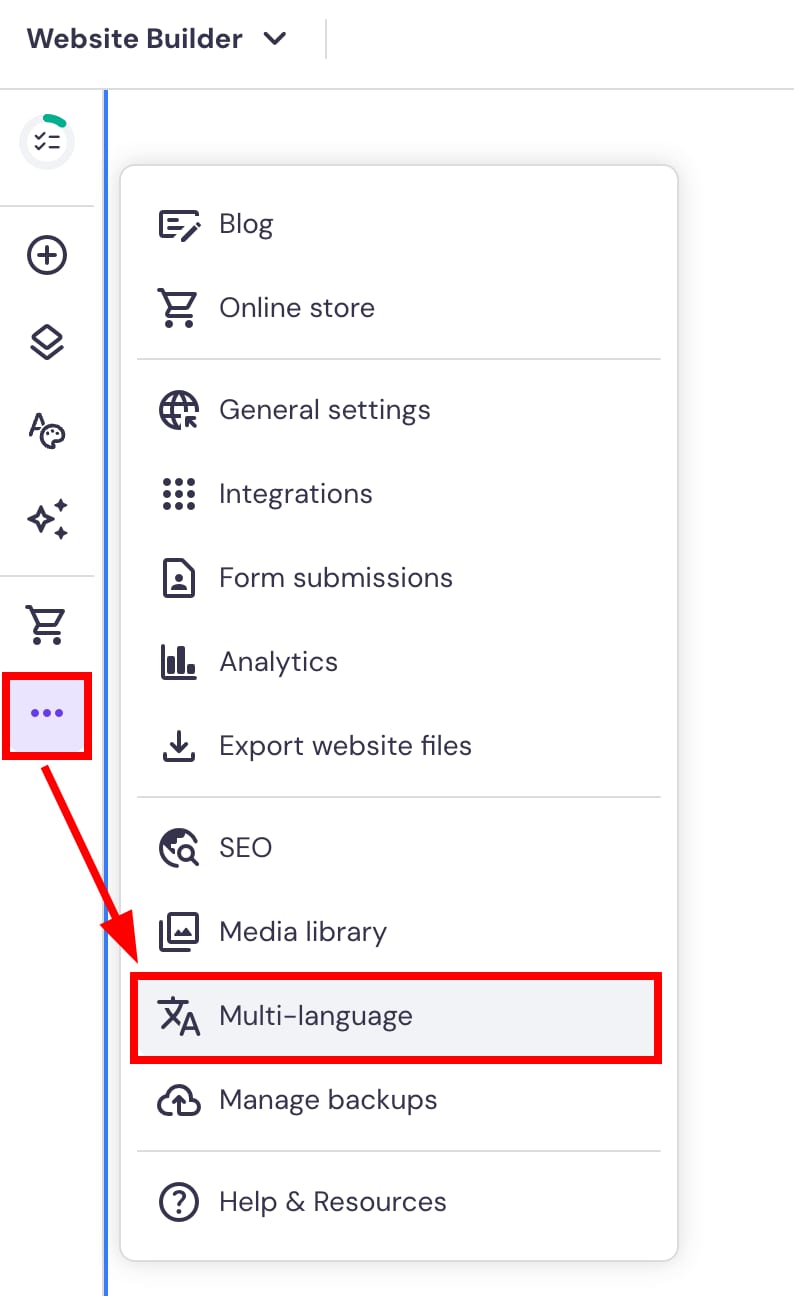
Within the builder, click on the ellipsis ⋯ button in the sidebar and go to Multi-language settings:
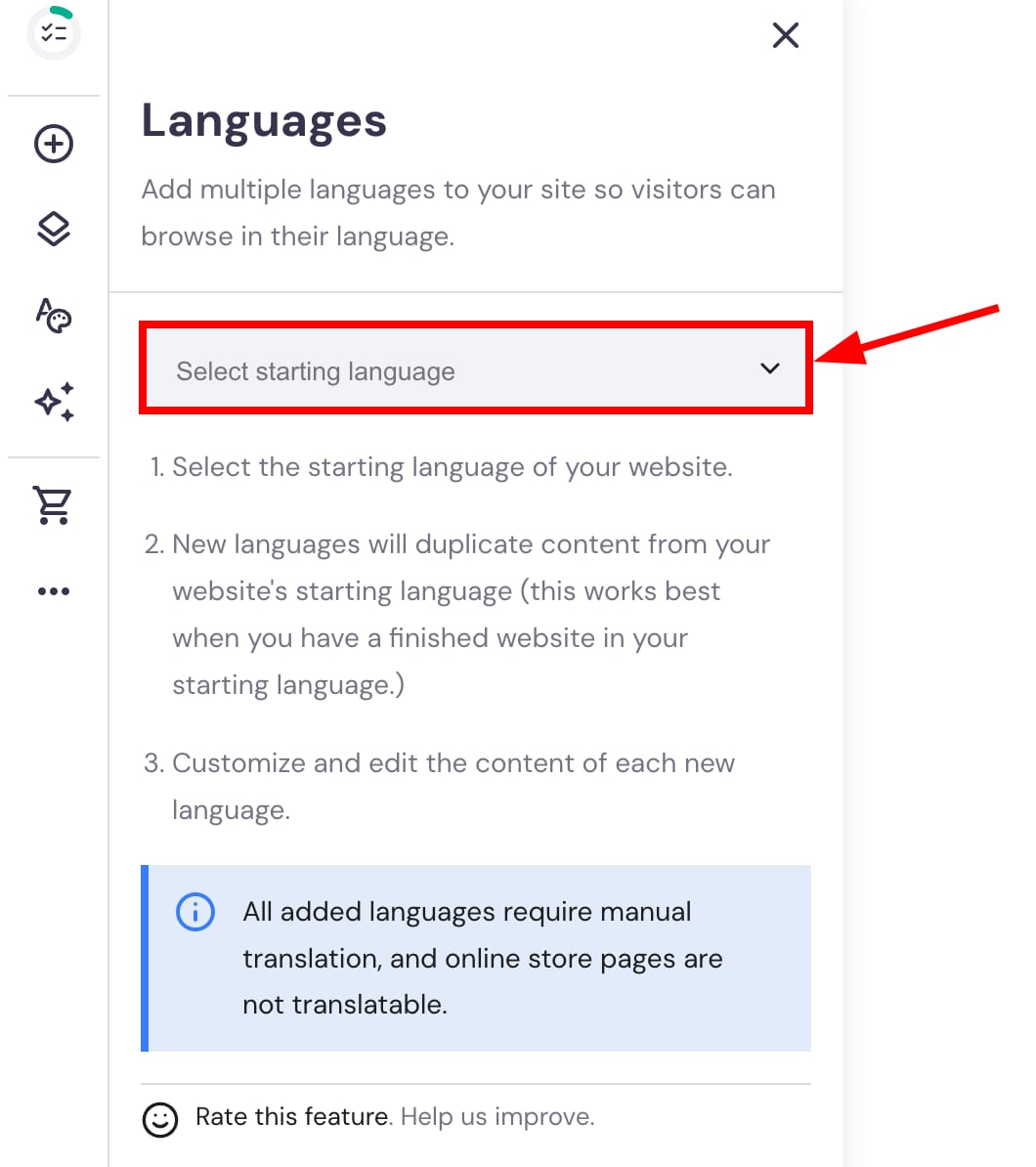
Select the starting language of your website – it’s the default language that’s used when visitors access your site:
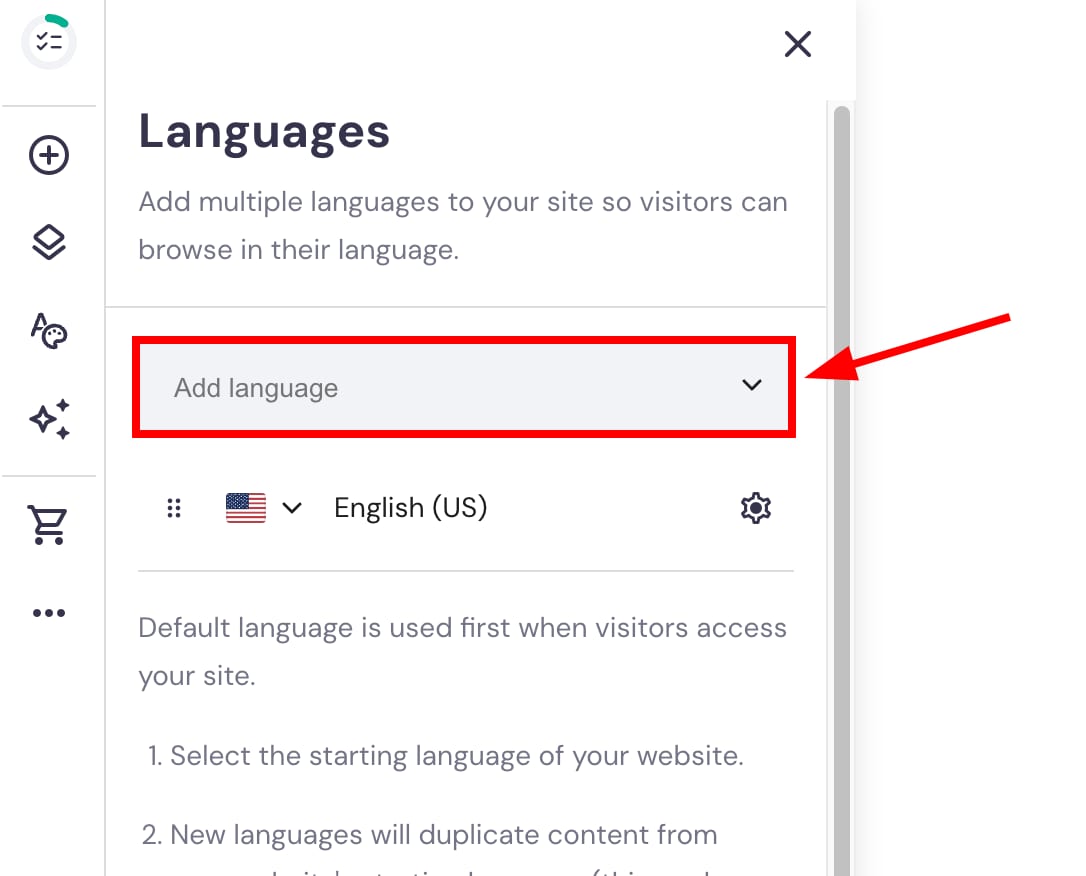
Then, click on Add language and select the preferred additional language from the dropdown:
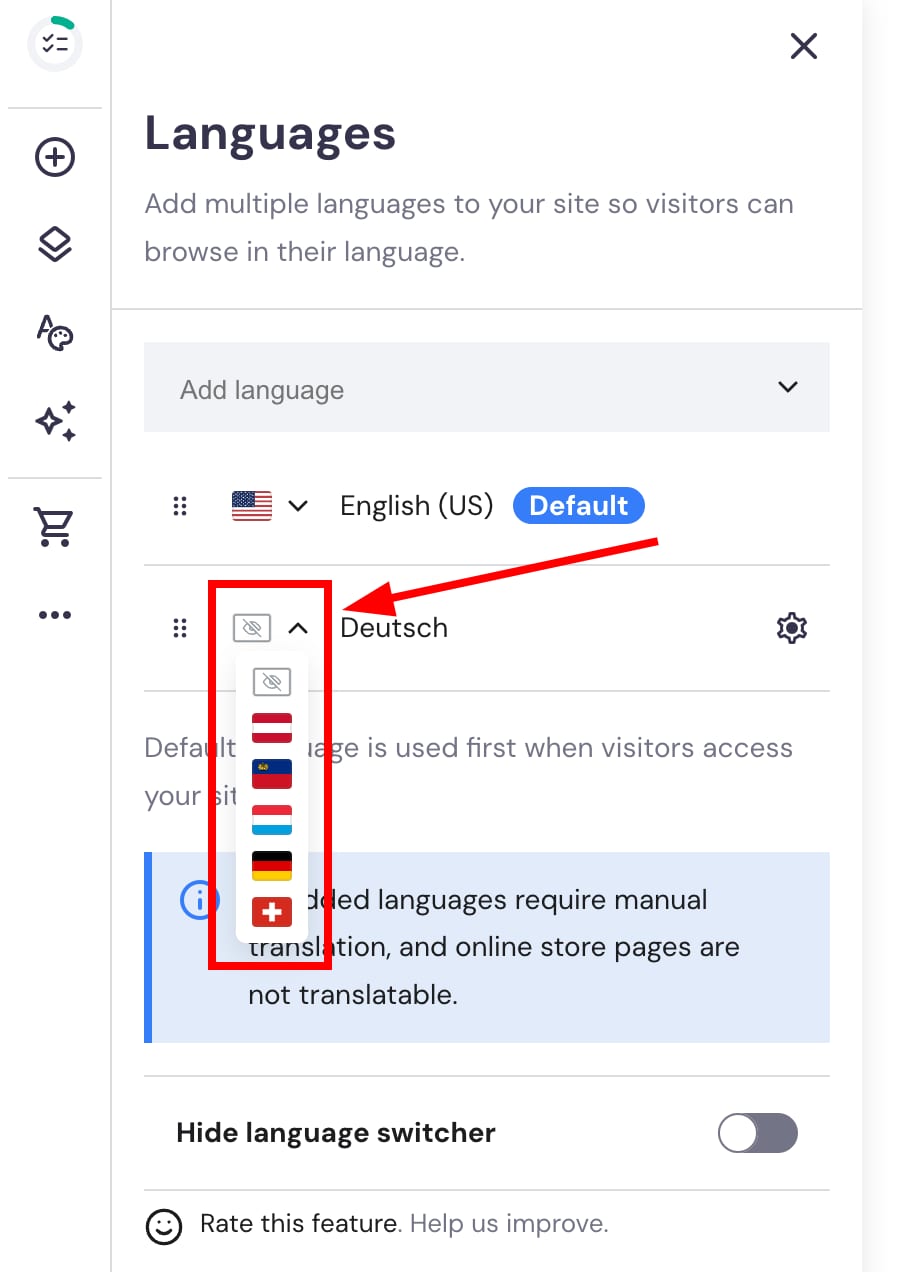
You may also specify a flag per each language:
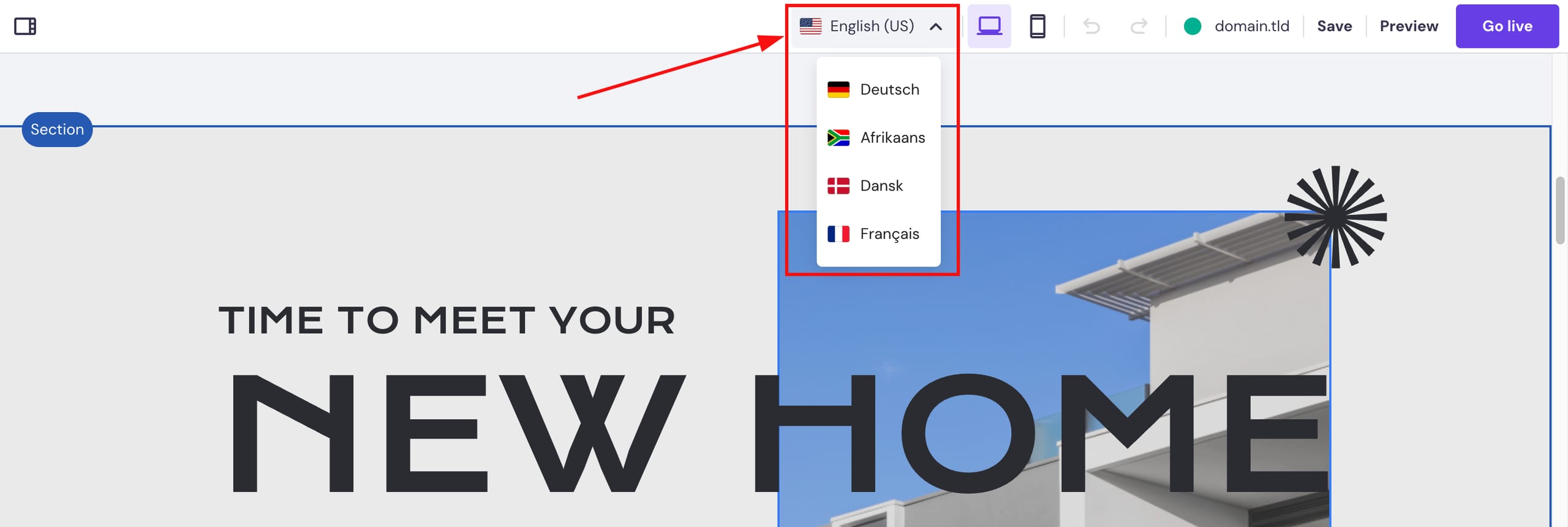
Switch to other versions in the upper toolbar:
The content is not translated automatically: you need to translate it manually or with the help of online machine translation tools, e.g., Google Translate, DeepL, etc.