BR domains are a country-code top-level domain (ccTLD) for Brazil, commonly used by websites, businesses, and organizations operating within the country. While most second-level .BR domains (such as .com.br) can be registered through Hostinger, all .BR domains, including the primary .BR domain, can be registered through the official platform, Registro.BR.
If your domain is registered with Registro.BR, follow these steps to point it to Hostinger:
Step 1 – Preparations
Before pointing the domain, ensure that:
-
You have full ownership and control of the domain name you want to connect to your website at Hostinger.
-
You have access to the registro.br platform to manage the domain’s settings.
-
The domain is already added to your hosting plan: How to add a website. This will ensure that your domain has an active DNS zone, as required by Registro.br.
Step 2 – Get the required nameservers
Once the domain is added to your hosting plan:
-
Go to the Websites section of hPanel.
-
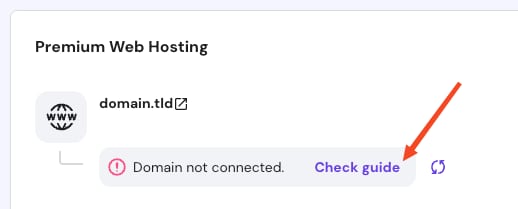
Find your website in the list and click on Check guide next to the Domain not connected message:
-
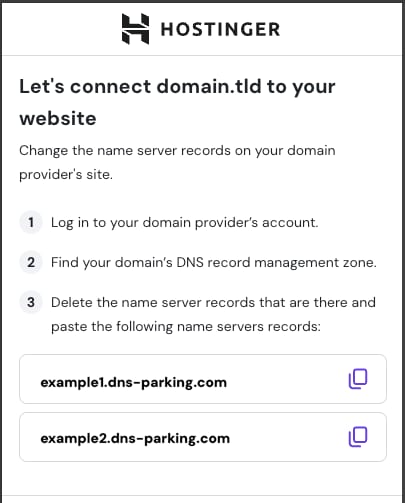
The nameservers values required for your domain will be shown, they will look similar to this:
-
Use the copy button to copy each nameserver and paste it into the Registro.br platform in the next step.
The nameserver values provided in this step may vary depending on the domain. Always use the exact ones shown in your panel.
Step 3 – Delegate the domain
-
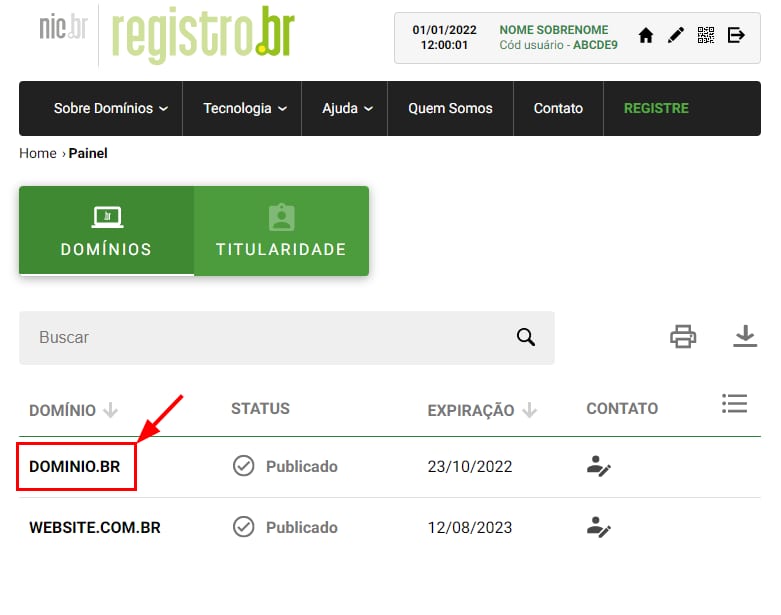
Log in to your Registro.br account, and select your domain:
-
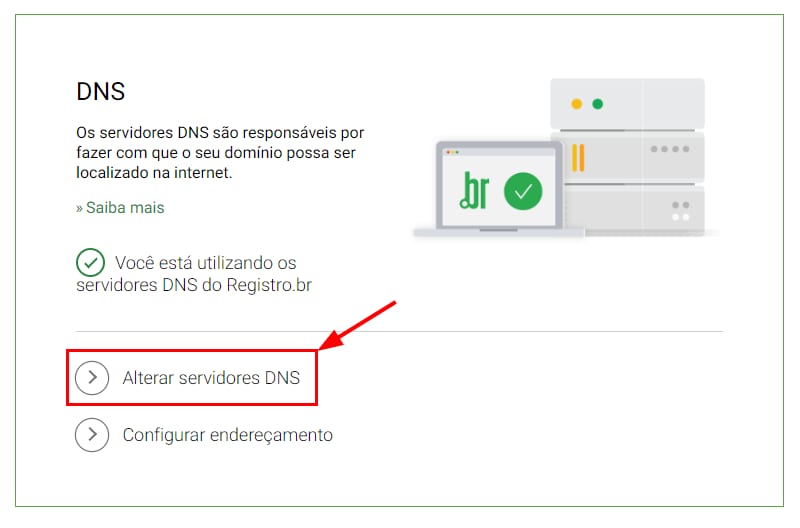
Scroll down to the DNS section and click on Change DNS servers (Alterar servidores DNS):
-
Enter the Hostinger nameservers from the previous step.
-
Click on Save changes (Salvar alterações):
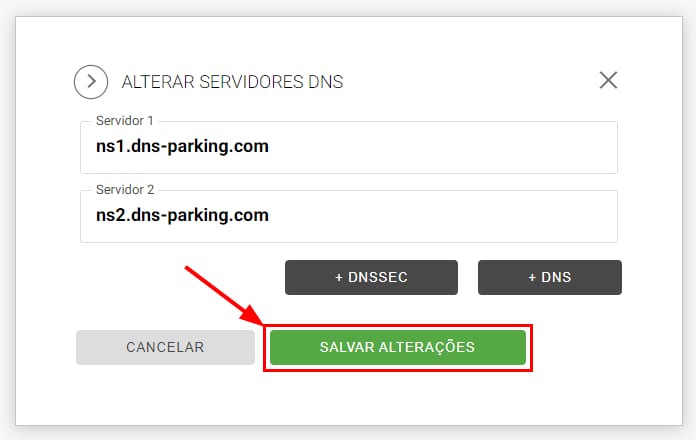
If you get a Query refused error (Pesquisa recusada), reset your domain’s DNS zone, wait a couple of minutes, and try pointing the domain again.
Step 4 – Confirm the changes
On the page with the nameserver names, mark the checkbox to confirm the changes, then click on the Finish button to return to hPanel:
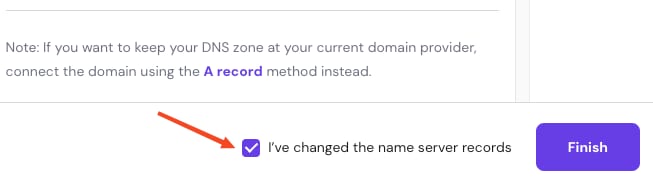
Now, allow up to 24 hours for DNS propagation. During this time, your website may be temporarily unavailable. Meanwhile, you can continue using the temporary domain to access your site.