To point your .BR domain to your Hostinger cPanel plan, make sure that the domain is added to your hosting plan: How to Add a Website in cPanel.
This will ensure that your domain has an active DNS zone which is a requirement from Registro.br.
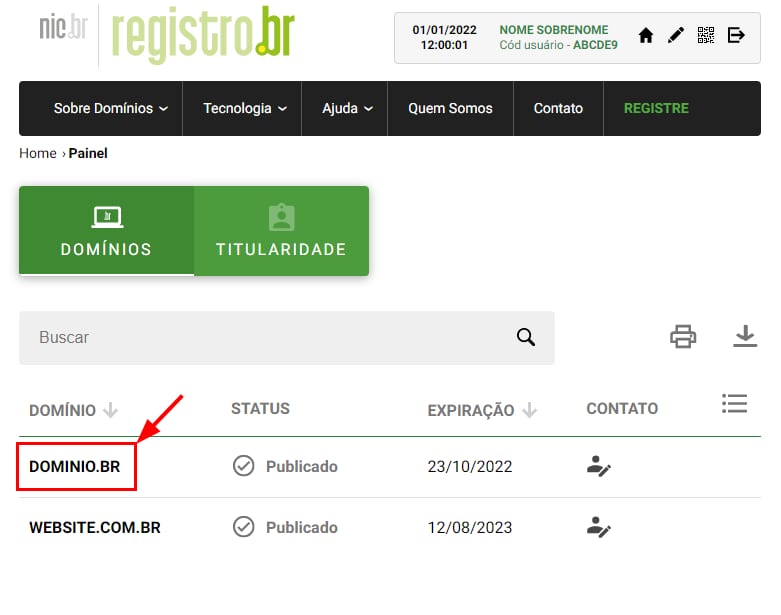
Once your domain is added to your hosting plan, log in to your Registro.br account, and select your domain:
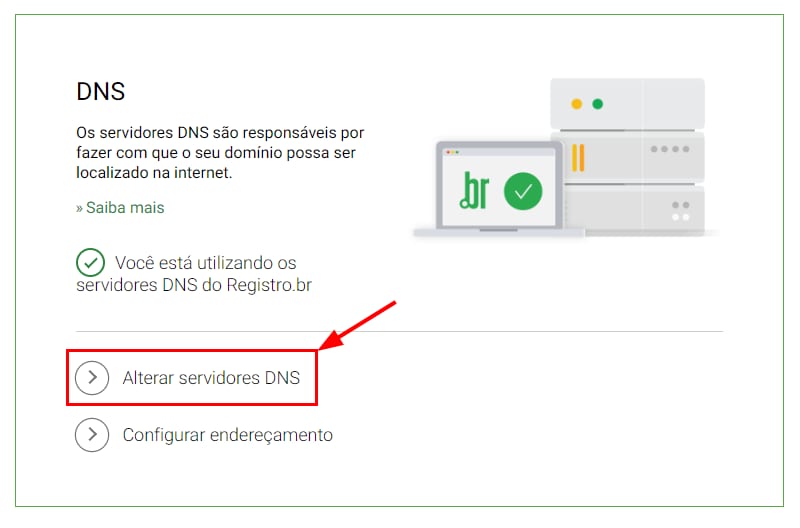
Scroll down to the DNS section and click on Change DNS servers (Alterar servidores DNS):
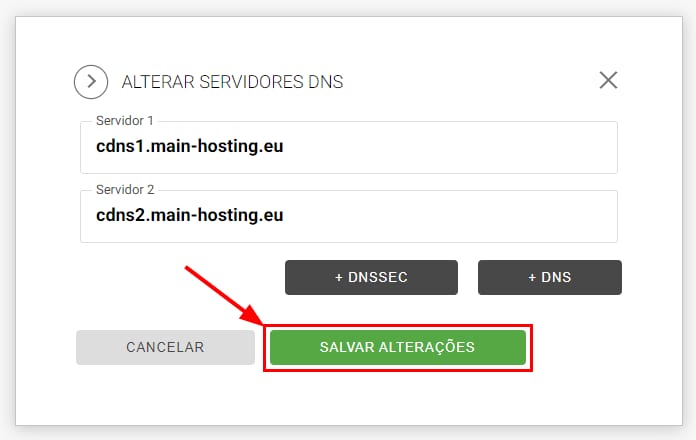
Now, enter Hostinger cPanel nameservers:
-
cdns1.main-hosting.eu
-
cdns2.main-hosting.eu
And click on Save changes (Salvar alterações):
After you specify new DNS records, propagation will start, which can take up to 24 hours to complete.
That’s it! Now you know how to point your .br domain to your cPanel at Hostinger 😊
Query Refused Error
If you get the Query refused (Pesquisa recusada) error, reset your domain’s DNS zone.
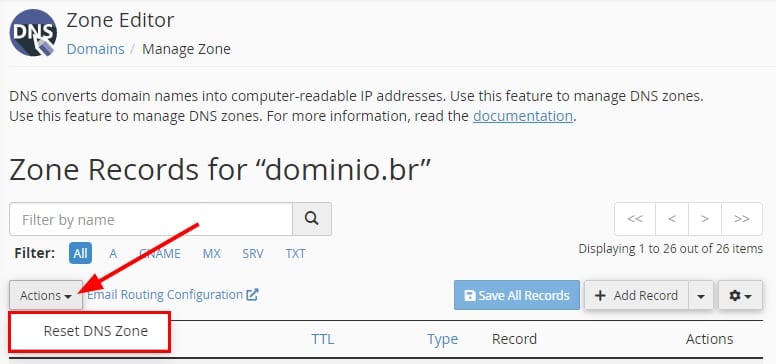
In your cPanel, go to Zone Editor, and click on Manage next to your domain. Next, click on Actions → Reset DNS Zone:
After that, wait a bit and try pointing the domain again.