You can easily reset your Titan Email account’s password on hPanel or in webmail.
Option 1 – Reset the password on hPanel
This option suits you if you don’t remember the current password.
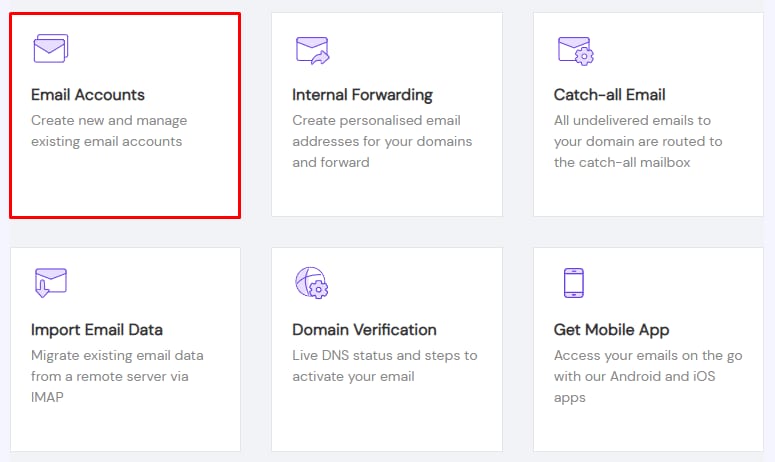
Go to the Emails section, click on Manage next to the domain name in question, and go to Email Accounts:
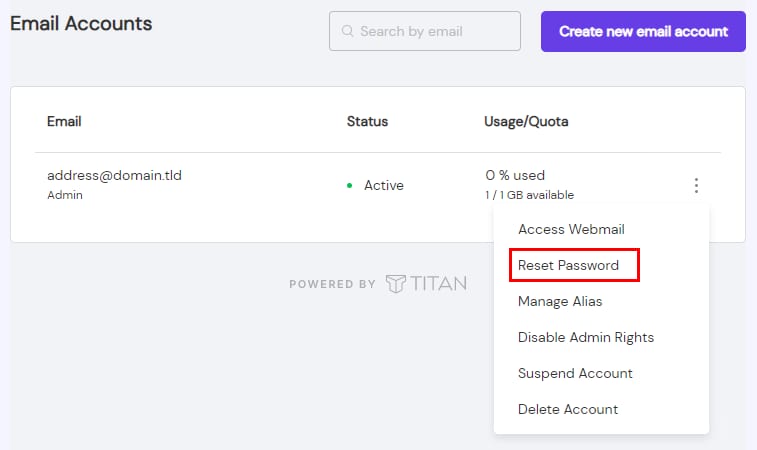
Click on the ellipsis button ⋮ and choose Reset Password:
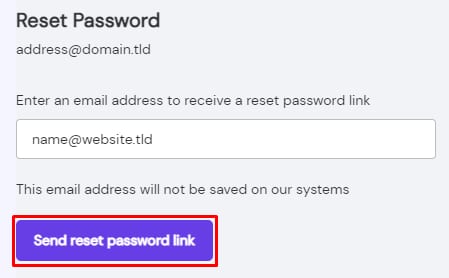
Insert an email address, and click on Send reset password link:
Go to the inbox of the email address you specified, open the message sent by Titan Email, and click on Reset your password. You will be directed to a page to enter and confirm a new password.
Option 2 – Change the password via webmail
If you remember your current password, you can change it from your webmail.
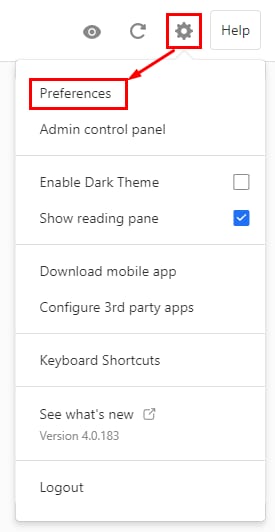
To do so, log in to your Titan Email account, click on the gear icon in the top-right, and choose Preferences:
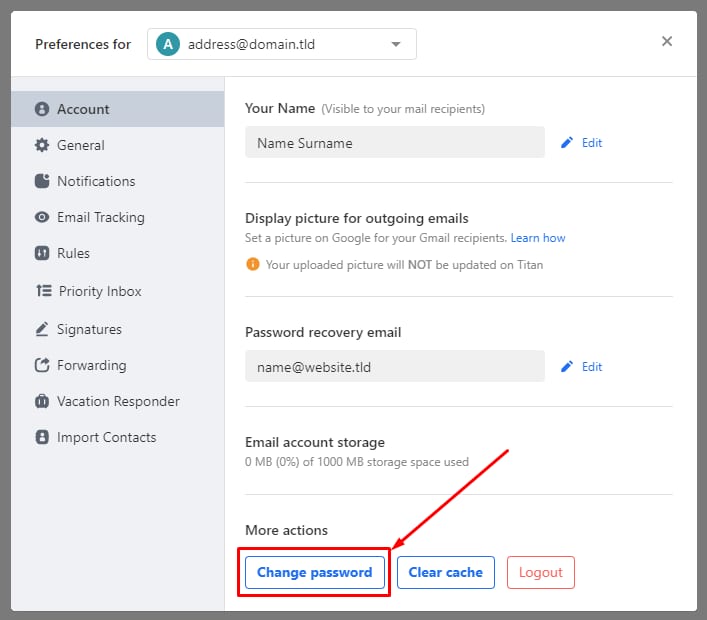
Click on Change Password:
Enter your current password, create a new one, confirm it, and click on Change password.