There may be times when you need extra resources on your hosting plan, such as:
- A temporary increase in website traffic
- Importing large amounts of data
- Performing a full website update
- Testing a higher hosting plan without committing to an upgrade
In these cases, you can use the boost option. Boosting temporarily increases your plan’s capacity for 24 hours, giving you the performance of a higher plan. This helps you complete tasks faster and reduces the risk of errors caused by resource limits.
How to activate a free boost
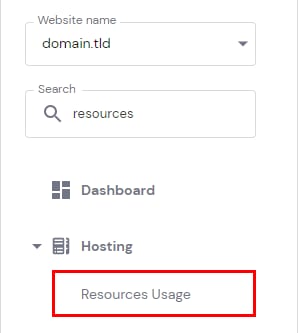
Go to Websites → Manage and open Resources Usage in the left sidebar.
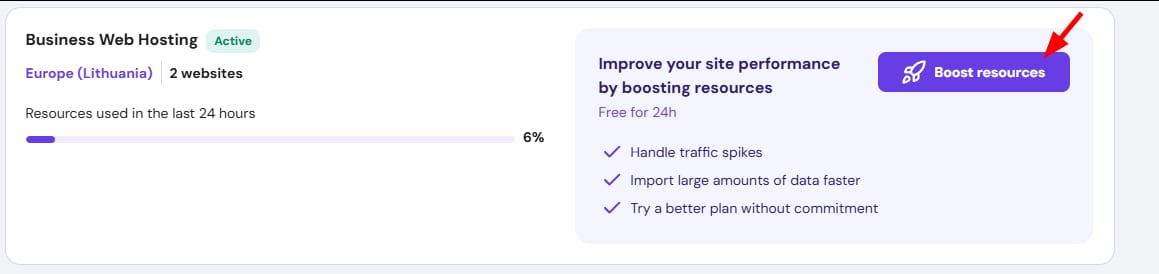
At the top of the section, click Boost resources.
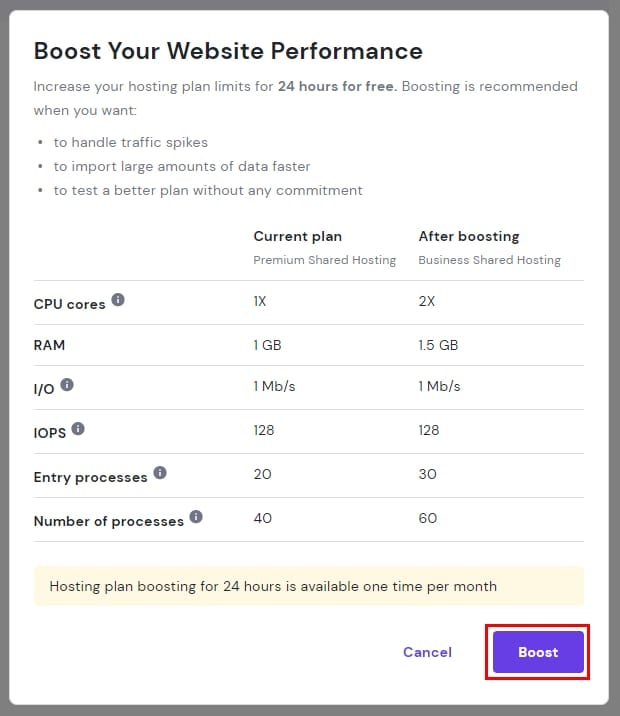
The details of your current hosting plan and the boosted plan will be displayed. Click Boost to activate.
Once active, the “Boosting is activated message” will appear in the Order usage section.

You can now carry out the required tasks or prepare for increased traffic. If your website consistently needs more resources, consider upgrading your hosting plan 🚀
NOTES
-
Free boosting can be activated once per month. The option will be enabled again after one month has passed since the last boost
-
Free boosting is not available for Cloud Enterprise Plus plans
Paid boost for Cloud hosting
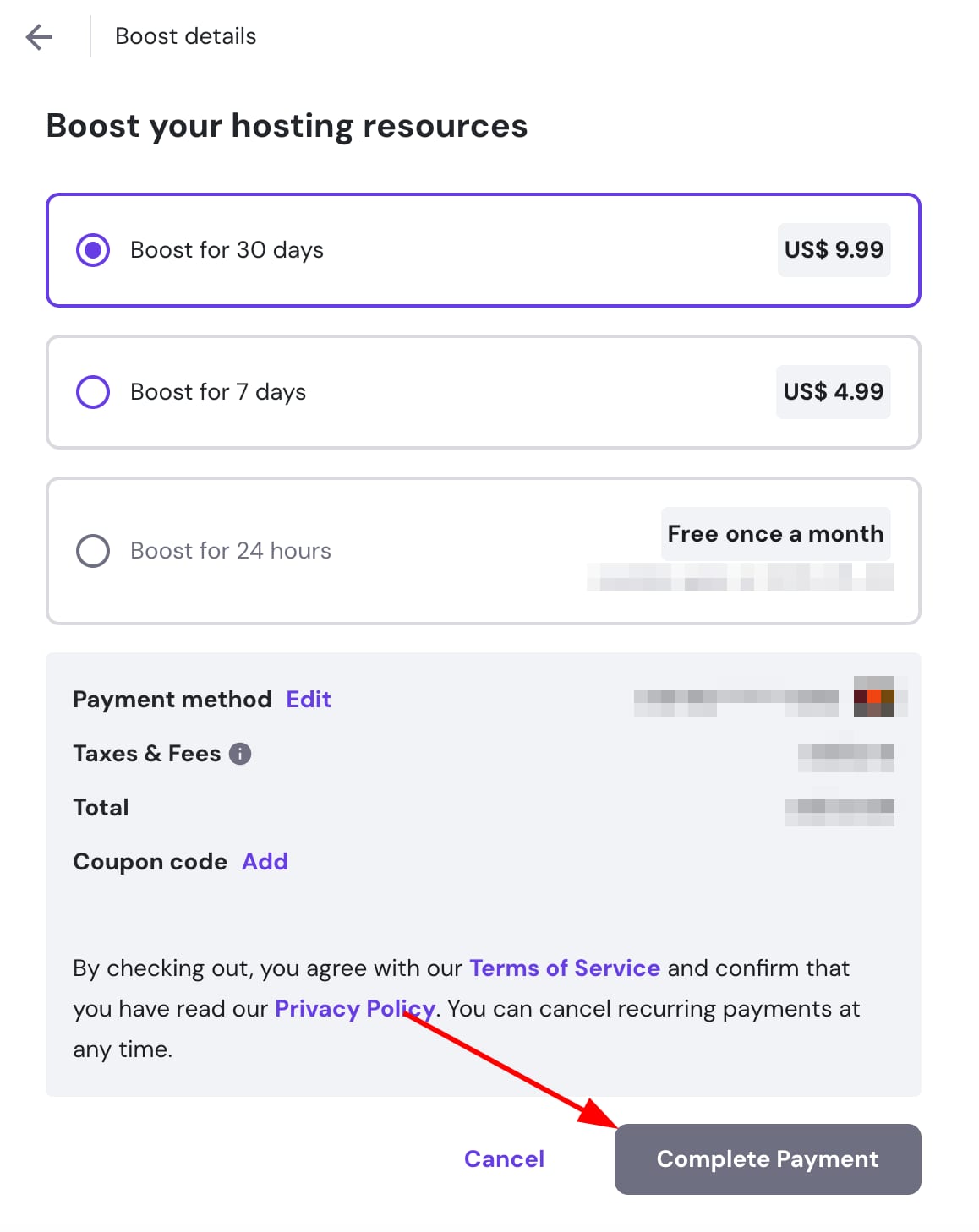
For Cloud Startup, Cloud Professional and Cloud Enterprise user, the boost can be extended for longer periods with the paid boost option. This is useful for planned events such as ad campaigns or temporary traffic spikes. Paid Boost can be activated for 7 or 30 days.
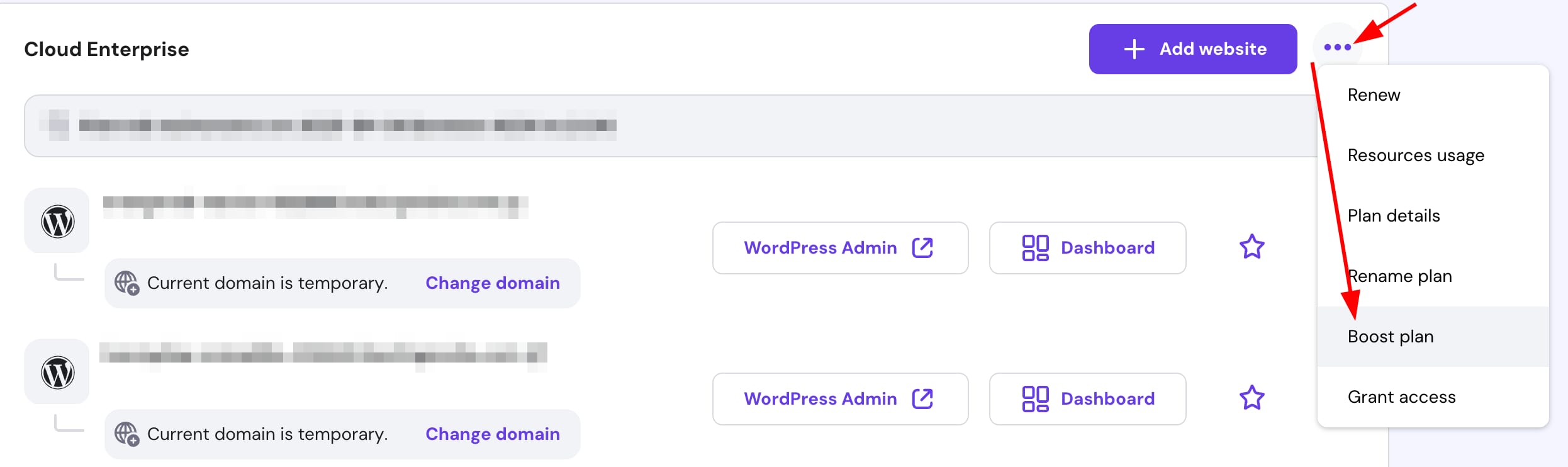
To activate a Paid Boost, go to Websites → Website list, and click on the quick options button (⋮) on the hosting plan.
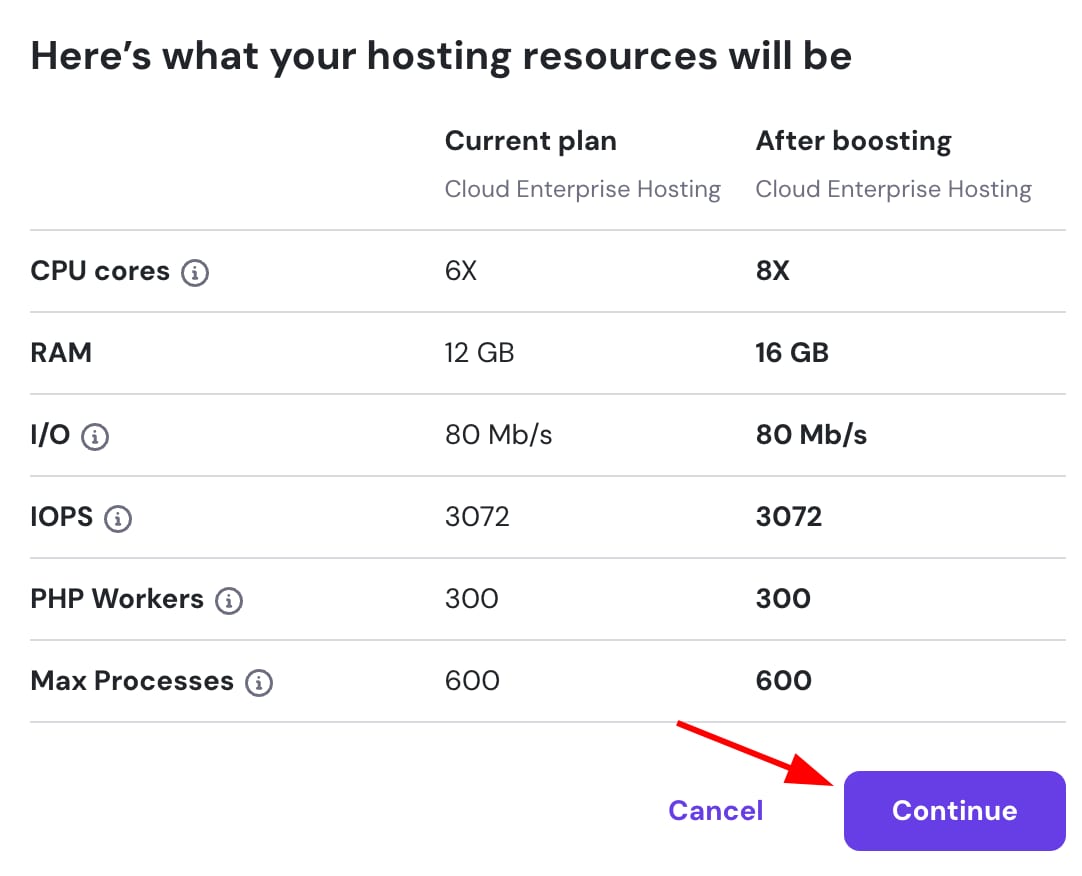
Review your current plan’s parameters before and after boosting and click Continue.
Select the boost duration and click Complete Payment.
NOTES
-
Paid boosting is only available for Cloud Startup, Cloud Professional and Cloud Enterprise plans
- Paid boosting is not available for Cloud Enterprise Plus plans