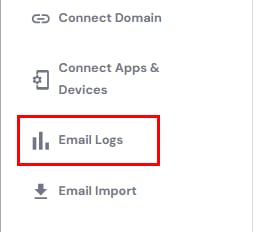
With the Action Logs feature for Hostinger Email, you can easily get detailed information about the actions performed on your Hostinger email accounts, such as the creation of mailboxes or email forwarders. Navigate to the Email Accounts section and choose Email Logs on the left sidebar:
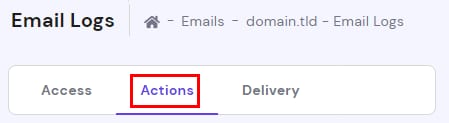
And select the Actions tab:
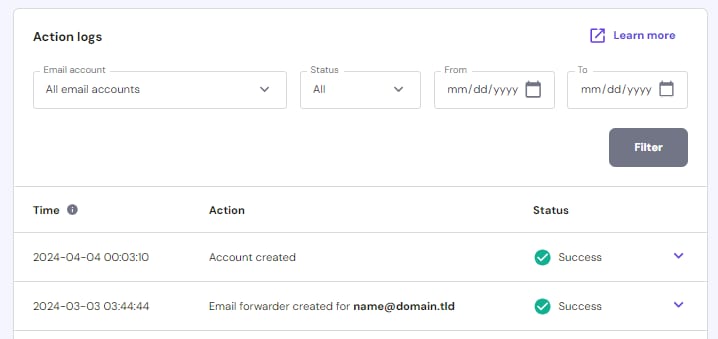
There, you will find a table showing when the action was performed, the type of action and if it was successful. You can filter them by email account, status (successful or failed) and date range.
You can also click on the downward arrow next to any entry for additional details, including the IP of the request, if it was a user or a system action, and forwarder details:
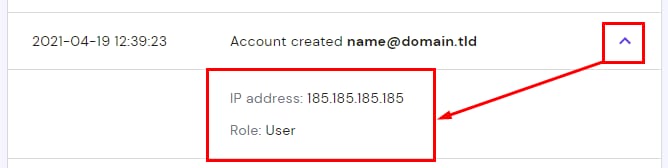
The log will not include an IP address in the case of system actions.
That’s it, now you know how to check all the information on your email action logs.