The File Manager at Hostinger allows you to create archives -that is, a single file containing several files and/or folders- in just a few clicks!
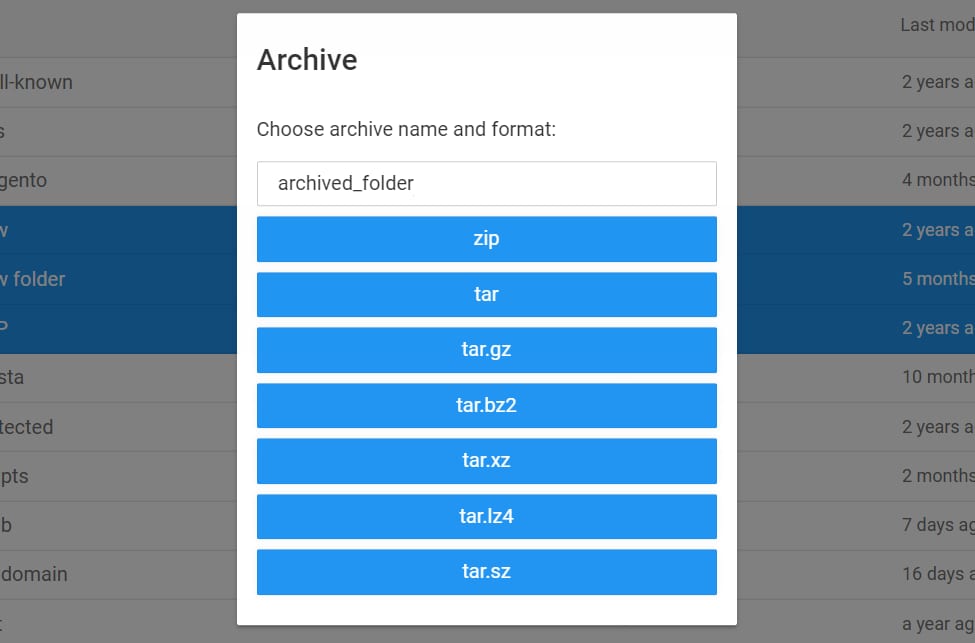
The available formats for archive creation using this feature are zip, tar, tar.gz, tar.bz2, tar.xz, tar.lz4, and tar.sz
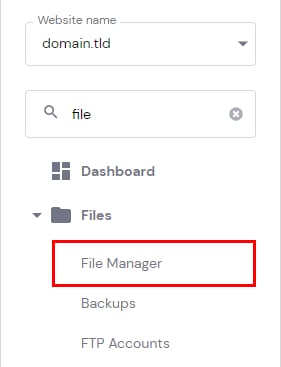
To create an archive, go to Websites → Dashboard, search for File Manager on the sidebar and click on it:
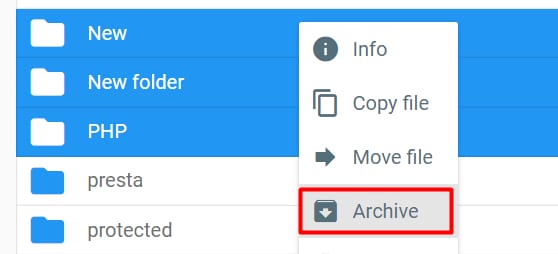
Next, select the files and folders which you would like to compress – you can press the Ctrl button or Command on Mac to select several files and folders at the same time. Right-click on them to open the context menu, and choose Archive:
Alternatively, you can click on the Archive button at the top of File Manager:

Insert an archive name, and click on the desired format:
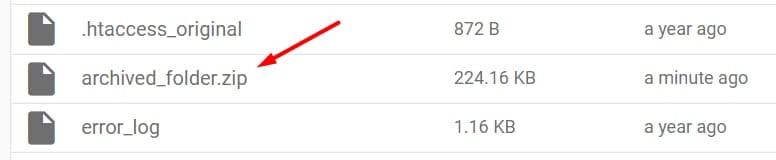
Once the archive is created, the page will reload and you will find the archive in the file list:
That’s it, now you know how to create archives in File Manager! 😊
Additional resources: