Email filters are rules that are used to automatically sort, organize, or take actions on incoming email messages based on certain criteria. These criteria can include various attributes of the email, such as the sender’s address, the subject line, specific keywords in the body, and more.
Learn how to create and manage those rules with Titan Email at Hostinger 👇
Creating Filters
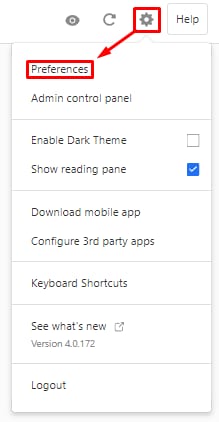
You can create email filters via webmail. Access your Titan Email account, click on the gear icon in the top-right, and select Preferences:
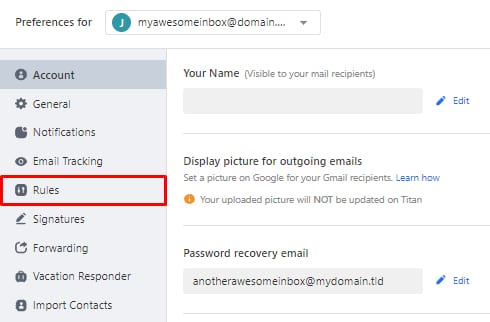
Choose the desired email account, and click on Rules:
Select Create a new rule:

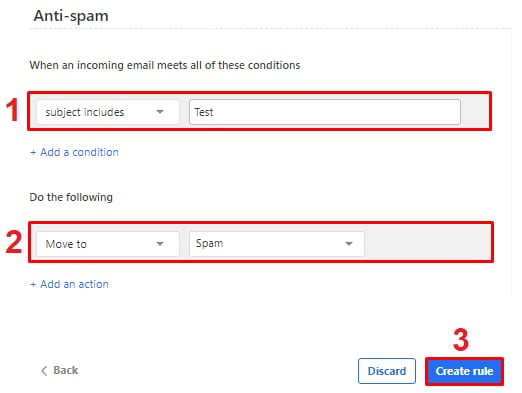
Then, specify the preferred conditions, set up actions, and click on Create rule:
And that’s it!
Managing Filters
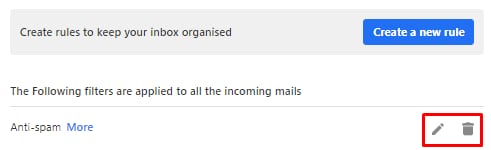
You can find all your created rules in the Preferences → Rules section. From there, you can either edit or delete them:
Now you know how to create and manage rules with Titan Email 😊