The information below doesn’t apply to websites created with Hostinger Website Builder 💡
There are several ways to check the PHP version of your website 👇
In the PHP Info Section
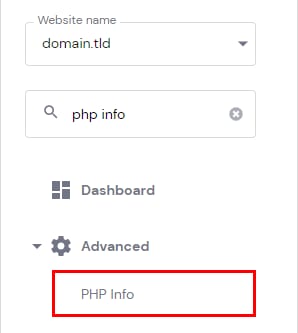
To check the PHP version of your website, go to the Websites section and click on Dashboard next to the website in question. Then, search for PHP Info on the sidebar, and click on it:
Your current PHP version will be displayed at the top:
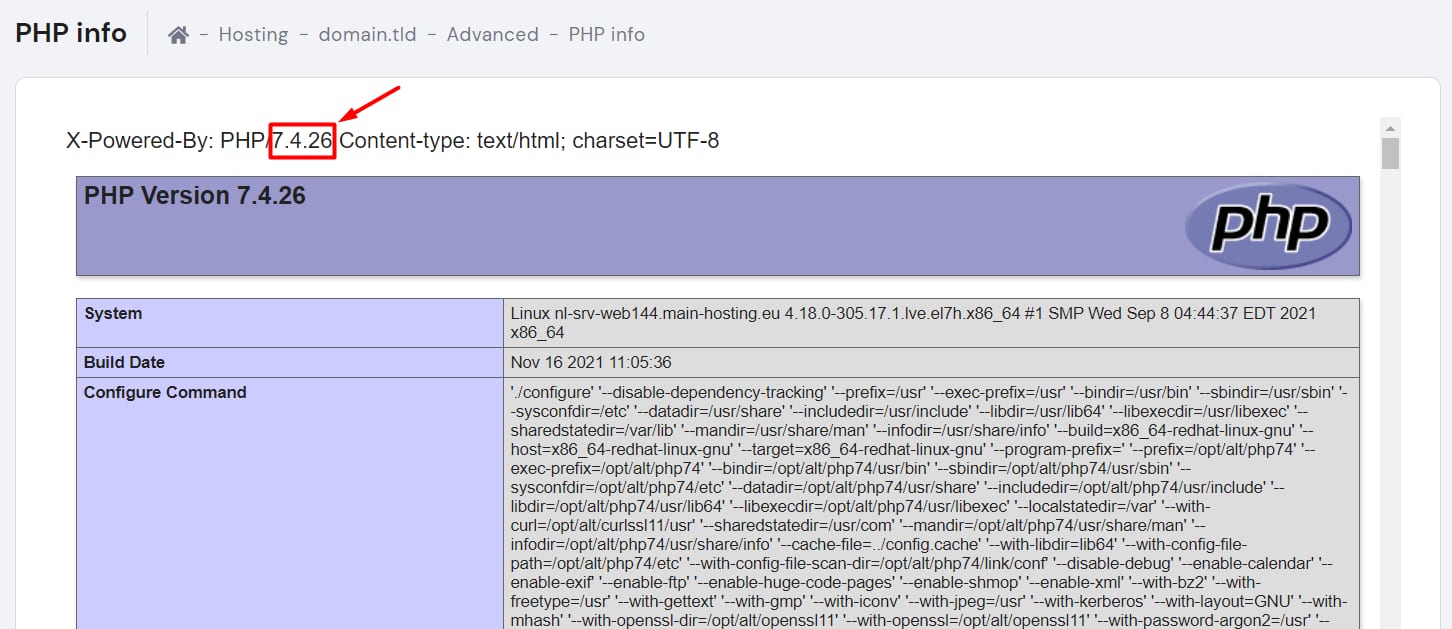
To change it, go to the PHP configuration settings 💡
In the File Manager
A different PHP version can be applied to a specific folder or subdomain.
To check if the change was done correctly:
-
Access the folder you want to test
-
Create a new .php file (e.g.,
phpinfo.php) -
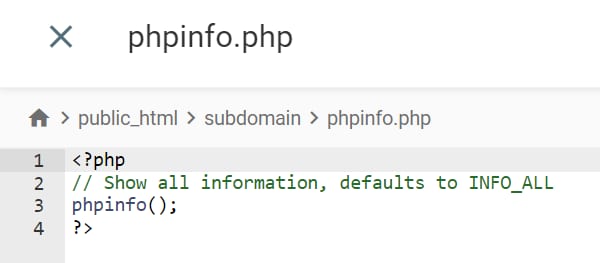
Add the following code to the file:
<?php
// Show all information, defaults to INFO_ALL
phpinfo();
?>
The file will look like this:
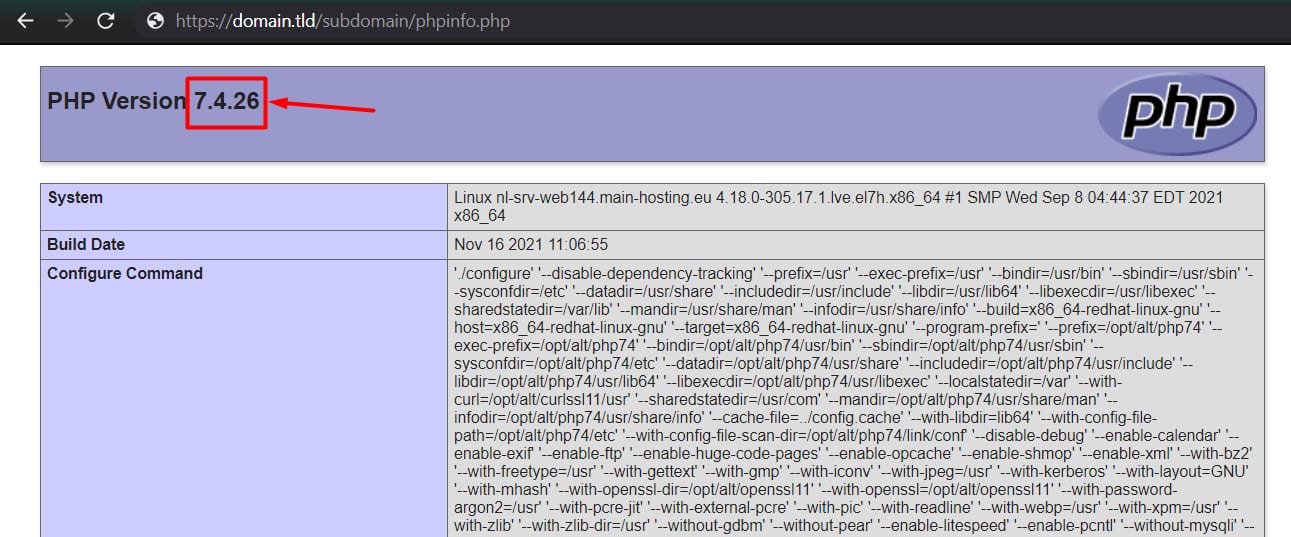
After this, access this file by the URL: type your domain name, then the folder name, and add the filename. For the file above, the path would be:
https://domain.tld/subdomain/phpinfo.phpThe PHP version should be displayed at the top:
Changing the PHP version using files is not recommended, as it doesn’t include PHP extensions and options. Thus, it might affect the website’s work 💡