You want to add your domain to the Bing Search Console but are not sure how to do it? Then please take a look at this step-by-step instruction, written for you 😊
Step 1 – Bing Search Console
If you don’t have a Microsoft account yet, please create one and authorize in Bing Search Console.
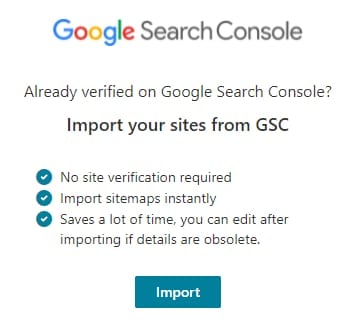
If you already added your domain to Google Search Console, you can easily import it:
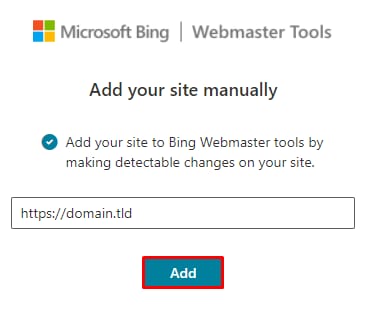
On this article we will proceed with adding a new domain instead, simply enter your domain name and click on Add:
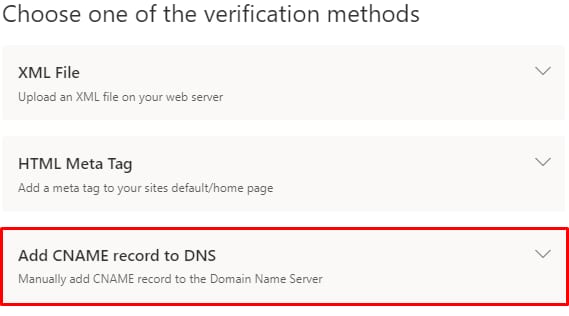
You will be presented with three options of verifying your domain, we highly recommend going with CNAME option:
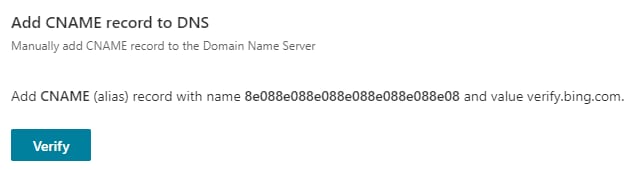
The most important thing you need from the window that appears – the CNAME record and its value:
Step 2 – Working with the domain
Open Hostinger Control Panel in a new tab. Once you got it open, you will need to add the copied CNAME record to our DNS Zone. It will look something like this:
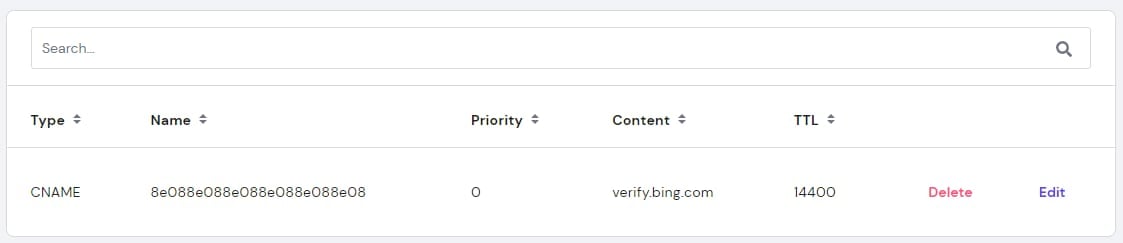
Step 3 – Final
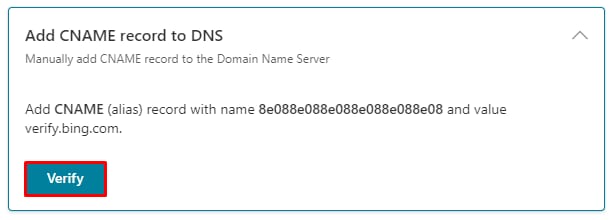
After a few minutes, return to the open tab and click Verify:
You may see this window with the following message:
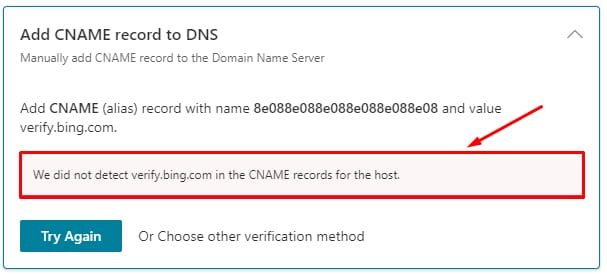
What it means: the added record simply did not have enough time to get propagated. To check the current status of the propagation, you can go to the DNS Checker and insert the data this way:

As soon as you see that all the map is covered with checkmarks (apart from one maximum) it will mean that you can go back to the Bing Search Console and click Verify again. The result should be like this:
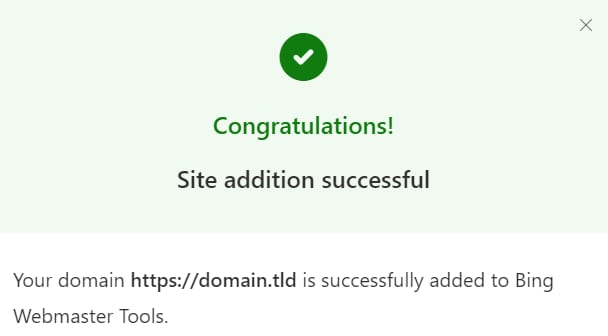
If you see this message – congratulations, you have successfully added your domain to the Bing Search Console, have a productive work on the site 😊