Composer 1 (deprecated) and Composer 2 are readily available on our Web Premium, Web Business, and Cloud plans, as they come pre-installed. However, you may encounter some package installation, permission, or memory issues while using either of them. Follow the steps below to identify and resolve these issues:
You should upgrade to Composer 2 message
Starting with PHP version 8.0, Composer 1 is no longer supported. If you attempt to install packages using Composer 1 with PHP 8.0 or higher, you’ll encounter an error message prompting you to upgrade to Composer 2:

To address this, use the composer2 command instead of the deprecated composer command. For instance, to install the gumlet/php-image-resize package, use:
composer2 require gumlet/php-image-resize The command may be intepreted automatically to try and install the package using version 2.0, if available. Otherwise, you can try with the composer2 command instead.
If the command or package you need is only available on Composer 1, you can temporarily lower your PHP version. However, for security reasons, it is recommended to update your scripts or code to work with the latest PHP version.
Permission denied
The installation of Composer 1 and Composer 2 is global accross our servers, meaning that the available versions are fixed. Attempting to update Composer using the following commands:
composer self-update or composer self-update --2
Or other commands requiring higher permissions may result in a “Permission denied” error:

To fix this, you will need to download and install the Composer locally for each project that requires it. Follow this guide to complete the process: How to install Composer locally.
Once installed, you’ll find a new composer.phar file on the installation path:
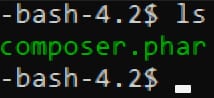
You can now run any command, including self-update, by executing locally. Use this format:
./composer.phar [COMMAND]For example, to update Composer locally, enter:
./composer.phar self-update --2Memory exhausted
If you encounter a Memory exhausted error after running Composer commands, it indicates that your project has exceeded the available memory limits of your hosting plan.
To address this, try running Composer with an unlimited memory flag. Use this format for global Composer:
php -d memory_limit=-1 /usr/local/bin/composer [COMMAND] Or this format for a local Composer installation:
php -d memory_limit=-1 composer.phar [COMMAND]If the error persists, your project may needs more resources – to fix it, you can consider upgrading your hosting plan. Alternatively, you can run demanding commands on your local machine and then upload your project to your hosting.
Your Composer dependencies require a PHP version
When running Composer via SSH, the PHP version used is the default PHP version of the hosting plan, not the PHP version set for an individual website.
Changing the PHP version for a specific website only affects how the site runs in the browser. It does not change the PHP version used by SSH or Composer. As a result, Composer may still run on an older PHP version even if your website is set to a newer one.
To resolve this issue, you can choose one of the following options:
-
Change the PHP version of the hosting plan so that the default CLI PHP meets Composer’s requirements, or
-
Run Composer with a specific PHP version by explicitly calling the required PHP binary:
/opt/alt/[php-version]/usr/bin/php /usr/local/bin/composer2 [composer-command]
Replace [php-version] with the required PHP version (for example, php84) and [composer-command] with the actual Composer command you want to run.