If you use Hostinger Email and have a backup of your emails in EML, MIME, or Mbox format, you can easily import them via webmail. If you have several files, you can pack them into a .ZIP archive.
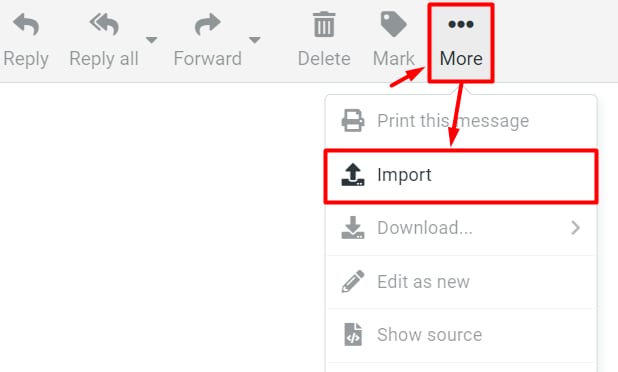
First, access the webmail of Hostinger Email. Then, click on More, and select Import messages:
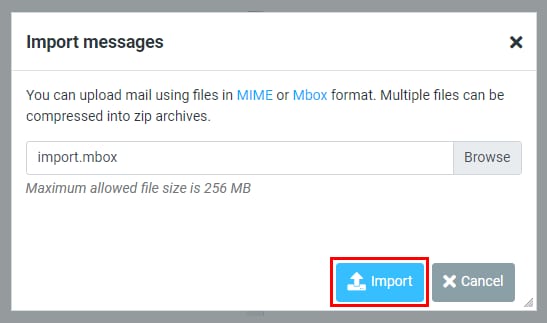
Click on Browse to select your email backup file, and then click on Import to start the process:
Depending on the size of your file, it may take some time to complete the process. After the import is completed, a notification will appear:

NOTES
-
The maximum allowed file size is 256 MB; if your file is bigger, you can split it
-
The import option is only available in the old Webmail; alternatively, you can migrate emails to Hostinger Email with the help of the Email Import tool