While it’s strongly advised to maintain an active SSL certificate on your website at all times, there might be situations where you need to uninstall it. For instance, to reinstall a failed or stuck certificate, or to install a custom SSL.
To temporarily disable HTTPS and make your website accessible via HTTP, you can unforce HTTPS instead.
Before you start
- Lifetime SSL certificates can only be uninstalled from websites created with PHP/HTML, WordPress, or other file-based CMS.
- For Hostinger Website Builder and Hostinger Horizons websites, Lifetime SSL certificates are managed automatically in the background.
- Uninstalling custom SSL is not available for Hostinger Website Builder and Hostinger Horizons websites.
How to uninstall a Lifetime SSL certificate
- Go to hPanel → Websites
- Click Dashboard next to the website.
- On the sidebar, select Security → SSL.
- Locate the SSL for the domain or subdomain you wish to remove, click on the options button (⋮), and select Uninstall:
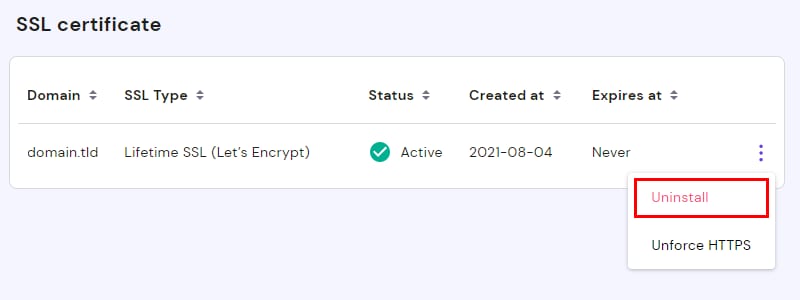
After uninstalling, your domain will appear on the list to install a new SSL, and your website will only be accessible via HTTP, for example http://domain.tld.
NOTE
-
After uninstalling the SSL, attempting to open the website using HTTPS (e.g.
https://domain.tld) will result in an error, and the website will not be displayed.