You can create a backup of your Minecraft server by accessing your Minecraft Instances by double-clicking on it:
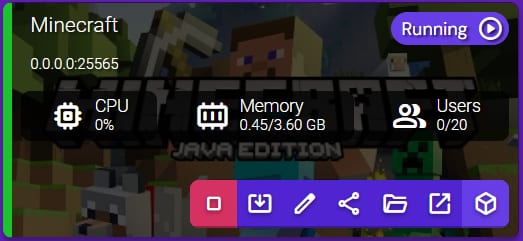
There, select Backups:
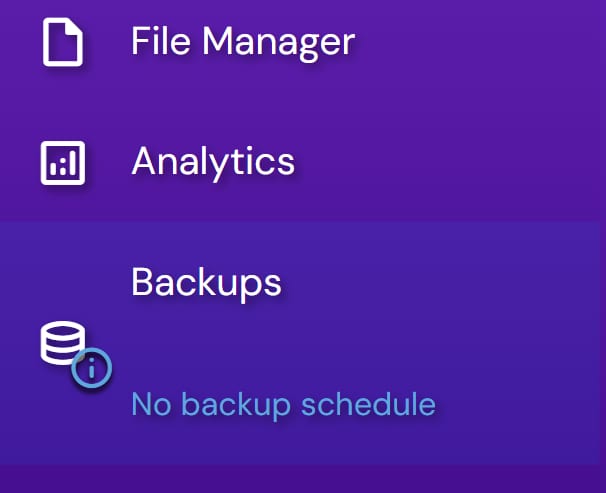
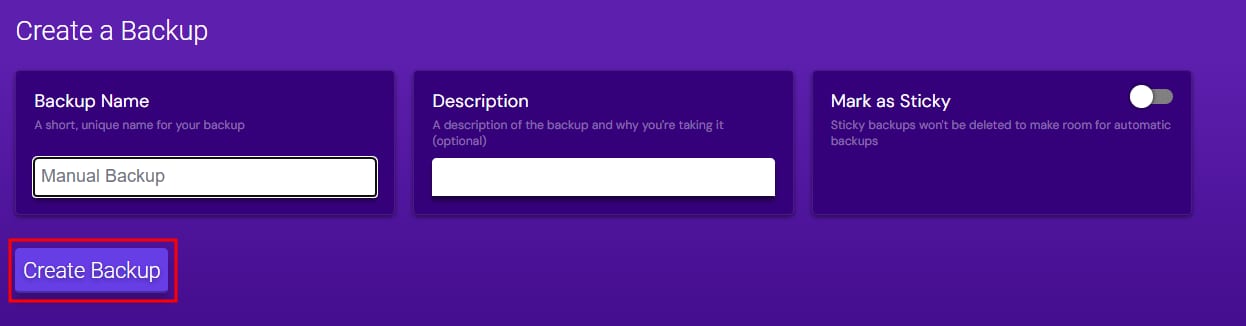
In the Backups section, you may create a manual backup by filling out its name and clicking on Create Backup.
If you’d rather set up an automatic backup schedule, click on Setup Schedule at the top of the screen.

Keep in mind that after restoring a backup, you must restart the Minecraft server for changes to take effect.
How to download a backup
If you want to download a backup of your Minecraft server to a local device, first stop your server by accessing your Minecraft Instance and clicking on Stop Instance.
Next, connect to your server via FTP, select the folders you want to download, and drag them to the desired location on your device to start the download.
When the download is complete, restart your server.