Option 1 – File manager
If you are using Game Panel, you can easily upload files straight to File Manager:
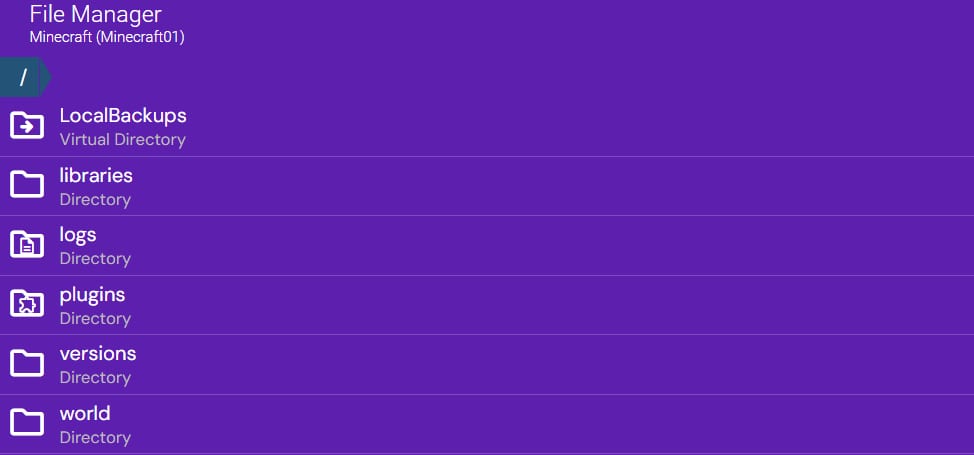
You can also download them directly to Game Panel from the URL by left-clicking in the file manager and selecting Download file here from the menu that opens:
NOTE
-
Uploading directories is not possible – compress the desired directory first and then proceed with the upload
-
Downloading files directly from a URL is a much faster process
Option 2 – FTP
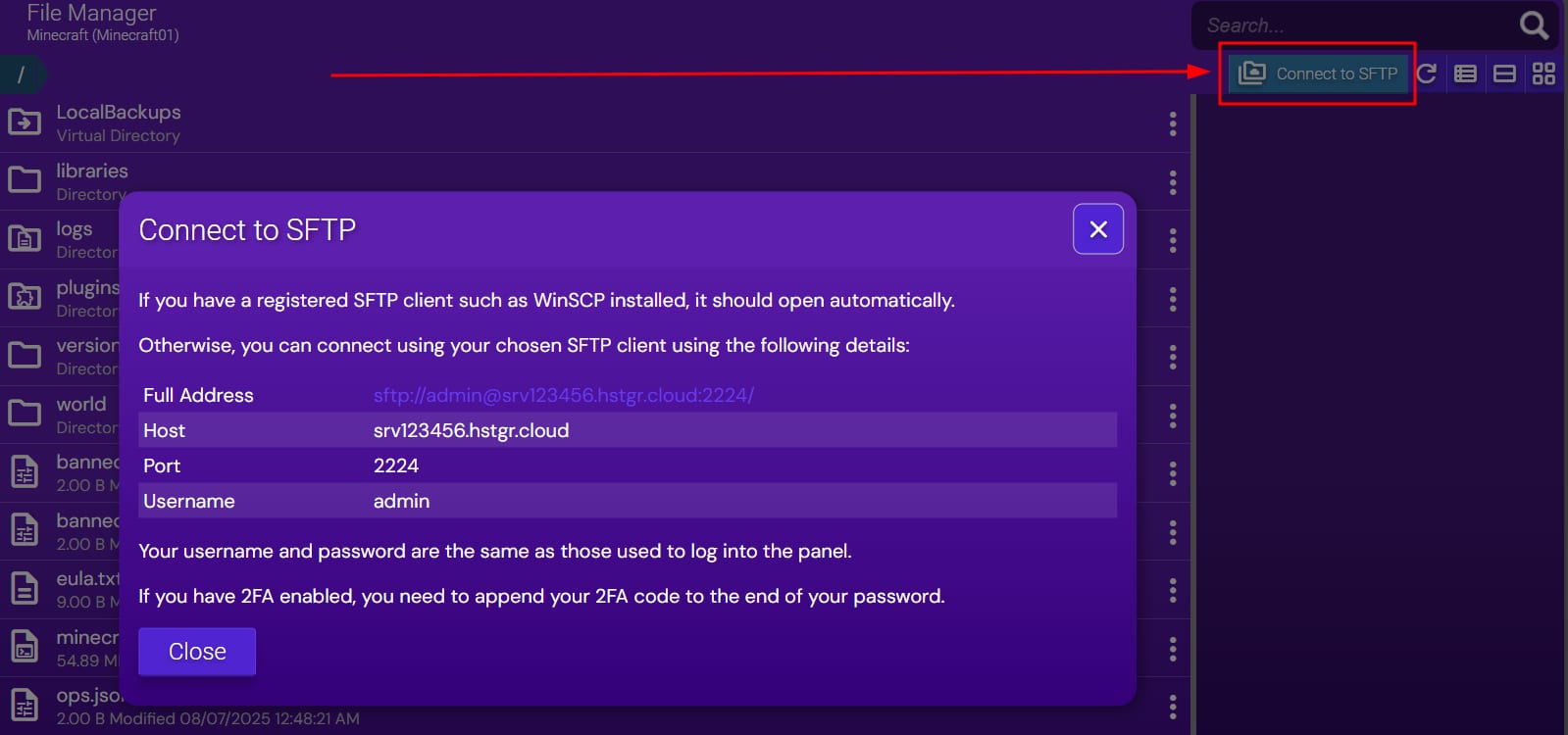
If you are using Game Panel, you can connect to your files via an FTP client such as FileZilla. Details for the FTP connection can be found by clicking on the Connect to SFTP button: