You can easily set up Hostinger Email on your Mac device or through email clients like Outlook or Mozilla Thunderbird with the automatic email configuration feature:
iOS Devices
For iOS devices, all it takes is downloading a configuration profile and installing it on your device. You can do so by following this detailed guide: How to Set Up Hostinger Email on Your iOS Devices Using Auto-Config.
Outlook or Thunderbird
Navigate to the Emails section of hPanel, select Manage next to the domain name and go to the Connect Apps and Devices page from the sidebar:
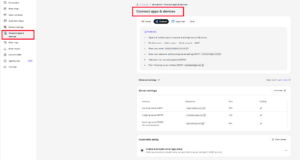
Expand the sections below for the next step, according to where your domain is pointing:
Hostinger Nameservers
If your domain is pointing to Hostinger nameservers, click on Advanced Settings and Automatic setup:
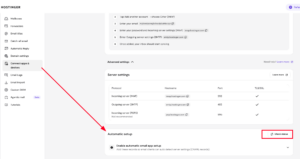
This action will automatically add the required records to your domain’s DNS zone
Other Nameservers
If your domain is using other nameservers, scroll down to the Advanced Settings and Automatic setup option to find the CNAME records:
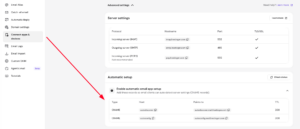
Then, add the provided CNAME records to your domain’s DNS zone.
Once the CNAME records are in place and propagation is complete, your email client will start working with your Hostinger Email. You can find detailed guides for each email client here:
If you are using any other device type or email clients, you can set them up manually 💡