Generally, if you want to change the domain contact details, you should go to Domains → Domain portfolio, click on Manage next to the domain in question, and open the Domain ownership tab.
However, if you try to update the domain owner’s (registrant) contact details for an .es domain, you’ll notice that the Change contacts option is disabled in hPanel:
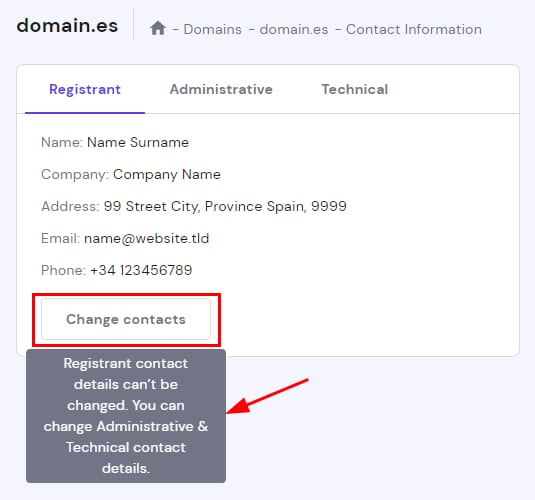
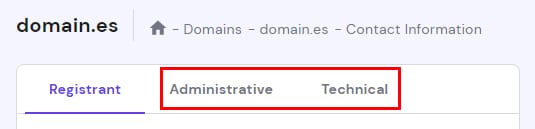
This is because ESNIC — the authority of all .es domains — requires that any changes to the domain’s owner contact details are made directly on their platform. However, you can still make changes to the administrative or technical contact information on your panel:
To change the registrant contact details, follow the steps below 👇
Step 1 — Create the new contact detail profile
Choose the type of contact details that can be changed:
-
Administrative – main manager of the domain.
-
Technical – webmaster or IT department.
NOTE: This step is important to retrieve the ESNIC handle you would need to use for the registrant change. The ESNIC handle needs to be created from Hostinger.
Please refrain from using the ESNIC handle generated outside of Hostinger.
Click on Change contacts, and select Create new profile:
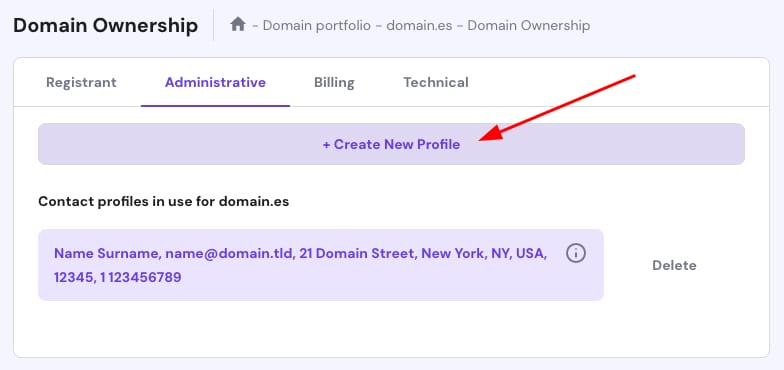
Fill in all the details and click on Create profile:
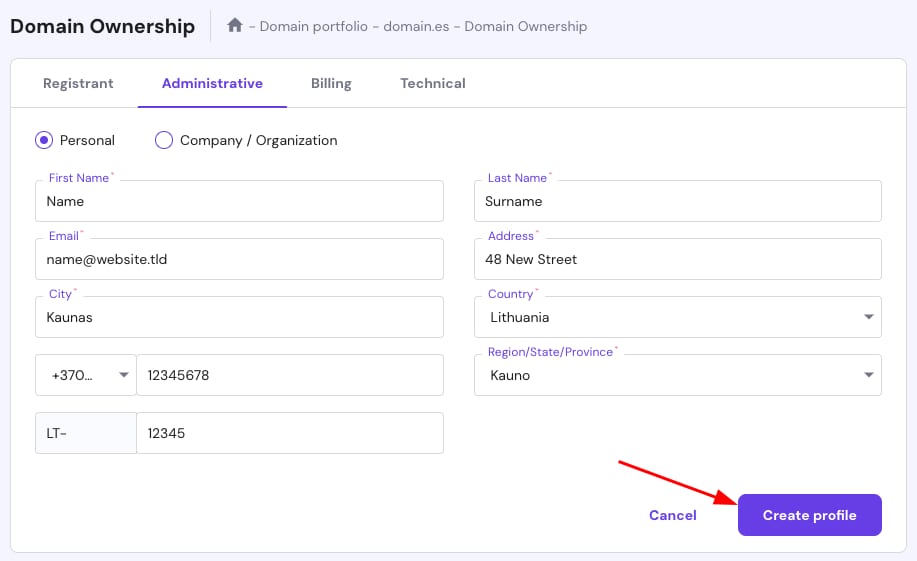
Once you have updated your contact details, please reach out to our Customer Success team, and we will assist you in generating the ESNIC handle.
Step 2 – Access your nic.es account
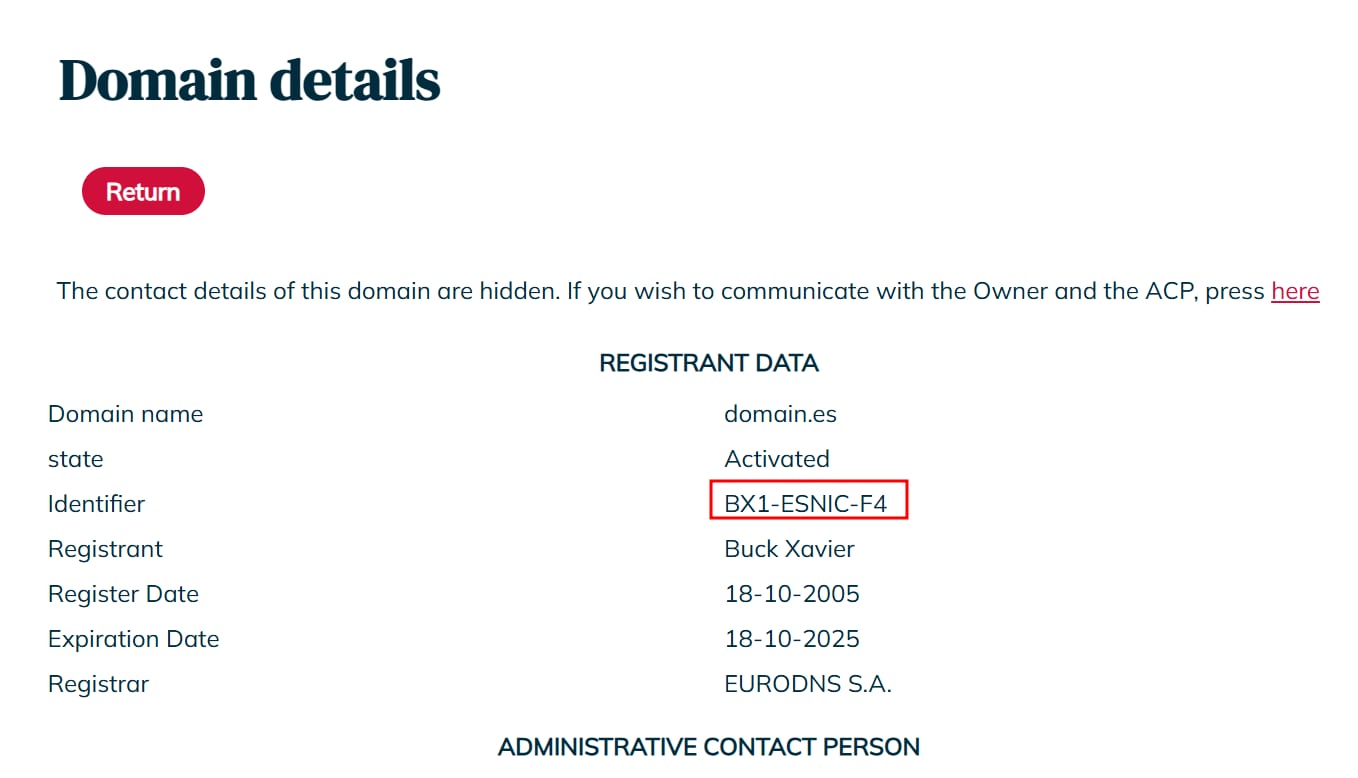
Log into your nic.es account using your NIC identifier and password. To find your NIC identifier, search for your domain name on dominios.es. The identifier is shown under your registrant data:
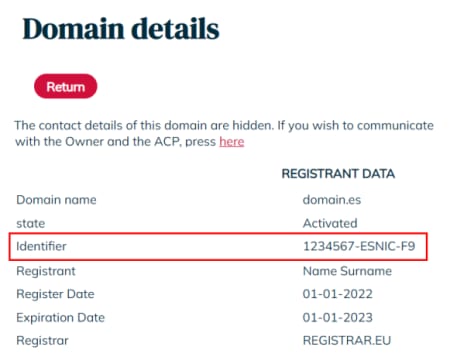
If you don’t have a password, click on Retrieve password.
Step 3 – Change the domain’s contact details
Head to the Domain Transfer Request section and enter your domain name:
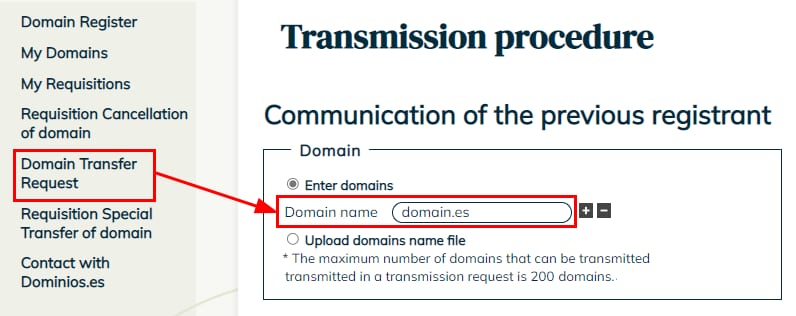
Scroll down to fill in the new domain registrant’s details (ACP) by inserting the NIC identifiers (ESNIC handle) that have been provided/generated previously by the Hostinger agent; do not use NIC identifiers created somewhere else. Both identifiers can be the same in the case of persons. The ACP contact must not be a corporation:
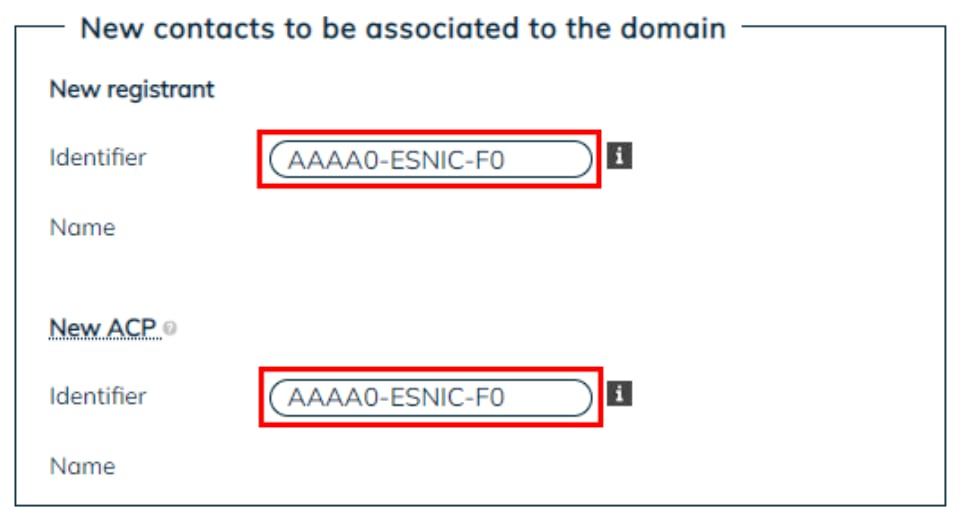
Next, sign the application using an electronic DNI/certificate or by uploading a photocopy of the national identity or certifying document. Once done, click on Continue:
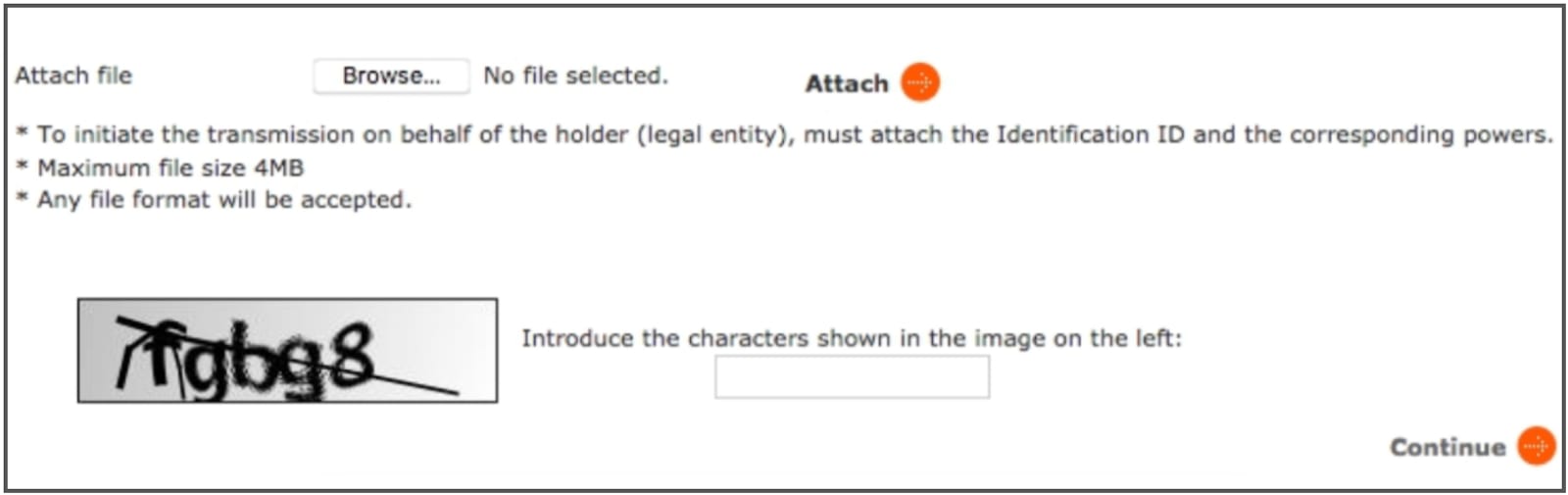
The maximum file size allowed is 4 MB. If you have issues attaching it, try resizing it until it is uploaded correctly.
Step 4 – Confirm the request
If the current domain owner doesn’t verify the request within 10 days, it’s automatically canceled 💡
An email is sent to the new owner and administrative contact to confirm the request.
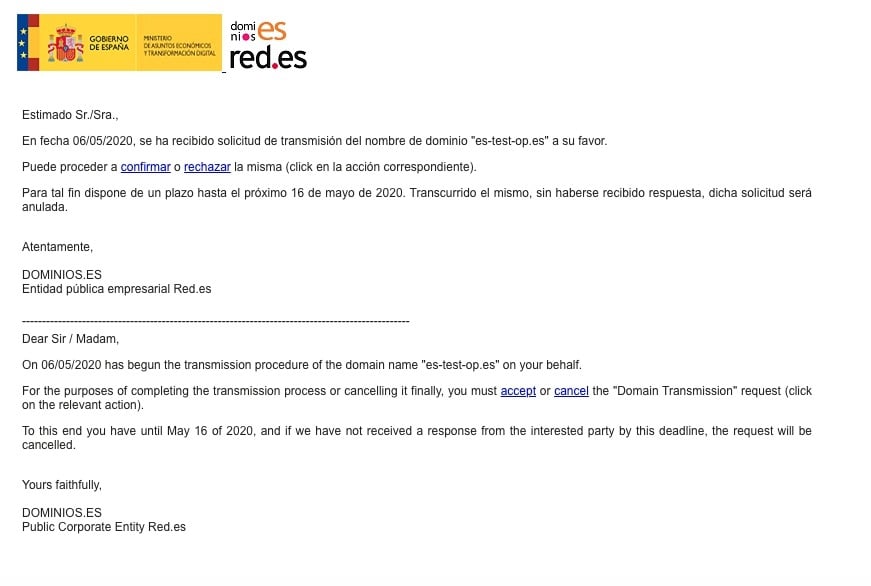
Make sure to keep logging in to your nic ES account and perform the following actions:
-
Accept the transmission process – click on Yes.
-
Confirm the domain’s data – you’ll see an option to change the registrar. Make sure to indicate REGISTRAR.EU (our vendor code at nic.es) as the accredited registrar:

-
Sign the transmission agreement – use an electronic DNI/certificate or upload a photocopy of the national identity or certifying document.
It’s very important that you select Registrar.eu as the accredited registrar. Otherwise, your domain will be transferred out from Hostinger to the registry management directly 💡
After receiving confirmation that the action was successful and is pending review.
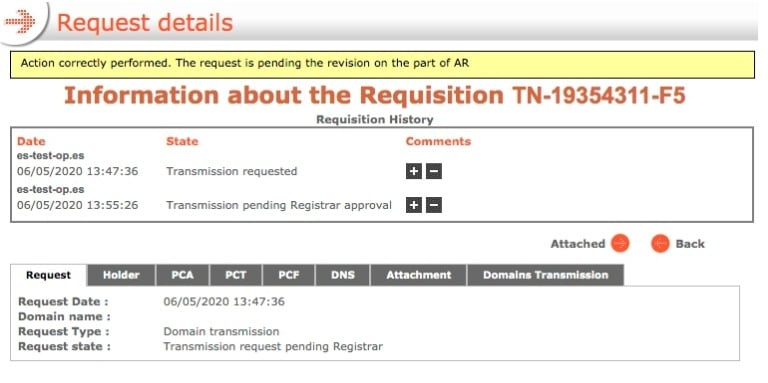
Step 5 – Request for profile synchronization
If the ownership change is not approved within 10 days, the domain will be automatically transferred to the registry.
Finally, nic.es will review and verify the request. If everything is correct, it will be accepted. The process typically takes 5–7 days.
After a successful trade, the registrant information will be updated in Dominio.es and the Registrant Data Identifier reflects the new ESNIC handle: