You can use the Account Sharing tool to request access to another person’s account without the need to share credentials, so you can manage their services – for example, if you are a developer.
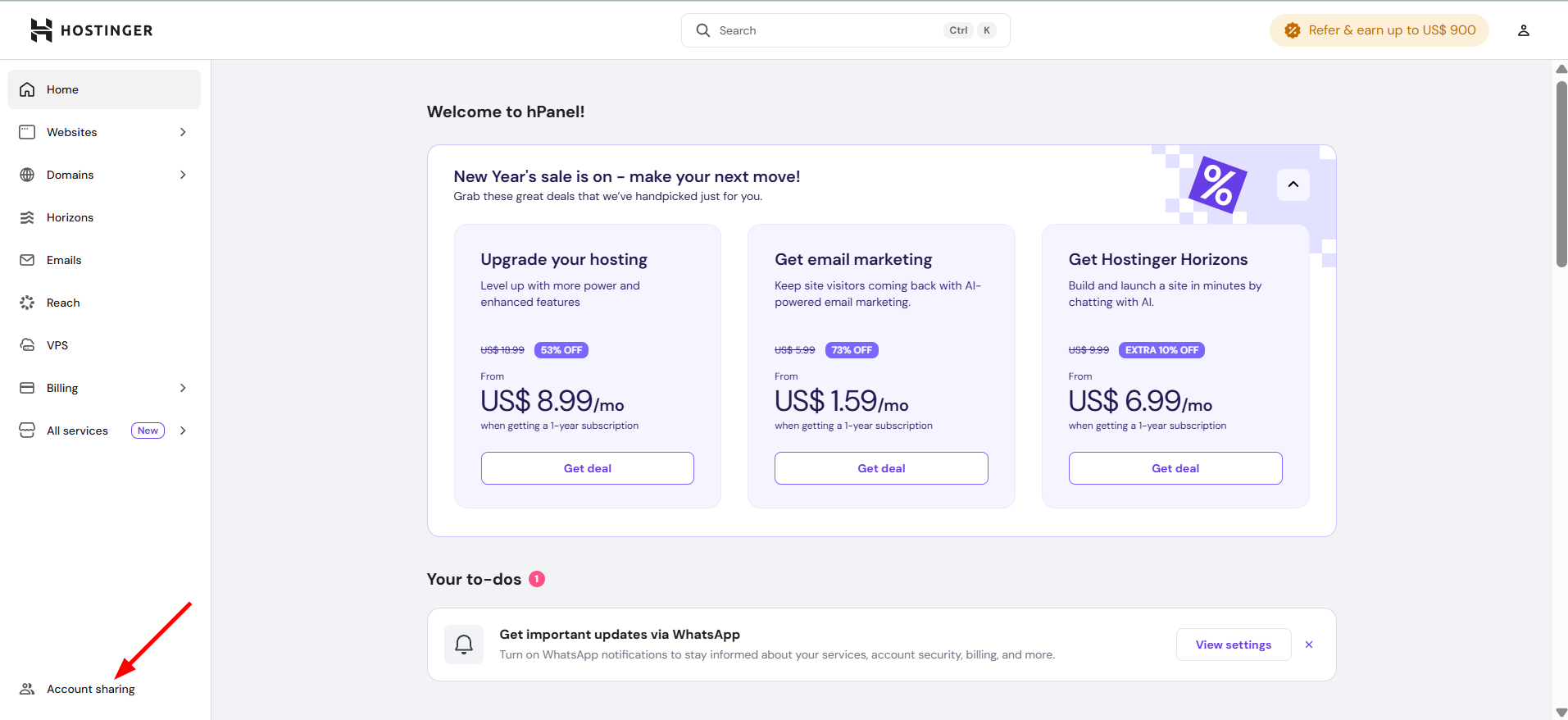
To request access, click on the Account Sharing in the left-bottom of the home page:
Next, select the Request access tab and click on the Request access button:
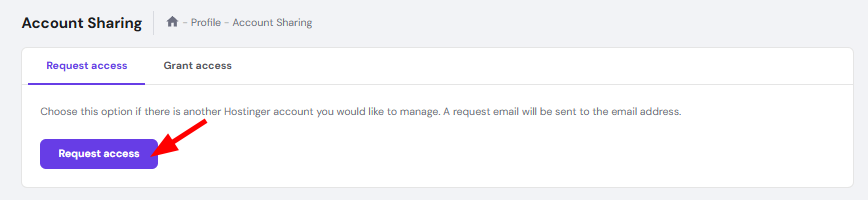
There, you will need to insert the email address of the account you want to request access to and choose the access level. After this, the account owner will receive a notification and have the option to authorize the request.
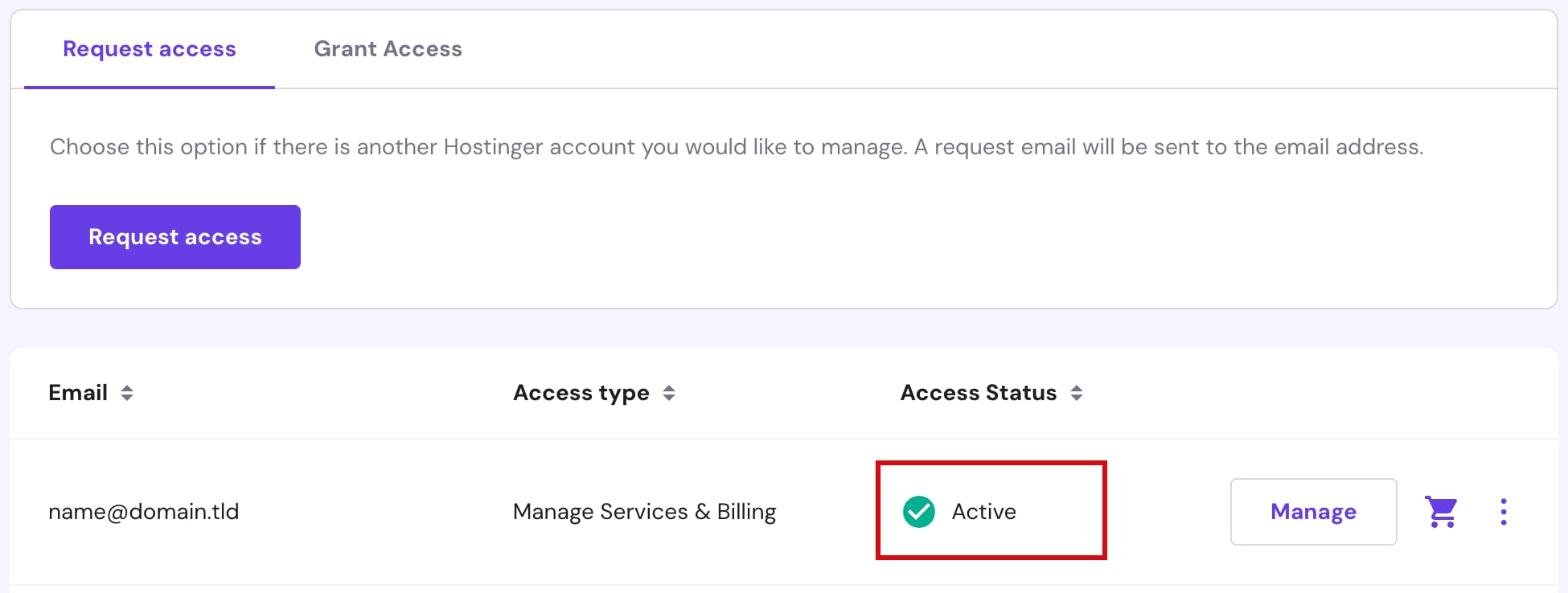
Once the account owner approves the request and grants you access, the requested account’s email address will appear in the Account Sharing section of your Hostinger account with an Active status, and the button to manage their services.
What actions can the user with granted access perform on the account?
There are two Access Level options:
-
Collaborator – as a user with granted access, you will be able to make changes to the managed account, such as modify files and websites, manage VPS, if any, and change other hosting-related settings
-
Admin – as a person with granted access with this level, in addition, you will be able to purchase new hosting plans or domains with an already added payment method
What you cannot do in the managed account:
-
Manage or add payment methods to your account
-
Invite others to access the account
-
View or change profile information (for example, change email, name, phone, address, and password)
-
Do the following tasks with domains: transfer or unlock domains, change domain’s contact details, manage auto-renewals, sell domains in the aftermarket, respond to a domain buying service, or manage backorders
-
Add websites
- Set up new hosting or email plans
- Claim a free domain and a free email
- Create separate access for free email plans. It is now only possible for paid email plans.
-
Delete the account
How to manage shared access
To access the account you have been granted access to from your panel, go to your Home page and click on Manage next to the account:
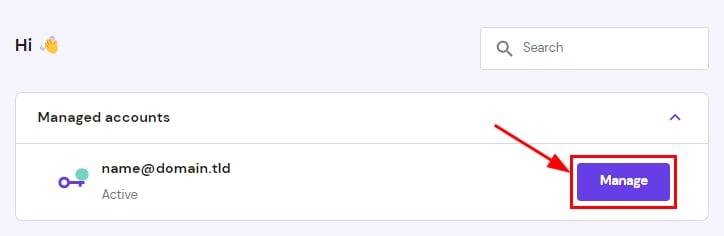
You will enter the Impersonate mode, where you will be able to manage the shared services. When done, to go back to managing your own account, click the Exit button on the top banner.
To check the current accounts you have been granted access to, go to the Account Sharing → Request access tab, where the email addresses, access type, and status will be listed.
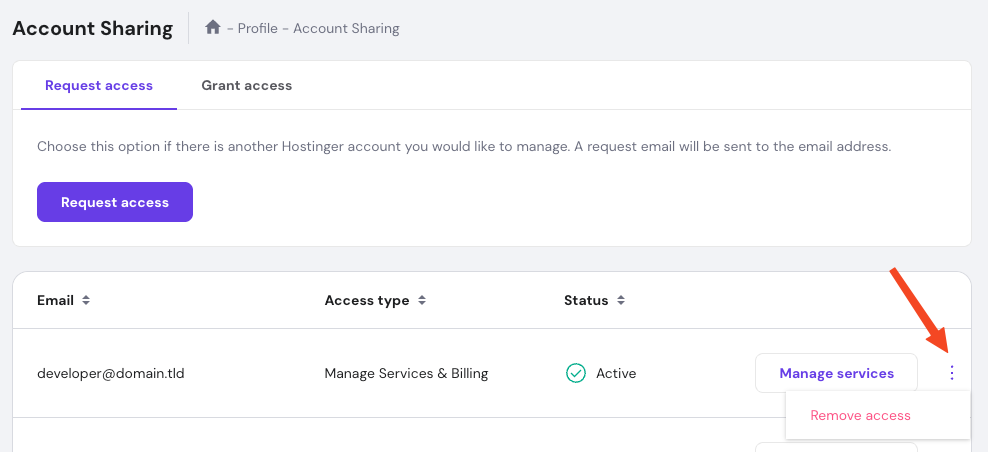
If you no longer want to have access to an account, click on ⋮ → Remove access.