One of the most exciting aspects of having your own Minecraft server is the ability to optimize it further from what a Vanilla Minecraft version can offer, for instance, by using plugins.
Plugins are easier to install than mods, as they only need to be installed on the server, while mods need to be installed on both the server and the Minecraft client.
How to Install Minecraft Plugins Automatically
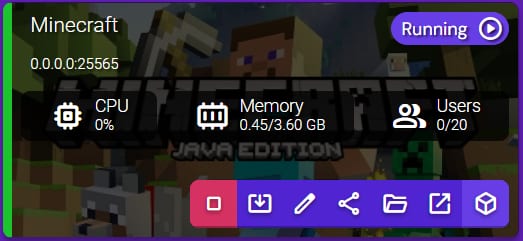
Set up your Minecraft server, making sure to choose Java Edition. Once that’s done, click on the Manage button for your Minecraft server instance:
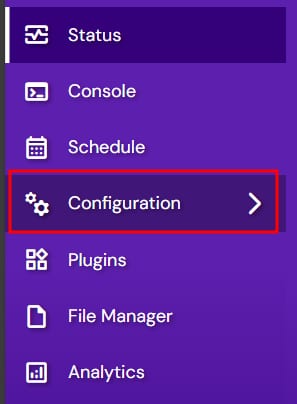
Select Configuration from the left side menu:
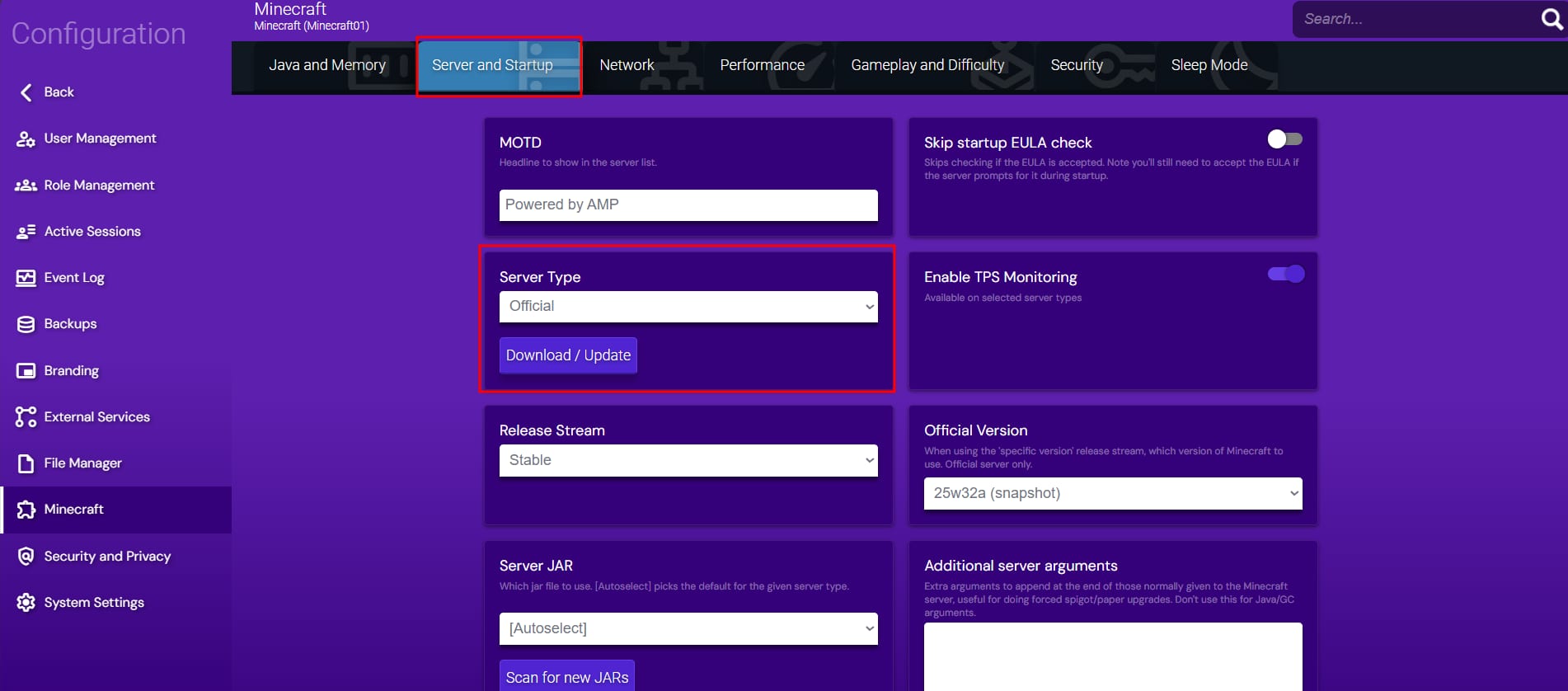
Next, navigate to Minecraft → Server and Startup → Server type, where you will be able to choose from a variety of custom server types:
In order to install plugins, you will need to choose one of the following:
|
Server Type |
Features |
|
CraftBukkit |
CraftBukkit is a modified version of the vanilla Minecraft server that includes the Bukkit API. The Bukkit API is a set of tools that allow developers to create plugins that interact with the Minecraft server. |
|
Spigot |
Spigot is derived from the CraftBukkit project and is designed to be more lightweight while being able to handle more players and more plugins. It includes the Bukkit API, so it can be used to create plugins that interact with the Minecraft server. |
|
PaperMC* |
High-performance fork of the Spigot Minecraft Server designed to fix gameplay and mechanics inconsistencies. It also includes a number of additional features and optimizations that can improve the performance and stability of your Minecraft server. |
* Recommended for users who want the best performance for their Minecraft server without sacrificing features.
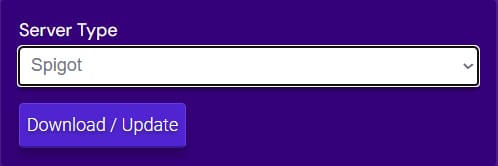
After selecting your preferred server type, click on the Download/Update button, and the download will start:
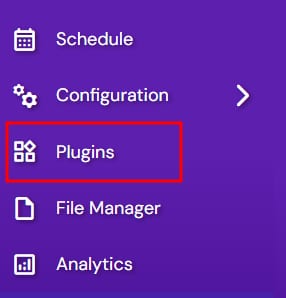
Once the download is completed, your server is ready for plugin installation. Navigate back to your Instance section and select Plugins:
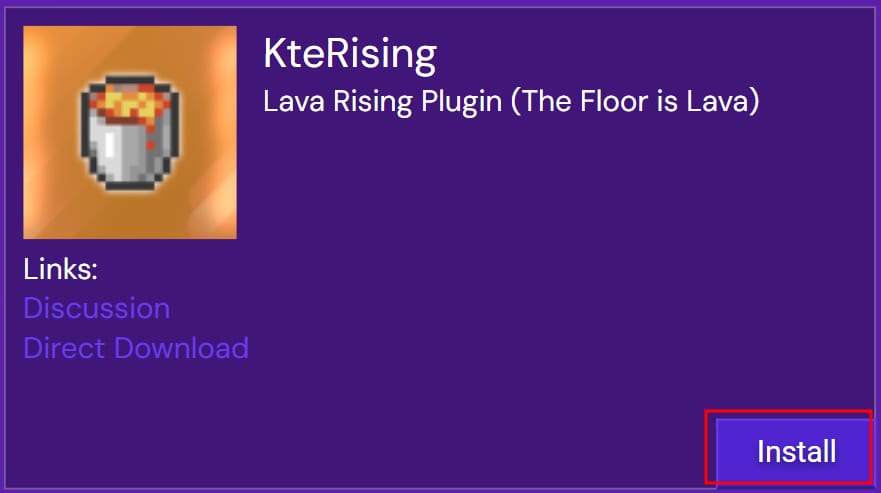
Now, select a plugin and click on Install:
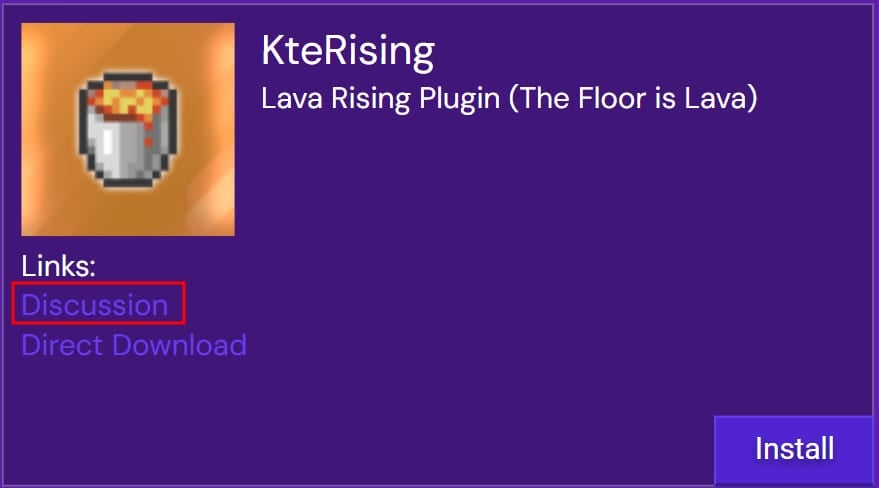
If you want more information about a plugin, click on the Discussion button:
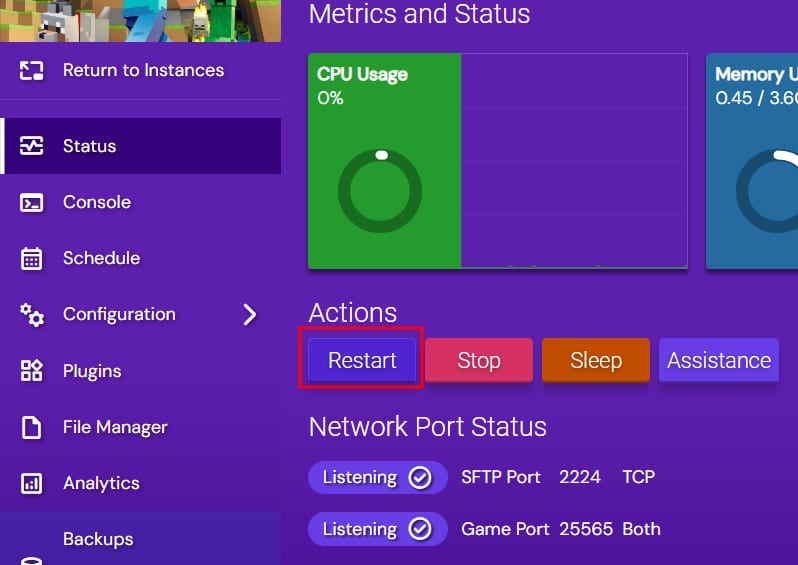
Once you have installed the plugins, you need to Restart your server to load them and their configuration:
How to install plugins manually
If your preferred plugin is missing from the automatic plugin list, you can install it manually.
First, download the actual plugin from the official plugin page. Once you have downloaded the plugin’s .jar file, open the File Manager and find the plugins folder. Double-click to open it:

Next, drag and drop to upload the plugin from your computer to the server instance. When the upload is completed, restart your server.
How to Check if Plugins Are Working
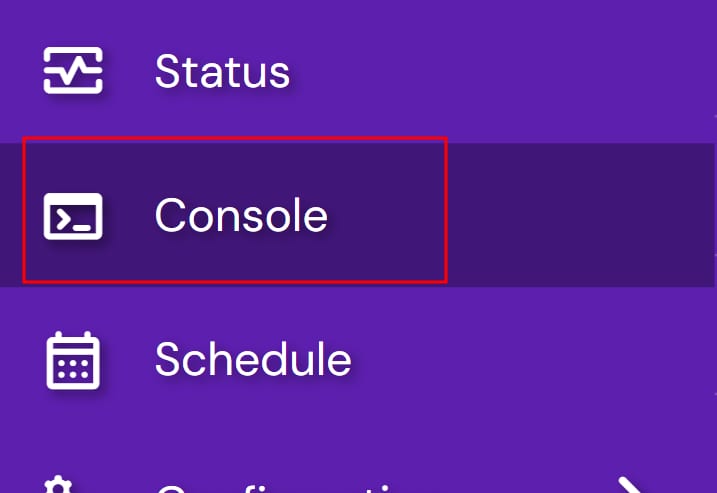
After restarting your server, open your Server console:
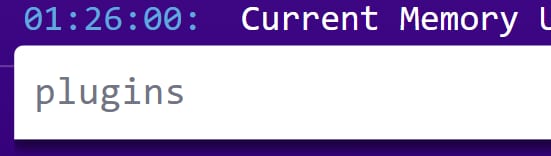
And enter plugins:
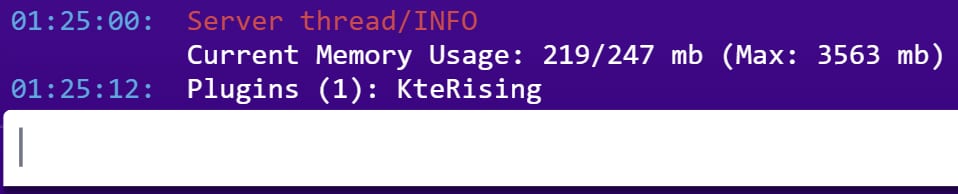
This will display a list of the plugins currently running on your server.:
This command also works while logged in to the server. However, you should use a slash in front of the command while in-game: /plugins
Whether you use the manual or automatic method, your plugins will be stored in the plugins folder.
Recommended Plugins
Here are some recommendations for plugins you can install on your Minecraft server to enhance your gaming experience:
-
AuthMeReloaded – This plugin is only required when playing in Offline mode. It prevents username stealing within your server
-
ViaVersion – Allows users with older versions of Minecraft to join your server
-
WorldEdit – Simplify and automate several of the tasks involved in building and editing Minecraft worlds.
-
AntiCheatReloaded – Helps server admins combat the use of hacked clients and spambots. It analyzes the behavior of players and can prevent malicious gameplay
-
Set Homes – A lightweight plugin that allows you to set and teleport to custom home locations in Minecraft by using the
/homecommand