You can update the contact details of your domain registration at any time. Keeping this information accurate ensures you maintain ownership control and receive critical registry notifications.
Before you start
- Ensure you have access to the currently registered email address and that the new owner’s email address (if it is being updated) is valid and accessible.
- When you update your domain contact details, the domain cannot be transferred to another provider for 60 days. This is a standard registry security rule to protect your domain name from unauthorized transfers.
Step 1 – Update Hostinger domain contact details
- Go to hPanel → Domains.
- Click on Manage next to the domain you want to update.

- Open the Domain Ownership tab on the sidebar.
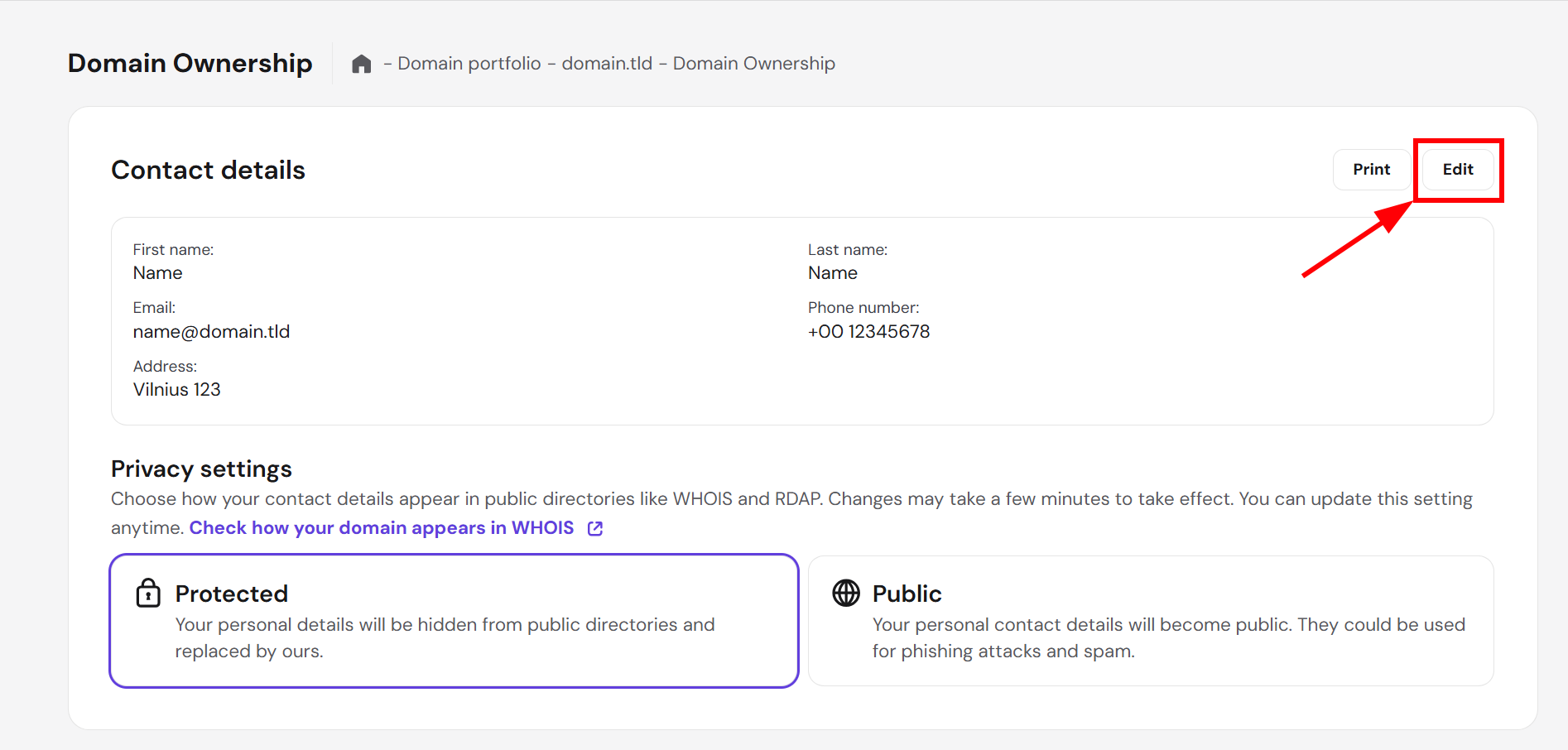
- The Domain Ownership page will display the current domain’s ownership information. Click Edit next to Contact details.
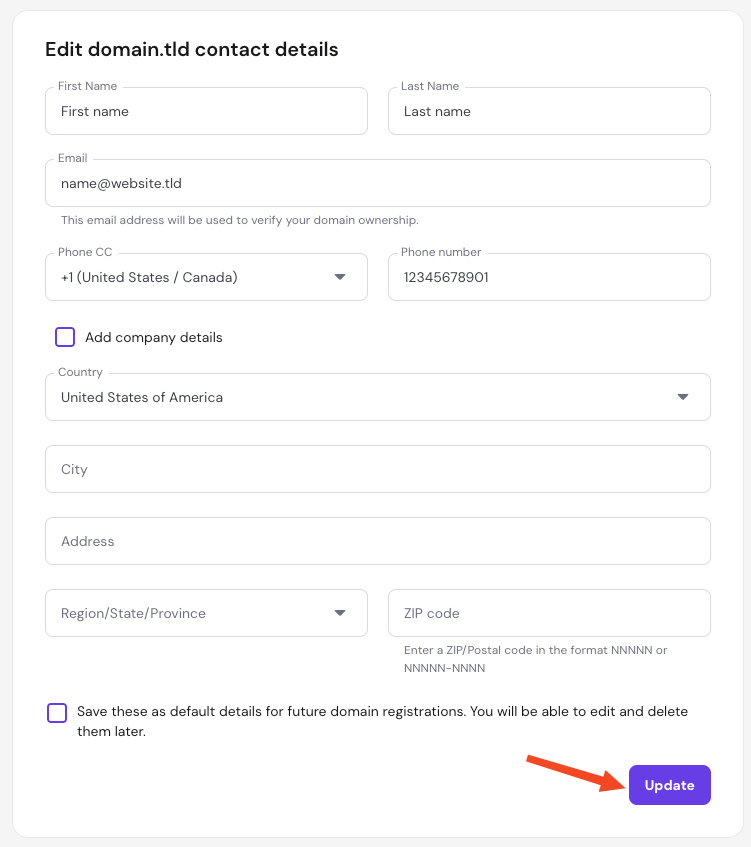
- Fill in the required information. Carefully double-check for any typos, especially in critical fields like the email address and phone number. Optionally, you can set the new details as default for future domain registrations.
- Once completed, click on Update.
Step 2 – Confirm the contact detail changes
The change is not complete until it is confirmed via email.
- Open the inbox of the email address specified for your domain profile.
- Look for a message sent from an official Hostinger address, such as
@user.hostinger.com- The message may take up to 15 minutes to arrive.
- Check your spam folder if the confirmation message does not arrive in your main inbox.
- Click the Accept button inside the email message to finalize the update.
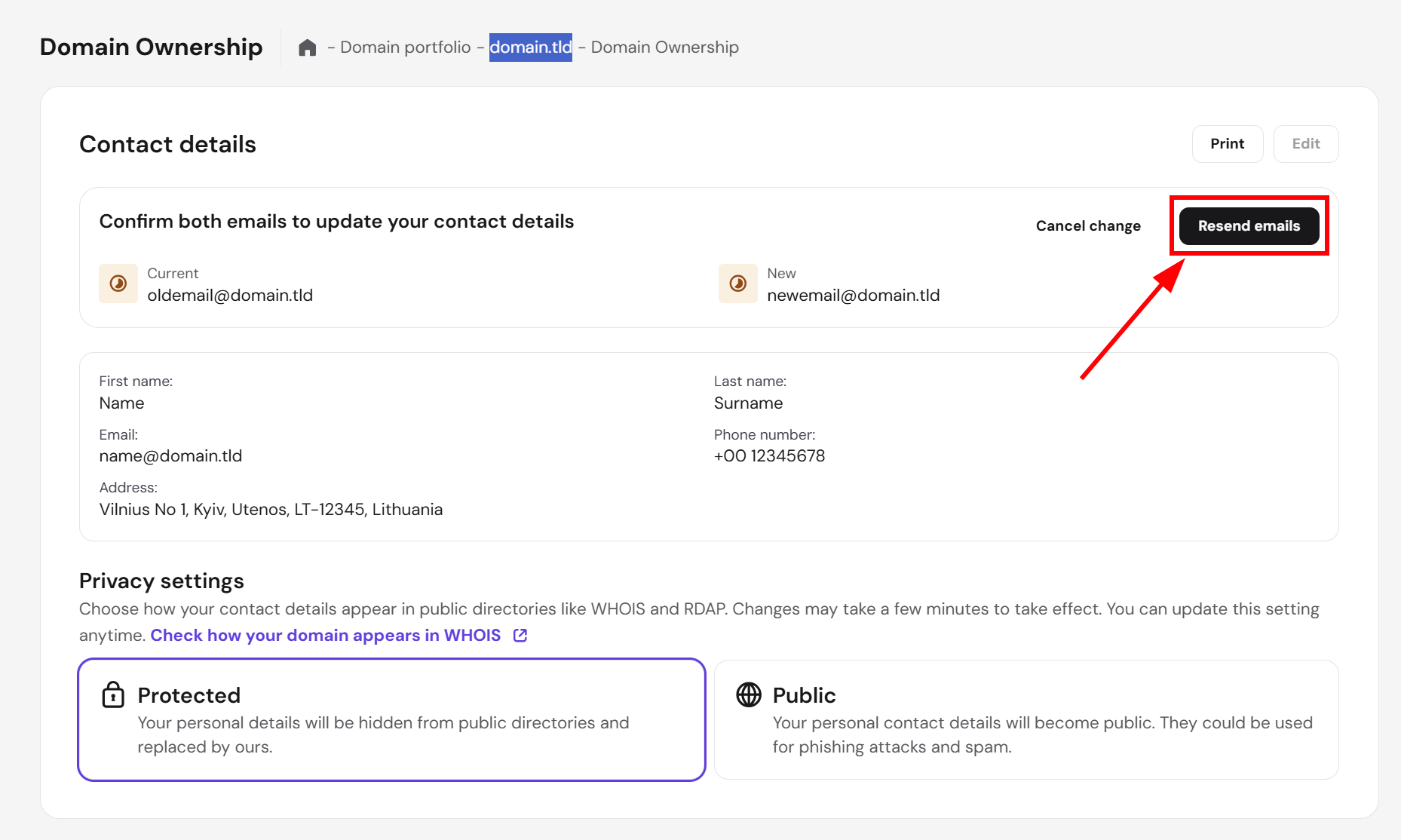
If you are updating the email address itself, the confirmation message is sent to both the current and the new addresses. Both must approve the modification.
Once you approve the changes, the new details will successfully save to your domain profile.
NOTE
- If domain privacy is disabled, it may take up to 24 hours for the updated details to become visible on public WHOIS lookups.
Troubleshoot contact detail confirmation issues
If you do not receive the confirmation email or cannot access the required mailbox, follow these steps to resolve the issue.
Confirmation email did not arrive
- Check alternative folders: Check your spam, junk, and promotional folders.
- Resend the confirmation email: Navigate back to the Domain Ownership tab in your hPanel and select Resend email.
- Verify spelling: Review the submitted contact profile for typos in the email address.
- In rare cases, your inbox provider may be rejecting the incoming message. If the confirmation email still does not arrive after checking your spelling and retrying, follow the next step to update the profile to a different mailbox.
Registered email address is inaccessible
- Update to an active email address: If you cannot access the current email account, create a new contact profile with an active, accessible email address.
- Complete the new confirmation: Ensure you confirm the new email address, even if the old mailbox remains inaccessible.
- If your domain was registered less than 7 days ago using incorrect details: You do not need access to the original email to change it in the first domain registration. A phone verification option will be provided instead. This alternative is not available for subsequent contact detail changes.
- If your domain was registered more than 7 days ago: The phone verification alternative is not available. Confirm the new email address first, then contact Hostinger support. We will help you safely complete the process.