Google Analytics is a great analytical tool available to track your website’s activity and your visitors. It’s completely free and very easy to set up.
1. Go to the Google Analytics page and create an account:

2. Google will require basic information about your website or your business. Once you have finished the sign-up process, you will be redirected to your account. Click on Data Streams and choose your desired data stream, for this article we will use Web:

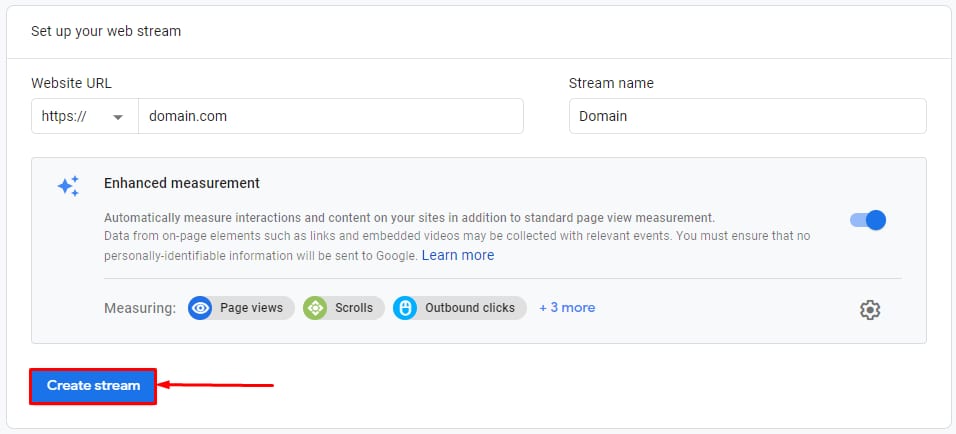
3. Fill in all the necessary fields and click on Create stream:
4. On this step, Google gives you the Global Site Tag, which is a code that will run the tracking process. You will need to copy this code:
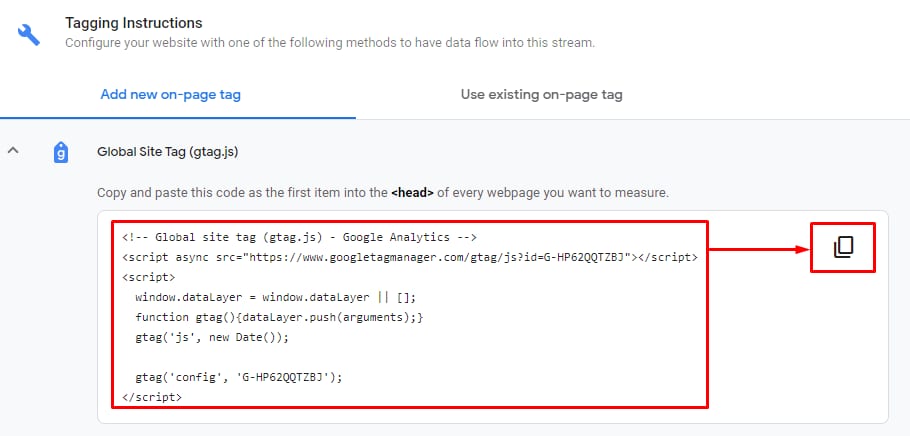
5. Now the last step is to insert this Global Site Tag code into the <head> of every page on your website.
If you’re not sure how to add the code to your website, you can check these tutorials for sone popular platforms:
NOTES
-
After setting Google Analytics on your website, it usually takes up to 48 hours to show your website traffic. Your data will appear as soon as the tracking process is initiated
-
You can also check this video tutorial: