You can easily export a database from your Hostinger cPanel hosting plan by following these steps:
-
Open your database using phpMyAdmin
-
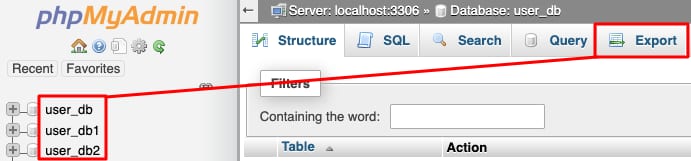
Select your desired database and click the Export button:

-
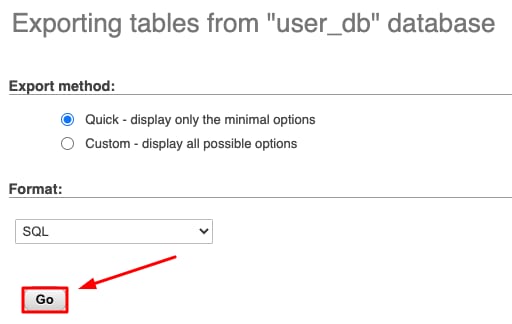
To export your database using the SQL file format – the most common to move databases, click on Go:

-
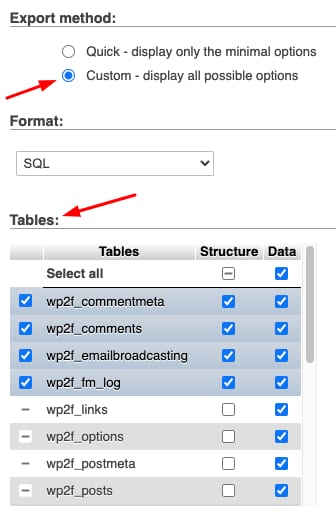
For special requirements, such as a different file format or export only some of the tables from your database, select the Custom method and adjust the settings:

That’s it! Once you click Go, you will get a copy of your database on your local device.