You can easily export a database from your custom PHP or HTML websites hosted on Hostinger web, cloud, or agency hosting plans. This process is useful when you need to back up your data locally or move your website.
Before you start
This guide applies to databases associated with custom PHP or HTML websites on web, cloud, and agency hosting plans.
- Hostinger Website Builder does not support databases.
- Hostinger Horizons does not use phpMyAdmin; it utilizes an integrated backend instead.
Step 1 – Open the database in phpMyAdmin
- Go to hPanel Websites and click on Dashboard next to the website.
- On the side menu, select Databases → Management.
- Click on Enter phpMyAdmin.
For additional methods to reach phpMyAdmin, refer to this guide: How to access phpMyAdmin.
Step 2 – Initiate the export
- Click the Export button on the phpMyAdmin top bar.

- To export your database in SQL file format, which is the standard format for moving databases, scroll down and click Go.
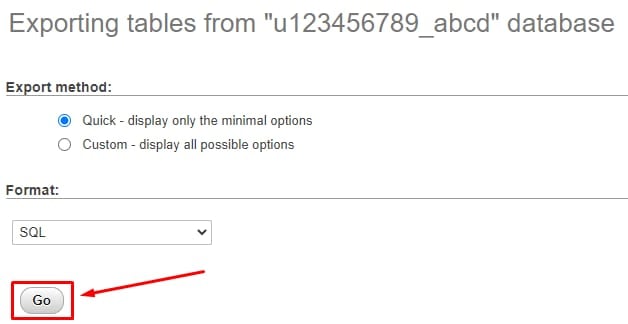
-
If you have specific requirements, such as a different file format or exporting only selected tables, select the Custom export method, adjust the settings, and click Go.
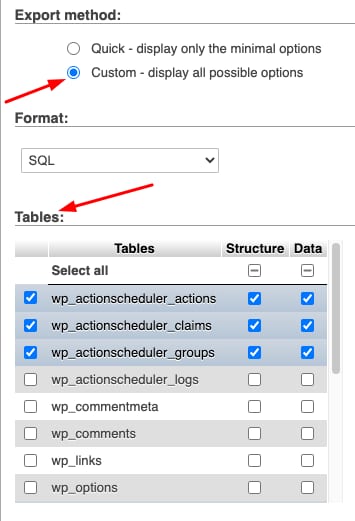
- A copy of your database will download to your local device automatically.
NOTE
- If you encounter issues using phpMyAdmin, you can try exporting your database via SSH.